

Orders
The Admin Orders section is the master view of every order ever placed on the platform, online, POS, imported, and back-office. It’s a superset of the POS Orders tab, and it opens on a Dashboard by default that gives you the shape of your business at a glance.
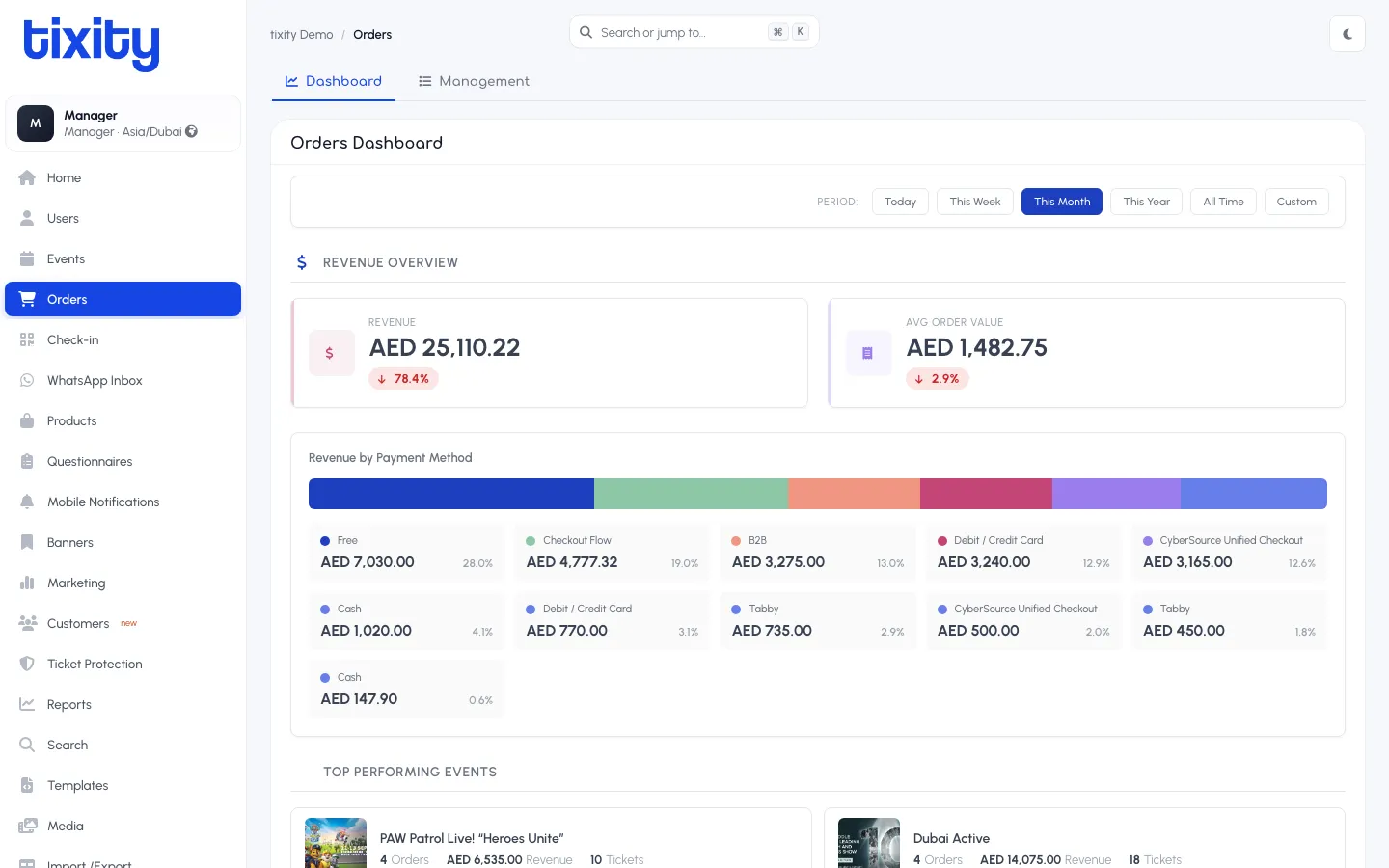
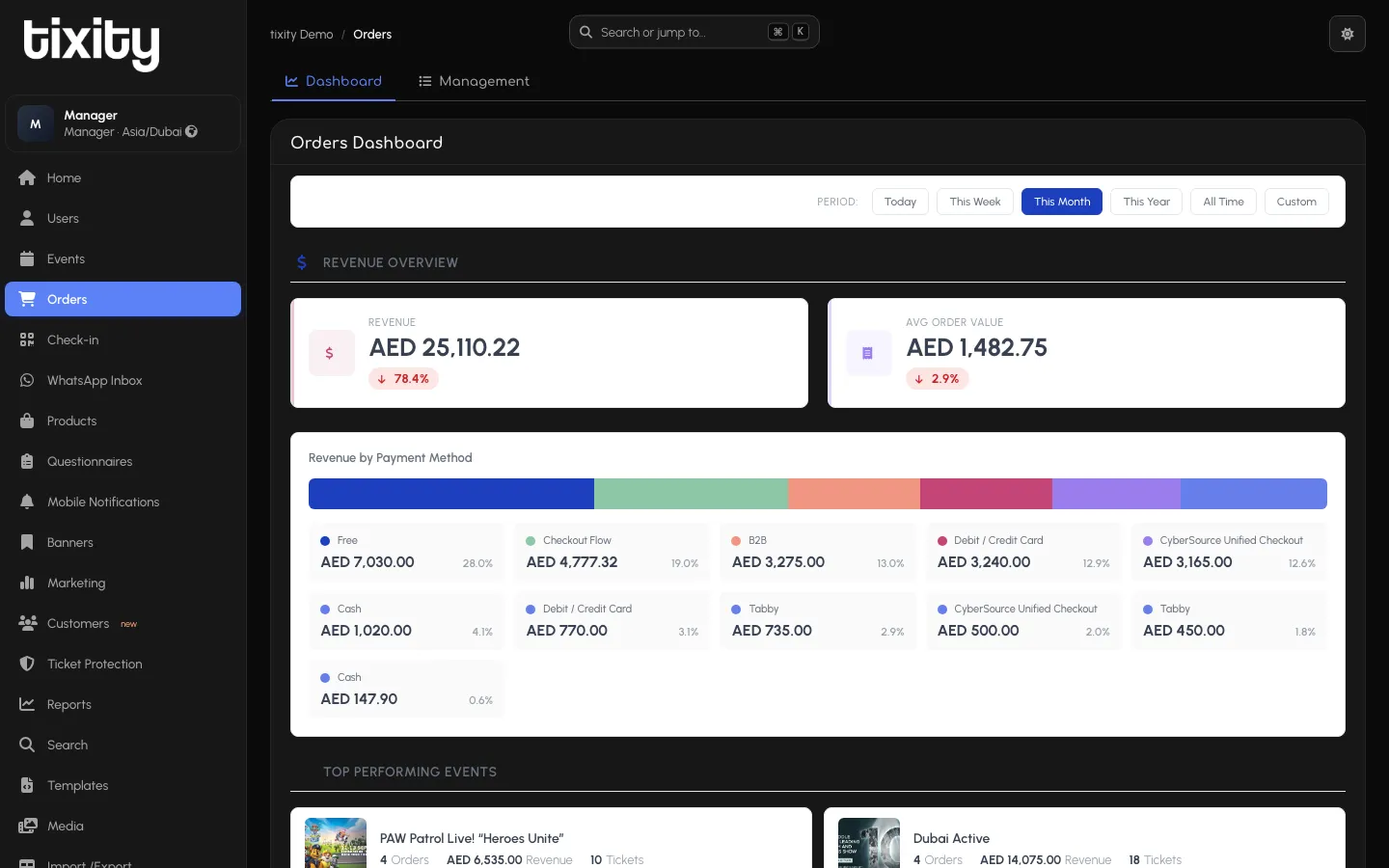
The two tabs
| tab | what it’s for |
|---|---|
| Dashboard | The at-a-glance view: totals, average order value, payment mix, top events |
| Management | The full searchable list of every order, refunds, exchanges, and bulk actions |
Dashboard
Dashboard is the default and answers “how are we doing right now?”
Period pills
Across the top of the Dashboard, six pills switch the range:
- Today — since midnight in your store’s timezone
- This Week — Monday to today
- This Month — 1st to today (default)
- This Year — 1 January to today
- All Time — the entire order history
- Custom — opens a from/to picker
Revenue Overview
Two widgets sit under the pills:
- Revenue — total order revenue for the period, with a percentage change vs the previous period of the same length
- Avg Order Value — total revenue divided by order count, again with a delta
Both use a red/green arrow to signal whether the trend is up or down.
Revenue by Payment Method
A horizontal stacked bar shows the split of revenue across payment methods (Free / Comp, Checkout Flow, B2B, Debit / Credit Card, CyberSource Unified Checkout, Cash, Tabby, and so on) colour-coded so the mix reads at a glance.
Underneath, one card per method lists the exact revenue and the percentage of the total. Handy for reconciling against a gateway statement.
Top Performing Events
Below the payment breakdown, a Top Performing Events grid ranks your events for the selected period by revenue. Each card shows the event’s banner, name, orders, revenue, and tickets, click through to open the Dashboard event page for the full breakdown.
Management
The Management tab is the classic order list, functionally identical to the POS Orders tab but showing every order across every channel. Refunds, exchanges, notes, and the row-action icons all work the same way, see the POS Orders guide for the full walkthrough.
The Admin Management view adds two things the POS doesn’t:
- Payment log — the raw payment gateway response for each transaction on the order (useful for reconciling with a gateway dispute)
- Bulk actions — checkboxes on the list let you refund, resend, or mark-as-paid across multiple orders at once
Bulk resend
The most common bulk action is Resend Tickets after a mail delivery outage:
- In Management, filter by the affected date range and payment status = Paid.
- Select the checkboxes for the rows to resend.
- Choose Resend Tickets from the actions dropdown above the table.
- Confirm.
Each customer gets a fresh ticket email with the same barcodes as the original. Barcodes are not regenerated, existing tickets remain valid.
Exports
The Management tab has an Export button that produces a CSV/Excel of the current filter. For scheduled recurring exports, see Import and Export.
Tip: For a support ticket about a specific order, always include the order ID and a copy of the top of the order detail page. That’s everything support needs to reproduce the state you’re seeing.