

Orders
The Orders tab is your view of every sale placed through this store. Use it to look up a booking, resend a ticket, take a refund, exchange a seat, or convert a reservation into a paid order.
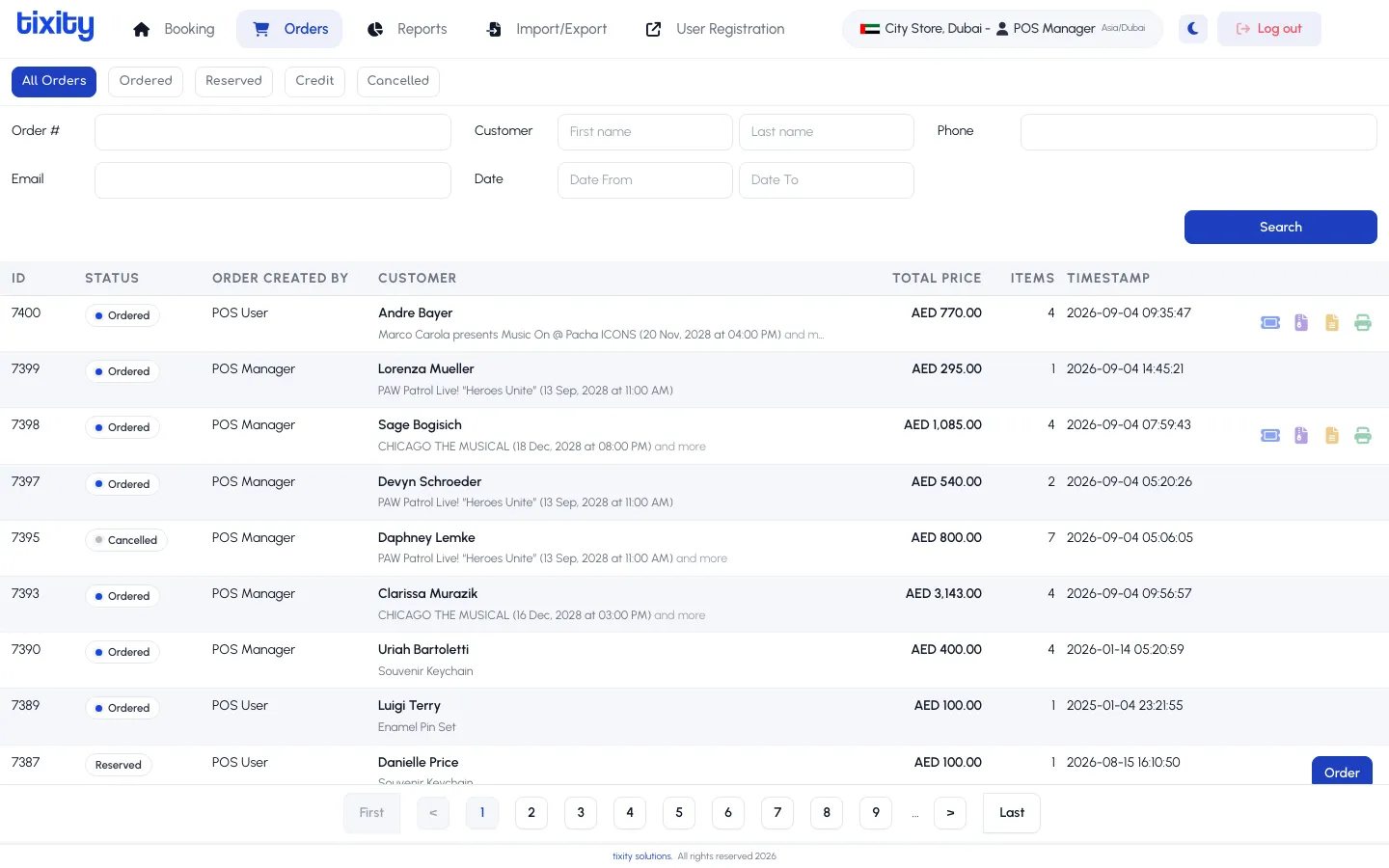
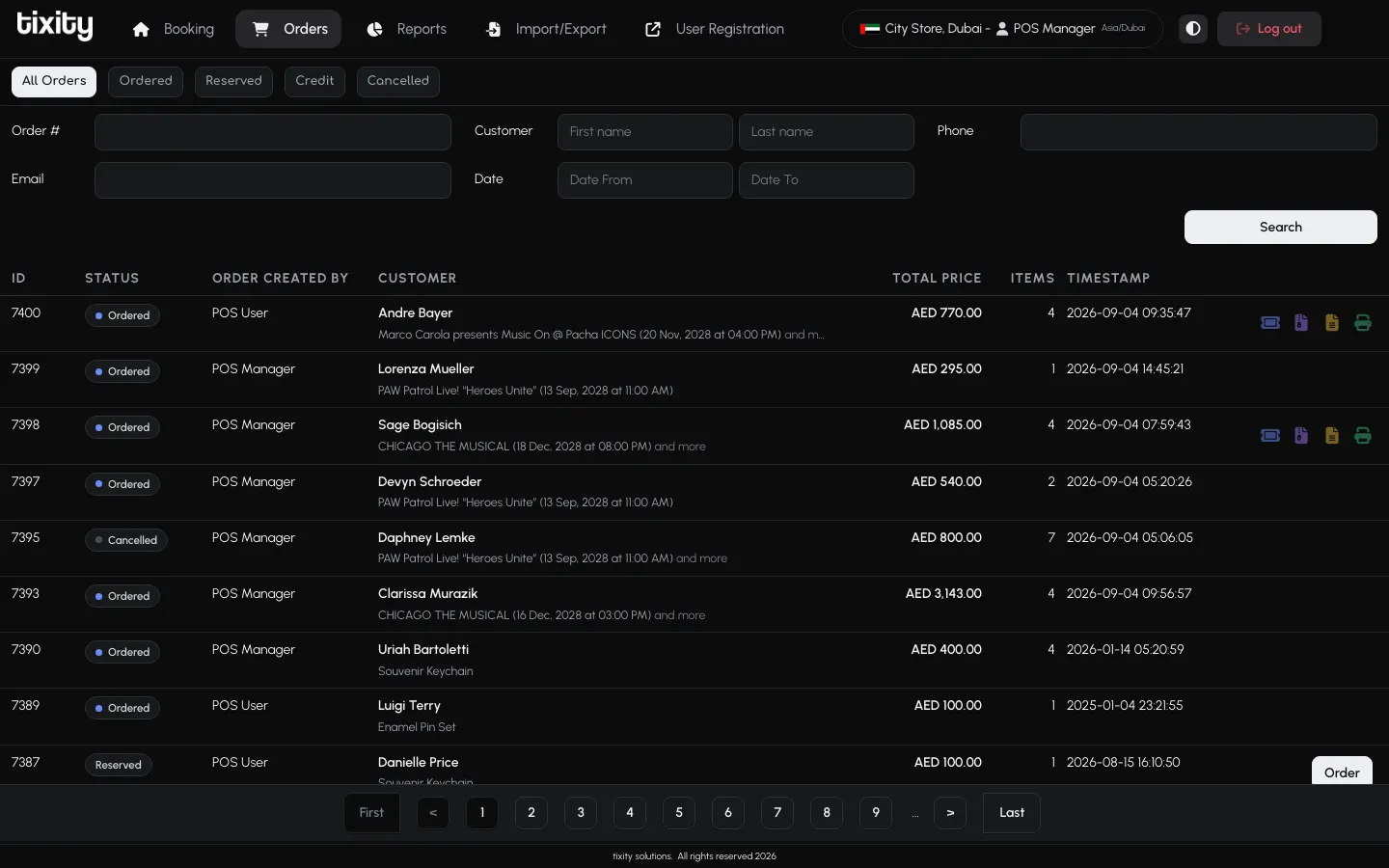
Status pills
Five pills sit at the top of the list. Each is a filter, not a separate page.
| pill | shows |
|---|---|
| All Orders | Everything, regardless of status |
| Ordered | Paid orders that haven’t been cancelled |
| Reserved | Holds and unpaid reservations awaiting conversion |
| Credit | Credit orders, the paper trail generated when a whole order or a single ticket is refunded |
| Cancelled | Orders that have been fully cancelled |
Click a pill to filter. The count and pagination update to match.
Searching
The search row above the table lets you narrow the list without leaving the page.
| field | how it matches |
|---|---|
| Order # | Exact match on the order ID |
| Customer (First name / Last name) | Contains match, case-insensitive |
| Phone, Email | Contains match |
| Date From / Date To | Order creation date range |
Click Search to apply. Clearing every field and clicking Search returns you to the full list.
The order list
Each row is one order.
| column | meaning |
|---|---|
| ID | The order number, click to open the order |
| Status | Order status (Ordered, Reserved, Cancelled, Credit) with a coloured dot |
| Order created by | The operator who placed the sale |
| Customer | Name, plus a second line showing the event, date, and time |
| Total price | The order’s grand total |
| Items | Number of tickets and add-ons |
| Timestamp | When the order was created |
Pagination sits at the bottom (First, previous, page numbers, next, Last). The blue Order button in the bottom-right takes you back to Booking to start a new sale.
Row actions
The four icons on the right of each paid order are the fast path for the most common counter tasks, no need to open the order first.
| icon | action | what it does |
|---|---|---|
| Ticket (blue) | Print tickets | Opens the ticket PDF for every seat in the order, ready for your printer. If the tickets have already been printed once, this icon turns brighter and confirms a reprint before firing, so you don’t hand out the same barcode twice by mistake |
| Archive (purple) | Download tickets | Downloads all of the order’s tickets as a single .zip file, useful when a customer wants them emailed on the spot or forwarded to a group |
| Document (yellow) | Print invoice | Prints the invoice/receipt for the order (no ticket barcodes), what you’d hand over as proof of purchase |
| Printer (green) | Print both | Prints the tickets and the invoice together, the usual choice when you’re closing out a walk-up sale |
Row icons only appear on paid orders. If the order is still Reserved or unpaid, you’ll see a Change to paid button in the same slot instead, use it to mark cash-on-delivery orders as settled. Reserved orders show an Order button that jumps you into the payment flow to convert the hold into a sale.
Credit orders don’t get the Ticket, Archive, or Printer icons since a refund doesn’t produce new tickets. They keep the yellow Document icon so you can still print the credit note for the customer.
The order detail
Click an order ID to open it.
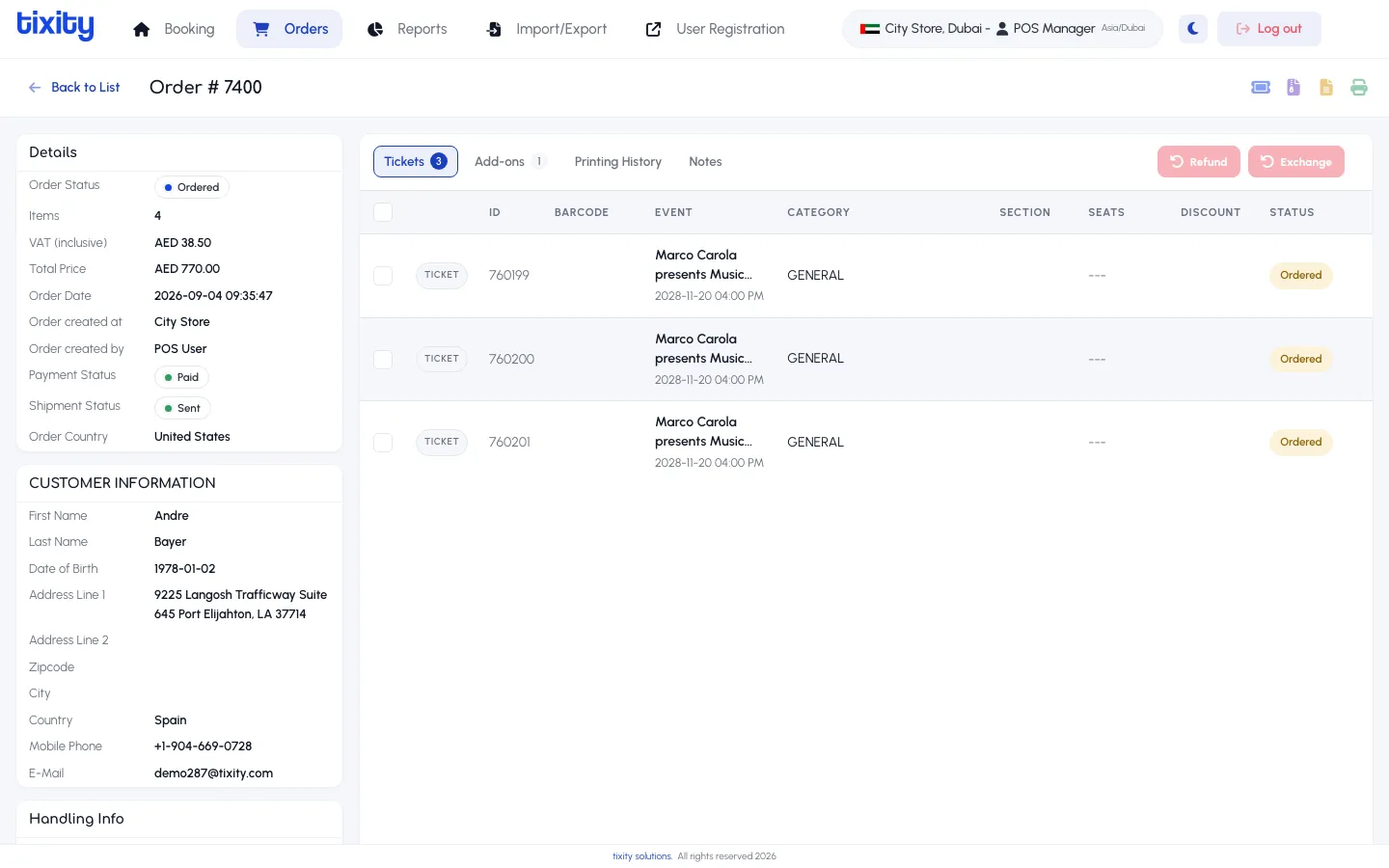
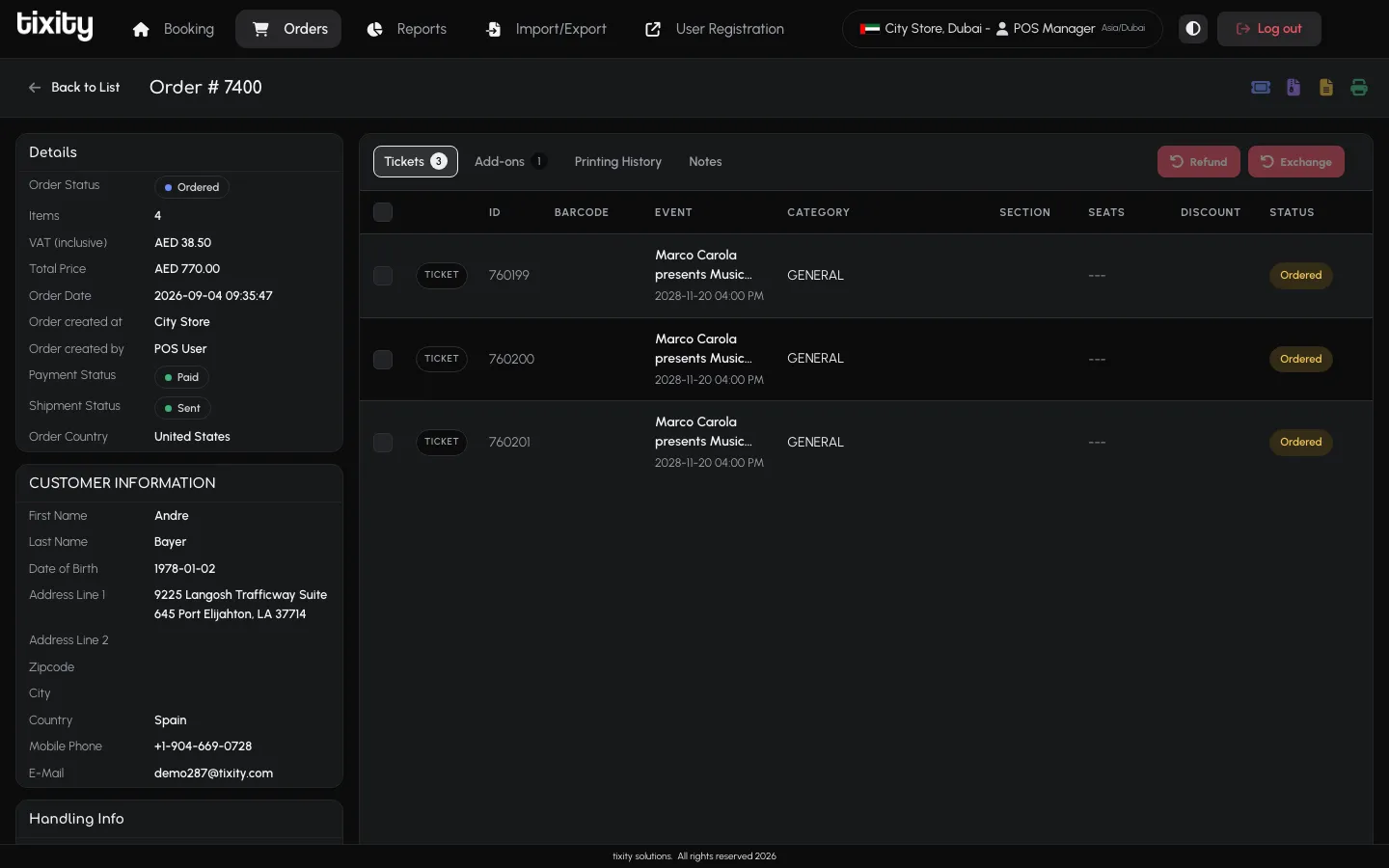
The detail view splits into two columns.
Left column
- Details — status, item count, VAT breakdown, total, order date, the store and operator who created it, payment status, shipment status, order country
- Customer Information — name, DOB, address, phone, email
- Handling Info — delivery method, courier, and any handling fee
Main area
Four tabs across the top:
| tab | contents |
|---|---|
| Tickets | Every ticket in the order with barcode, event, category, section, seat, discount, and status. Tick the checkboxes to act on individual tickets |
| Add-ons | Food, parking, and other extras attached to the order |
| Printing History | Every time a ticket in this order was printed, and by whom |
| Notes | Free-text notes attached to the order. Add a new note with the input at the bottom |
Refund and Exchange buttons sit at the top-right of the ticket table.
Refunds
Refund cancels tickets and returns money.
- Open the order.
- Tick the checkboxes next to the tickets you want to refund. Leaving them empty refunds the whole order.
- Click Refund.
- Pick a reason from the dropdown and confirm.
The refunded tickets move to Cancelled status and the payment is reversed via the original method. At the same time, a matching Credit order is written to the store’s ledger, that’s what you’ll see under the Credit pill. It’s the negative-value twin of the original sale and exists so refunds are always traceable back to the order that caused them.
Exchanges
Exchange swaps a ticket for a different seat in the same event, or a different event of equal value.
- Open the order.
- Tick the ticket you want to exchange.
- Click Exchange.
- Pick the new event, category, and seat through the normal booking flow.
- Choose whether to keep the customer’s add-ons (Include Add-ons) and whether to clear the current cart first (Clear Cart).
- Finalise. The original ticket is voided and the new one is issued to the same customer.
Converting a reservation
A Reserved order is a held ticket awaiting payment. Open it and click Convert to Order to take payment and issue tickets, no need to re-select seats.
Notes
The Notes tab is where operators leave context for the next shift. Use it for anything a future teammate needs to know: a customer has already been refunded once, a wheelchair seat is confirmed, a merchandise pickup is arranged.