

Getting started
Signing in
Open your Admin URL (usually admin.your-organisation.com or the /admin path on your storefront) and enter the credentials issued by tixity or by a Manager on your team. Sessions stay active while the tab is open, closing the tab or clicking Log out in the sidebar ends the session.
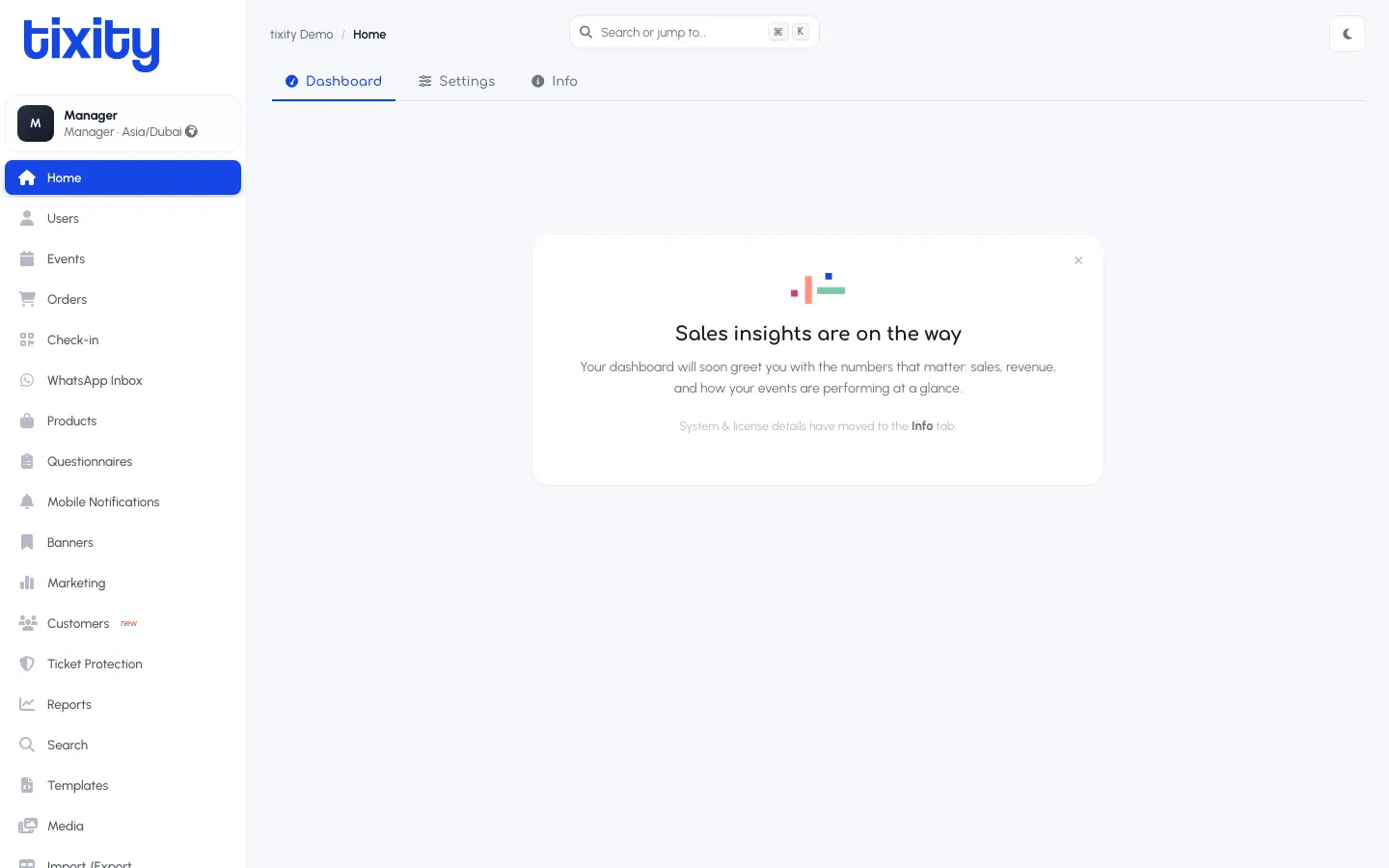
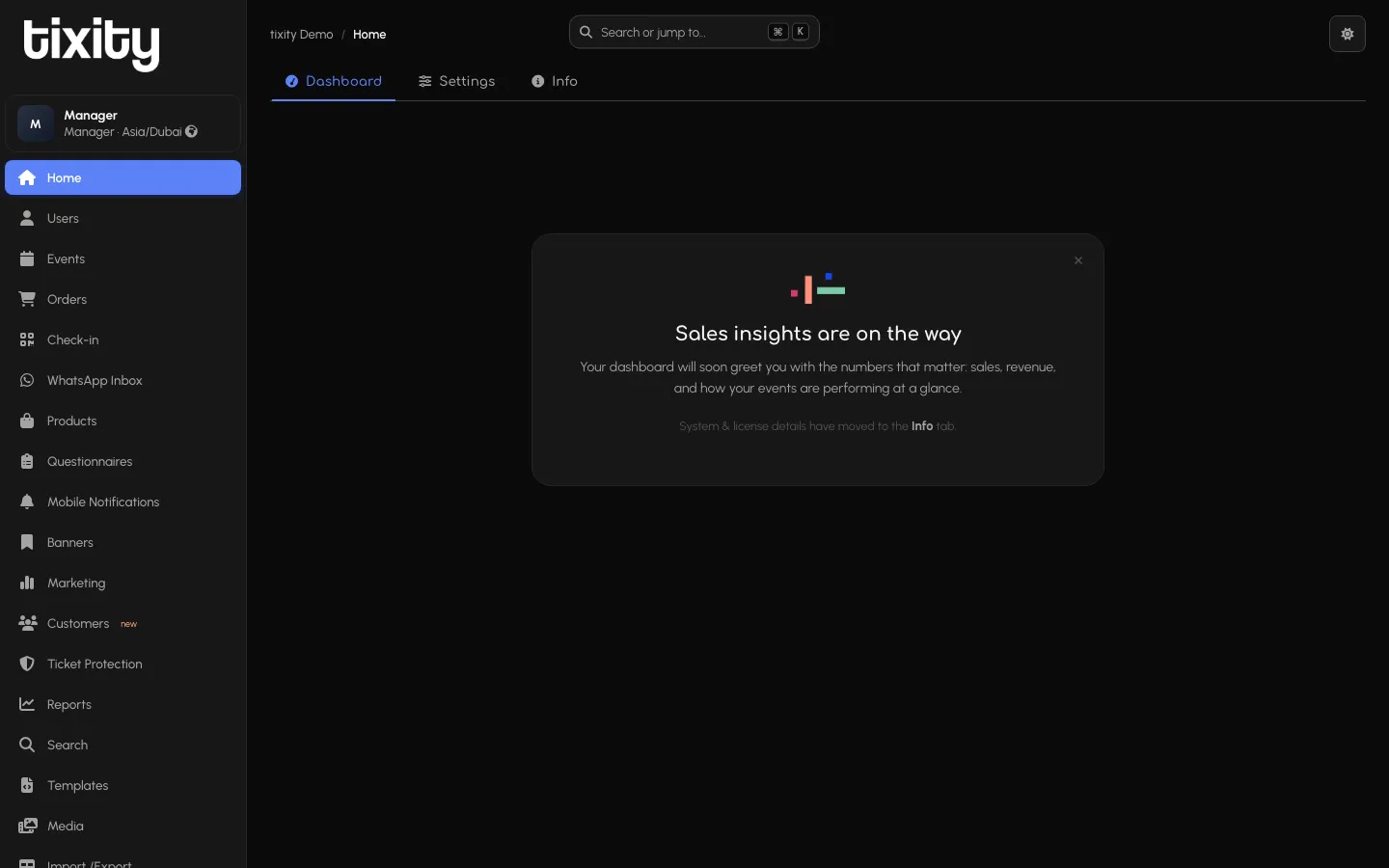
The layout
Three fixed areas:
- Left sidebar — organisation logo at the top, your profile chip, then every section you have access to, ending with Log out at the bottom of the menu.
- Top bar — breadcrumb (
tixity Demo / Homeon the home page), a global search box with ⌘K shortcut, and the theme toggle (moon icon). - Main canvas — whatever section you’ve picked.
Search (⌘K)
The search box at the top jumps you to any object in the platform, event, order, user, venue, template, by name or ID. Hit ⌘K (or Ctrl+K on Windows/Linux) anywhere to focus it.
Useful for:
- Pulling up an order by ID: type
12345. - Jumping to an event by name: type
k-pop fever. - Finding a customer by email.
Light and dark mode
The moon icon in the top-right toggles the whole panel between light and dark themes. Every screenshot in this guide is captured in both, and matches whichever theme you’re using to read the docs.
Your profile
The chip at the top of the sidebar shows your name, role, and store timezone. Click the small ? next to the timezone for details about what that timezone controls (report boundaries, event start times, POS shift close).
Tip: If a section is missing from your sidebar, that’s your role. Access is controlled centrally, not per-user, so ask a Manager on your team to change your role rather than requesting a one-off permission.