

Events
The Events section is where the whole platform’s event catalogue is built. Every event you or your organisers create shows up here, along with venues, season passes, vouchers, event groups, tags, and the archive.
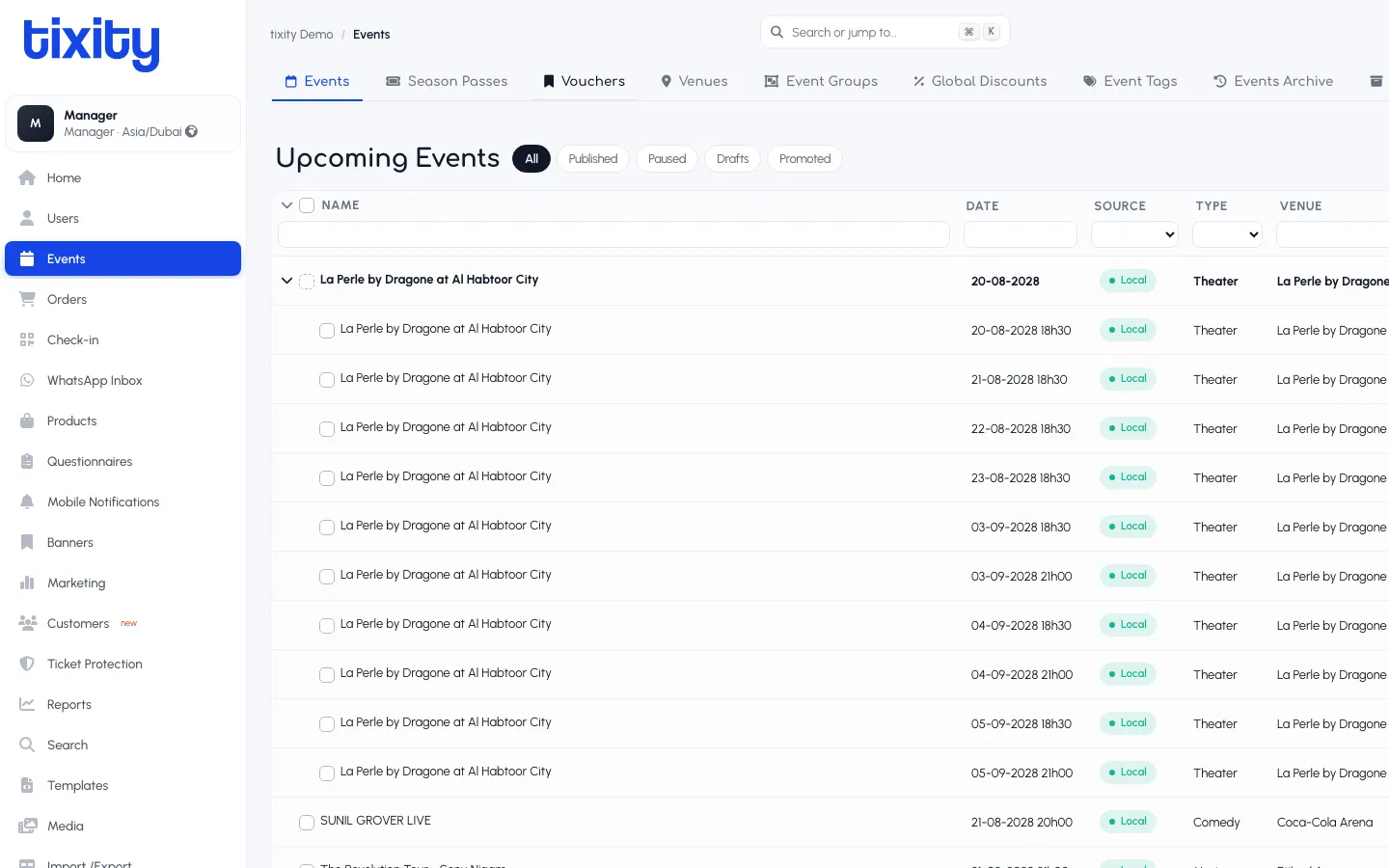
The tabs across the top
| tab | what it holds |
|---|---|
| Events | The main event catalogue, upcoming and current |
| Season Passes | Multi-event passes (subscription-style) |
| Vouchers | Discount codes and gift vouchers |
| Venues | Physical venues with seatmaps, addresses, contact info |
| Event Groups | Curated groupings for the storefront (e.g. “Summer Concerts”) |
| Global Discounts | Site-wide promotions |
| Event Tags | Free-text tags for filtering and reporting |
| Events Archive | Past events, kept for reports and audit |
The event list
The default view is Upcoming Events, filtered further by four status pills:
- All — every event regardless of state
- Published — visible to customers on the storefront
- Paused — visible but not selling
- Drafts — not yet visible
- Promoted — being featured on the storefront hero
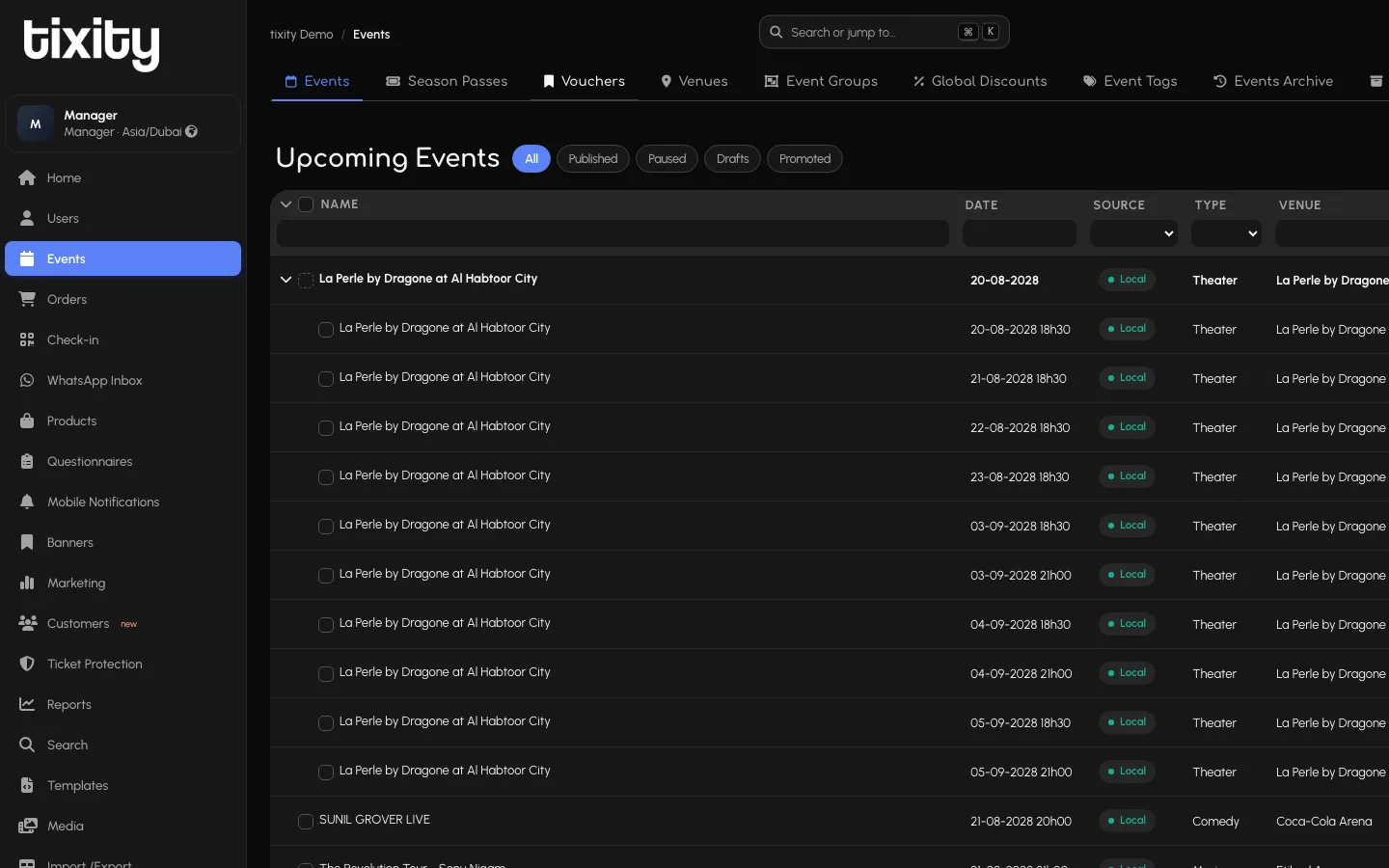
Below the pills, the table lists every event with columns for Name, Date, Source, Type, Venue, and a few action icons on the right (edit, duplicate, view orders, delete, promote/demote).
The first column shows a checkbox for bulk selection and, for multi-performance runs, a chevron that expands the row to reveal every sub-performance.
Creating an event
Click Add (top-right). The event form is long, this is where all the metadata for a show lives.
Editing an event
Click any row, or the pencil icon in the actions column, to open the event editor.
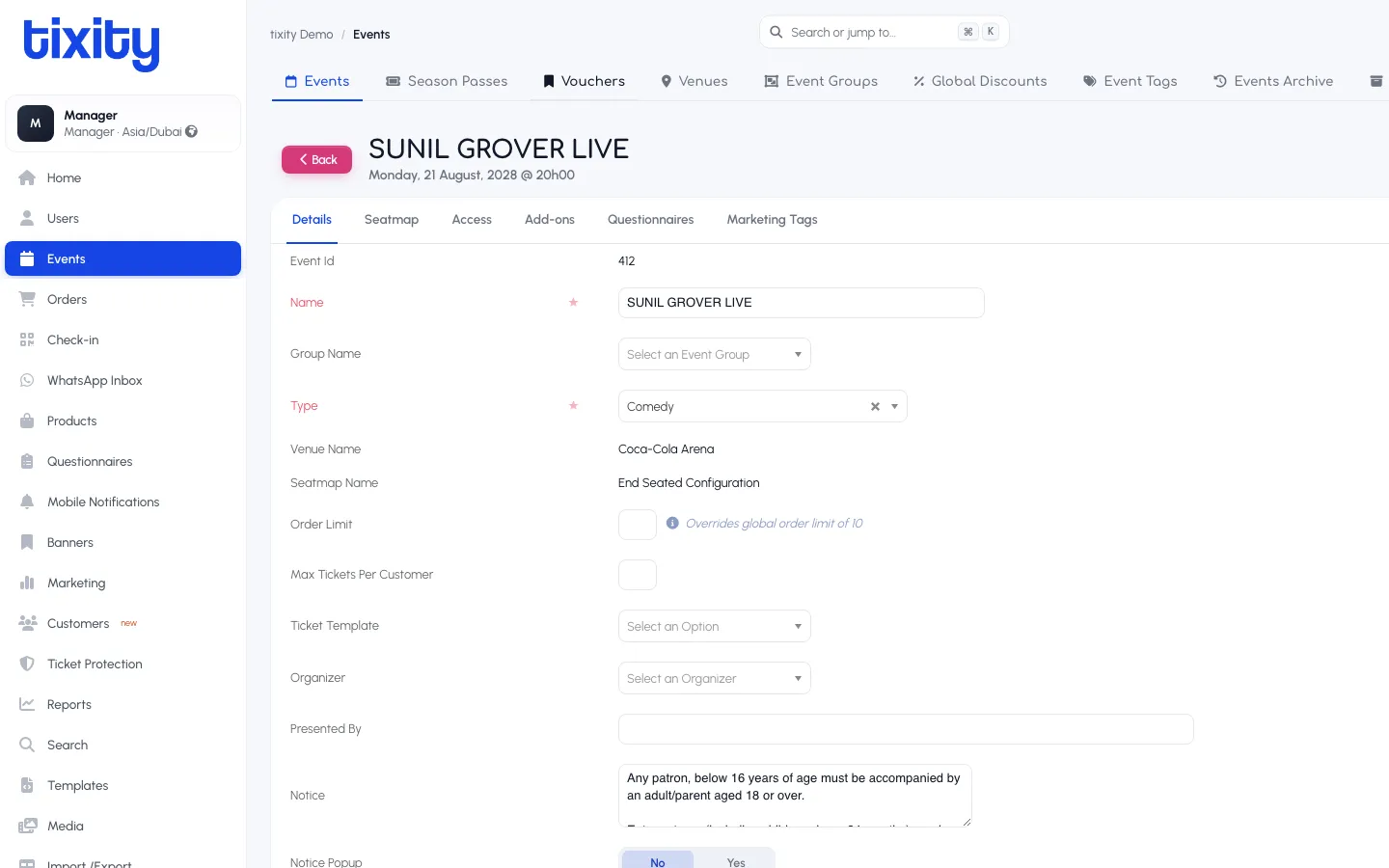
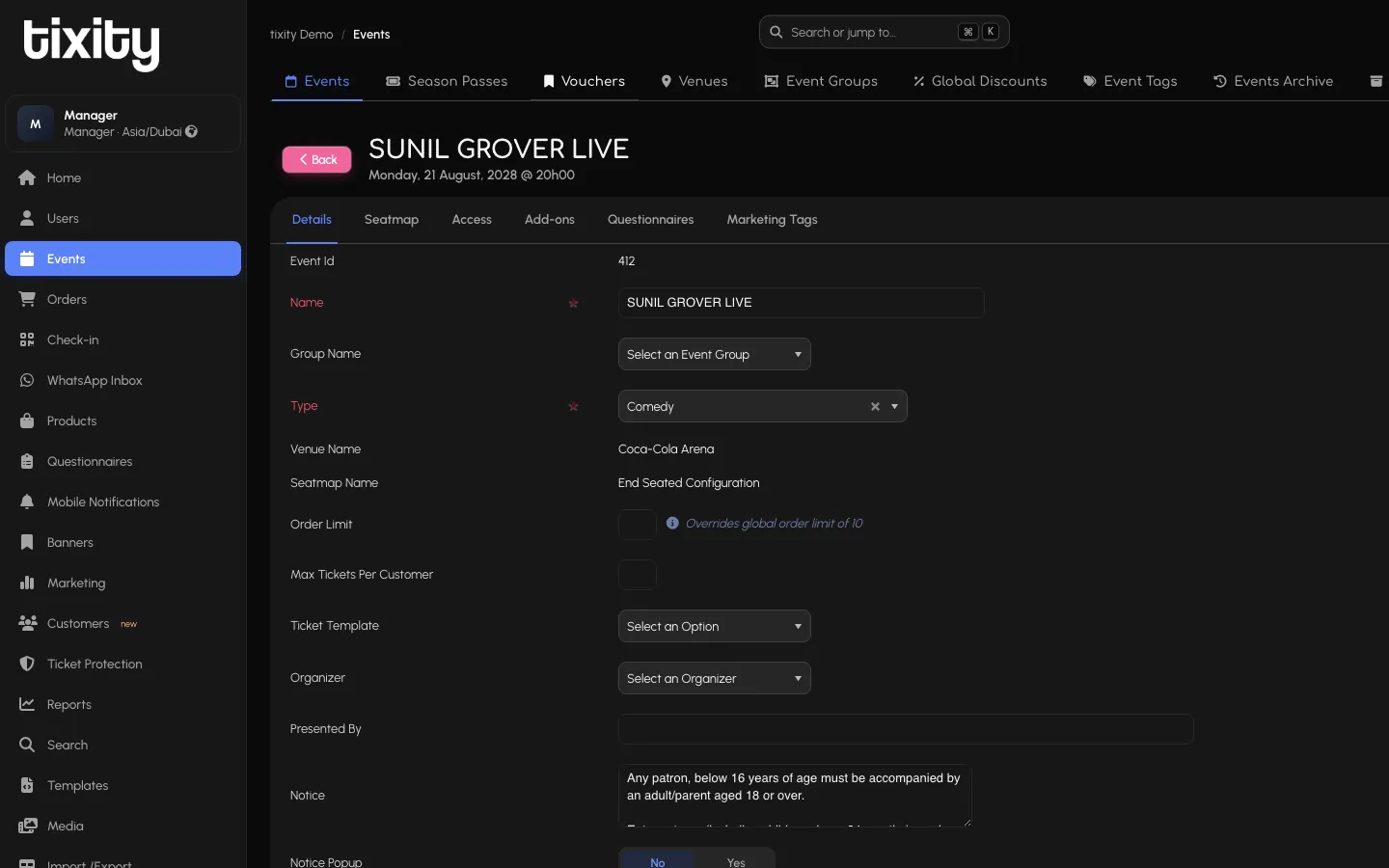
The editor has its own tab bar:
| tab | contents |
|---|---|
| Details | Name, group, type, venue, seatmap, order limits, ticket template, organiser, notice text |
| Seatmap | Which seatmap to attach and category-to-colour mapping |
| Access | Which POS offices and organiser accounts can sell this event |
| Add-ons | Extras attached to the event (food, parking) |
| Questionnaires | Custom checkout questions for this event |
| Marketing Tags | Analytics tags and social preview overrides |
Details tab
The main fields, in order:
| field | notes |
|---|---|
| Event Id | System-assigned, read-only |
| Name* | As it appears everywhere |
| Group Name | Optional Event Group (from the top tab) |
| Type* | Comedy, Concert, Sport, Theatre, Conference |
| Venue Name | Read-only reflection of the venue you picked |
| Seatmap Name | Read-only reflection of the seatmap you picked |
| Order Limit | Overrides the global default (usually 10) for this event only |
| Max Tickets Per Customer | Caps repeat-buying per customer |
| Ticket Template | Which PDF/print template is used |
| Organizer | The external organiser account this event belongs to |
| Presented By | Display text on the storefront |
| Notice | Legal or age-warning text (e.g. “Any patron below 16 years of age must be accompanied by an adult”) |
| Notice Popup | Toggle whether the notice appears as a popup at checkout |
Below the fold: SEO metadata, banner image, description, dates and times, per-date pricing, cancellation policy.
Multi-performance runs
For a show with multiple performances (e.g. La Perle every night for a month), one main event holds the metadata and every sub-performance inherits it. Each performance is its own row in the events list under the parent, and each has its own seatmap allocation and ticketing state.
Duplicating an event
Use the duplicate icon (a stack) in the actions column. The new event is created as a draft with the same seatmap, categories, and templates as the source, ready for you to change the date and republish. Faster than rebuilding a similar show from scratch.
Access to orders
The “orders” icon next to each event jumps you into the Orders section filtered to that event, so you can see what’s been sold without leaving the list.
Tip: Never edit an event that has already started selling unless you have to. Changes to pricing or seatmaps mid-sale can invalidate existing orders. If you need to change the setup significantly, duplicate and start again, or contact your account manager.