
Templates
The Templates section is where every automated message and printed artefact the platform produces is defined and customised.
The four tabs
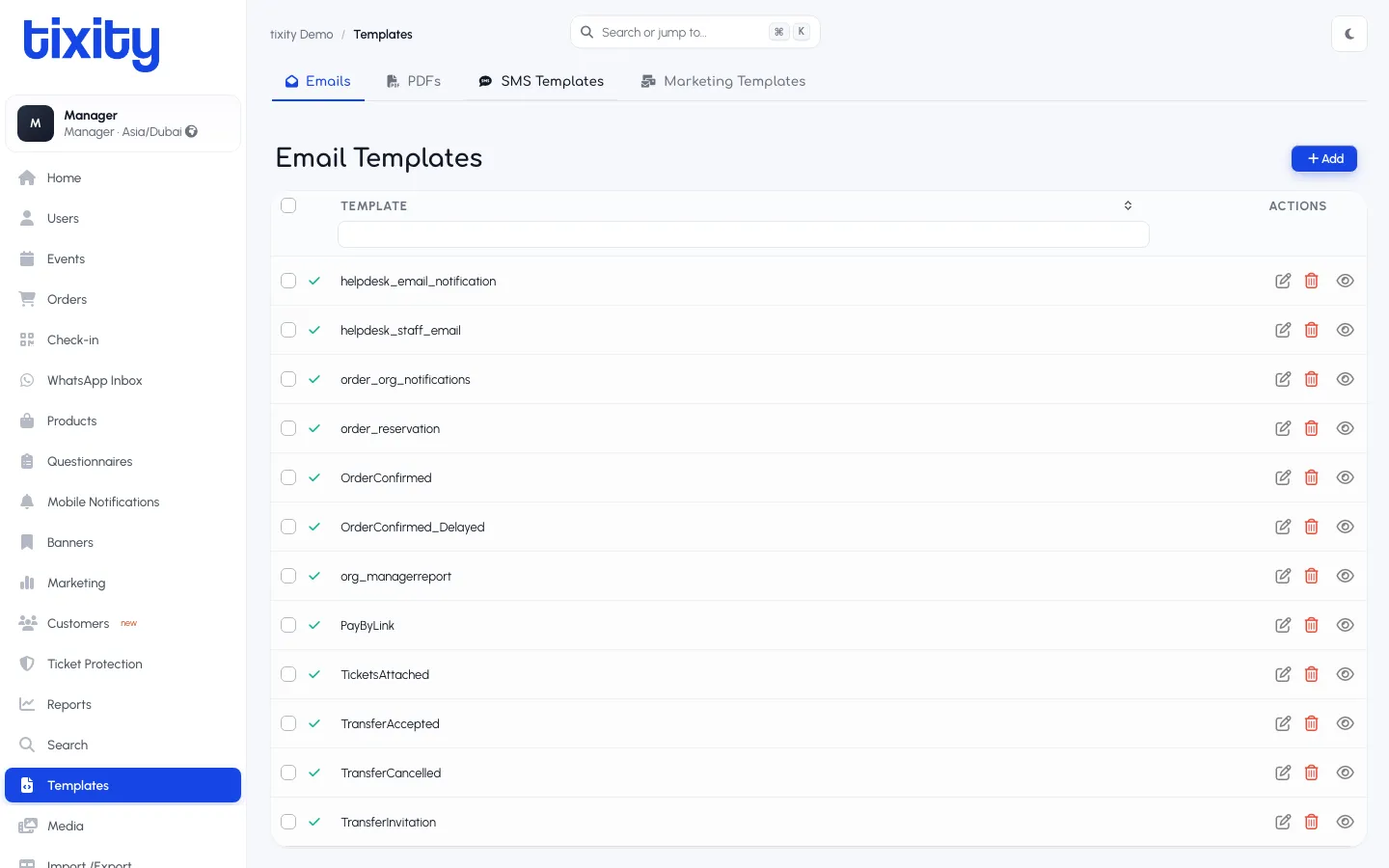
| tab | what it holds |
|---|---|
| Emails | Every email the platform can send |
| PDFs | Ticket PDFs, invoices, badges, wristbands, anything printed |
| SMS Templates | Short-message body for every transactional SMS |
| Marketing Templates | Newsletter and campaign templates |
Email Templates
The default tab shows every email template as a table row. The green tick on the left of each row is the active/inactive toggle. Common ones you’ll recognise:
| template | when it fires |
|---|---|
| OrderConfirmed | The primary “your booking is confirmed” email after checkout |
| OrderConfirmed_Delayed | Delayed-payment variant (used for pay-by-link and B2B) |
| TicketsAttached | The email that actually carries the ticket PDFs |
| PayByLink | Payment link for orders taken over the phone or by import |
| order_reservation | Reservation confirmation for unpaid holds |
| order_org_notifications | Internal notification to the organiser when an order is placed |
| org_managerreport | Scheduled manager report |
| TransferAccepted, TransferCancelled, TransferInvitation | Ticket transfer flow between attendees |
| helpdesk_email_notification, helpdesk_staff_email | Helpdesk notifications for support tickets |
Row actions on the right:
- Pencil — open the template editor
- Trash — remove the template
- Eye — preview the rendered template using sample data
The search box above the table filters templates by name.
The template editor
Click any row (or the pencil icon). The editor opens with three panels:
- Metadata — name, language, status (Active / Draft)
- Body — the actual template markup. HTML for email, plain text for SMS, layout markup for PDF
- Preview — a live render using sample data
Variables
Templates support the platform’s variable syntax. Common ones:
| variable | resolves to |
|---|---|
{{order.id}} | The order number |
{{customer.first_name}} | Customer’s first name |
{{event.name}} | Event name |
{{event.date}} | Formatted event date |
{{tickets[0].seat}} | First ticket’s seat identifier |
{{merchant.name}} | Your organisation name |
The full variable list is on the right side of the editor as a searchable panel; click a variable to insert it at the cursor.
Languages
A single template can have variants per language. The editor’s language dropdown switches between them. If a language variant doesn’t exist for a template, the platform falls back to English.
Preview and test send
The Preview panel updates as you type. Above it, a Send Test button dispatches the template to your own email or phone using a sample order, useful for catching layout issues before publishing.
PDFs
The PDFs tab holds print templates: the ticket PDF that customers download, the invoice, badge stock, wristbands. Each has a fixed page size (A4, thermal 80mm, badge stock), the PDF renderer is strict, don’t assume browser reflow.
SMS Templates
The SMS Templates tab is for transactional SMS body copy: booking confirmation, delivery link, reminder. Same table shape as emails, but the editor is plain-text only and enforces the 160-character-per-part limit.
Marketing Templates
The Marketing Templates tab is for newsletters and campaign emails, sent through the Marketing section (not automatically). Same editor as transactional Emails, but with a different set of default variables (list unsubscribe, segment ID, campaign name).
Publishing
When you save an edit, the template is used for every new outgoing message. Existing queued messages aren’t retroactively updated, if you catch a typo right after sending 500 confirmations, those 500 have the old version.
Tip: Before making a change to a high-volume template, duplicate it as a draft first. Edit the draft, test it, then flip the primary template. This lets you roll back to the working version in one click if the redesign turns out to have a problem.