

Media
The Media section is the platform’s shared file library. Every event banner, sponsor logo, ticket-template header, and marketing image lives here, uploaded once and referenced everywhere.
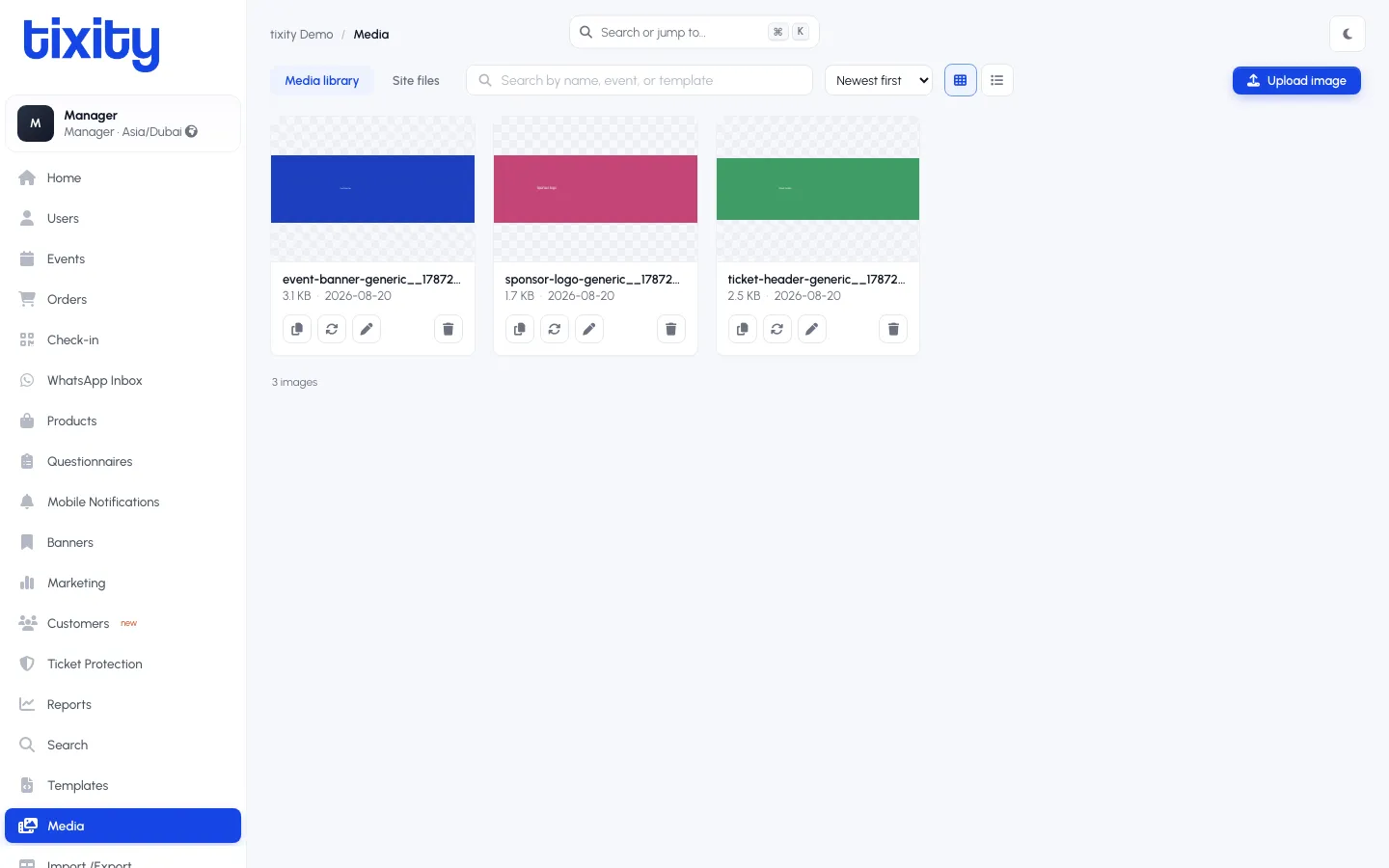
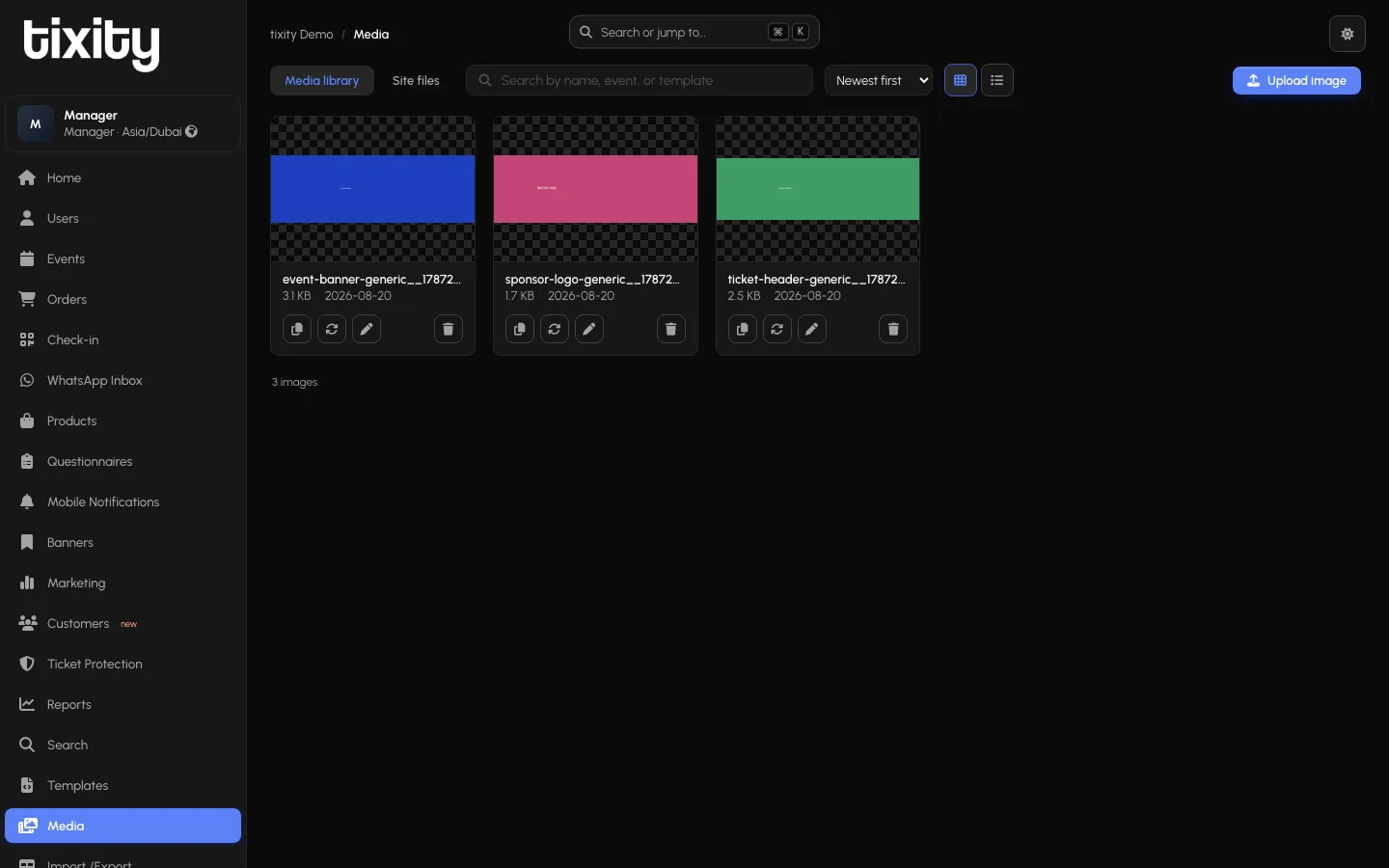
The two tabs
| tab | what it holds |
|---|---|
| Media library | Images you use in events and templates (banners, logos, headers) |
| Site files | Everything else: PDFs, videos, static downloads |
The default view is the Media library.
Browsing the library
Images are shown as a card grid, each card is one file with its filename, size, and upload date underneath. The controls above the grid let you:
- Search by name, event, or template — the search box on the left. It matches the filename and the events/templates the image is used on.
- Sort by Newest first / Oldest first / A-Z / Z-A — the dropdown in the middle
- Toggle grid or list view — the two view-switcher buttons on the right
- Upload image — the blue button on the far right
The count at the bottom of the grid tells you the total (e.g. 3 images).
The card actions
Each card has four action icons underneath its filename:
- Copy — copies the file’s public URL to your clipboard, useful for pasting into HTML in a Template
- Replace — swap the file out with a new upload while keeping the same references
- Rename — change the filename
- Delete — remove the file (warns you if it’s referenced by a live event or template)
Uploading
Click Upload image (top-right) or drag files from your desktop onto the grid. Supported types:
- Images: JPG, PNG, WebP, SVG, GIF
- Documents (in the Site files tab): PDF
- Video (in the Site files tab): MP4
The maximum upload size is enforced at the account level, ask your account manager if you’re bouncing off a limit.
Referencing an image
Every event and template picker in the Admin panel opens this library rather than asking you to re-upload. When you’re editing an event and the Banner field opens a picker, you’re picking a file from here. When you insert an image in a Template, same thing.
You can also copy a file’s public URL from the Copy action and paste it directly into custom HTML.
Site files
Switch to the Site files tab for the non-image storage: contract PDFs, terms and conditions, media kits, hero videos. Same upload flow, different accepted file types.
Naming convention
The search only matches filenames (there’s no reverse image search), so a consistent naming pattern helps a lot. Suggested pattern: {event-slug}-{purpose}-{version}.{ext}, e.g. kpop-fever-banner-v2.png or sponsor-logo-generic__1787.png.
CDN
Every file uploaded here is served through tixity’s CDN with automatic image optimisation. You don’t need to pre-resize before uploading, the platform generates responsive variants on demand.
Tip: Uploading a 4000px-wide event banner is fine and often preferable, the CDN downscales for smaller viewports automatically. Pre-shrinking to 800px means desktop users see a blurry version.