

Utilities
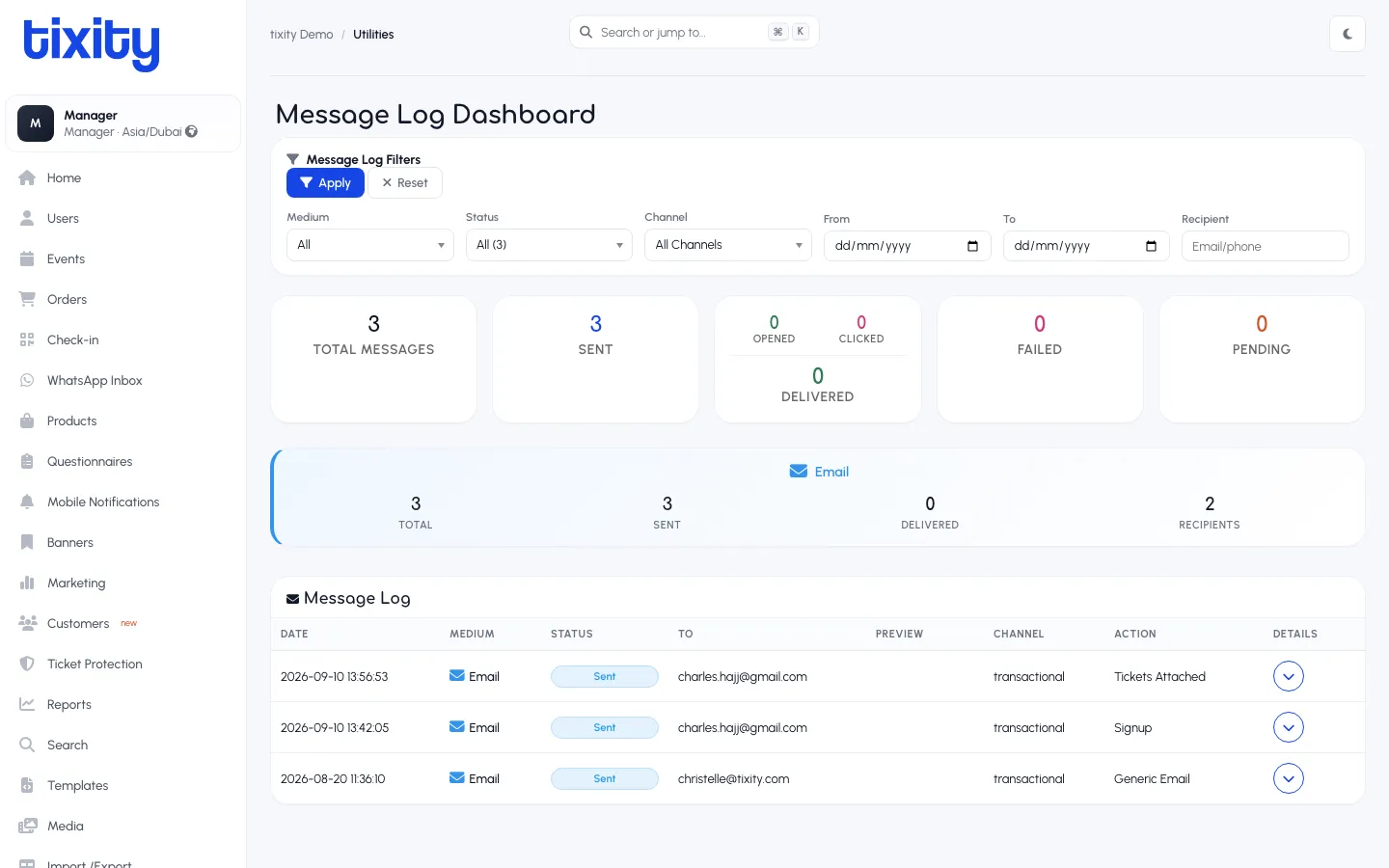
The Utilities section, at least for a Manager, opens on the Message Log Dashboard: a searchable log of every transactional message the platform has sent (email, SMS, WhatsApp), with delivery status. It’s the first place to look when a customer says “I didn’t get my ticket.”
Message Log Filters
Six filters at the top of the page narrow the log:
| filter | how to use it |
|---|---|
| Medium | All / Email / SMS / WhatsApp |
| Status | All / Sent / Delivered / Failed / Pending / Opened / Clicked (multi-select, defaults to All (3)) |
| Channel | All Channels / a specific application channel (transactional, marketing) |
| From and To | Date range for when the message was queued |
| Recipient | Email or phone number, live-match as you type |
Click Apply to run, Reset to clear.
The summary counters
Once you’ve applied a filter, seven counters across the top summarise the result set:
- Total Messages — total in the filtered range
- Sent — successfully handed off to the delivery provider
- Opened — customer opened the email (tracked via pixel)
- Clicked — customer clicked a link inside
- Delivered — delivery provider confirmed receipt
- Failed — the delivery provider rejected or bounced the message
- Pending — still in the outbound queue
Below the seven counters, a per-medium panel breaks the same numbers down by Email, SMS, and WhatsApp so you can see which channel is misbehaving.
The Message Log
The main table lists every message in the range, one row per message:
| column | meaning |
|---|---|
| Date | Queued timestamp |
| Medium | Email / SMS / WhatsApp with the channel icon |
| Status | Sent / Delivered / Failed / Pending, with a coloured pill |
| To | Recipient email or phone number |
| Preview | The first line of the message body |
| Channel | transactional / marketing / helpdesk |
| Action | Which template was used (e.g. Tickets Attached, Signup, Generic Email) |
| Details | Chevron that expands the row for the full message body and the delivery-provider response |
Common workflows
- A customer says they didn’t get their ticket — filter by their email and Medium = Email. Look for the
TicketsAttachedaction. If it says Sent but not Delivered, check spam. If it says Failed, resend from the order. - A campaign didn’t land — filter by Channel = marketing and the Date range around when the send fired. Look at the delivery counter vs sent counter.
- A gateway migration — filter by Status = Failed for the past week to see whether a new SMS gateway is bouncing.
Retrying
Expand the row and use the Retry button in the details panel to re-queue a single failed message. For bulk retries, use the Orders bulk actions to resend tickets across every affected order, retrying at the message log level only resends the same body without regenerating anything upstream.
Tip: Every Failed row has the delivery provider’s raw error text under the Details chevron. Copy that into any support ticket you raise; it usually tells the provider (and us) exactly why a message bounced.