

Import and export
The Import and Export section is the platform’s bulk-operations hub. It’s split into two blocks, Export Data at the top and Import Data below, each listing the utilities you have permission to run.
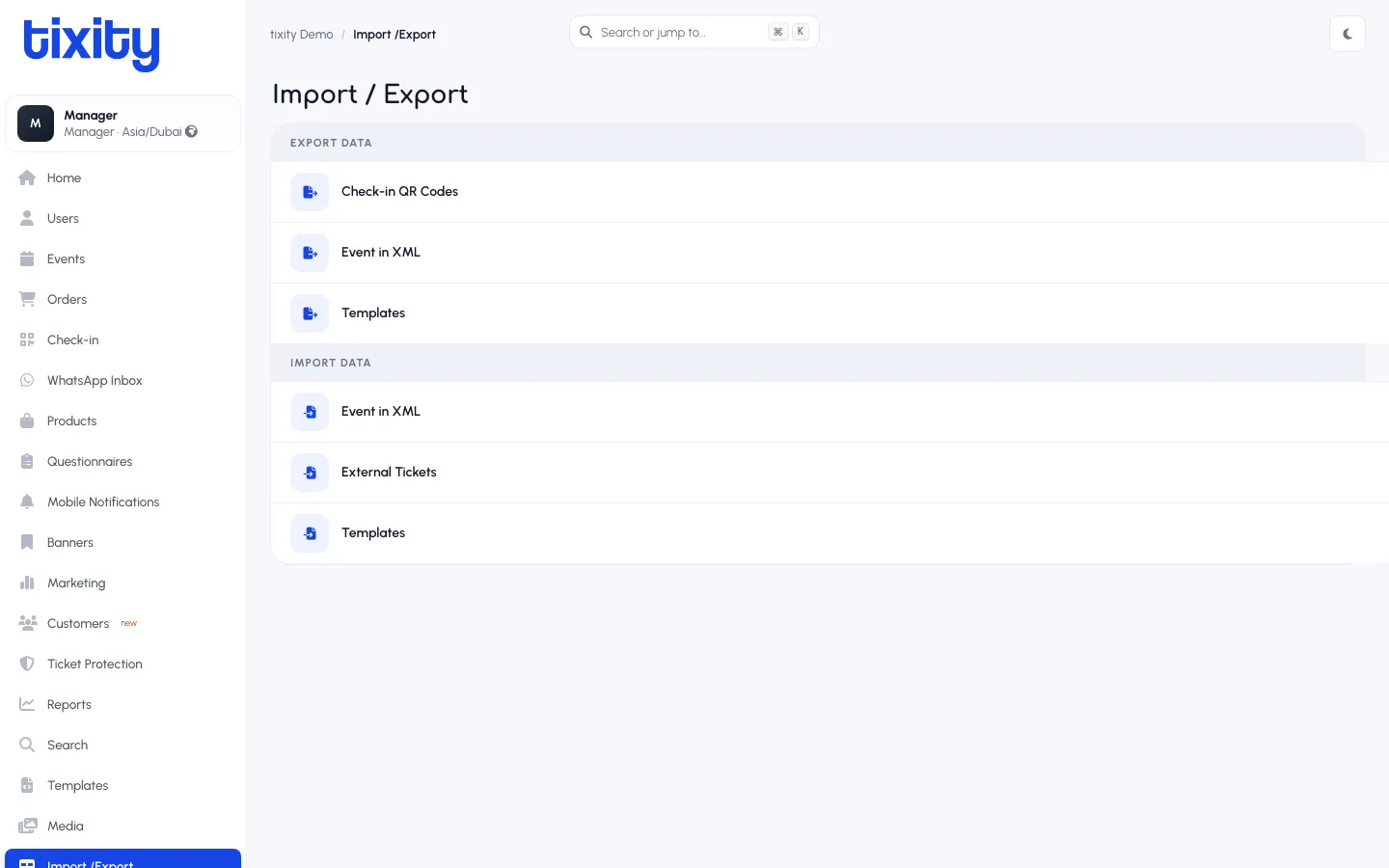
Export Data
The exporters pull structured data out of the platform.
| exporter | what it produces |
|---|---|
| Check-in QR Codes | The QR code PDFs used at the door for the check-in app to sign into a specific event |
| Event in XML | A full XML dump of a chosen event, seat map, categories, pricing. Used to hand an event off to a partner platform or to keep a backup before an edit |
| Templates | An export of your email, PDF, SMS, and Marketing templates, useful for migrating between environments |
Import Data
The importers push data in. Every importer runs a validation pass before touching the database.
| importer | what it accepts |
|---|---|
| Event in XML | The reverse of the export: an XML file describing an event, its categories, and its pricing. Creates or updates the event based on the file |
| External Tickets | Ticket barcodes issued by a partner platform, so those tickets can be scanned through the tixity Check-in app |
| Templates | Import email, PDF, SMS, and Marketing templates from an export file |
Running an import or export
- Click a row.
- Fill the parameter form: event, date range, file, and any per-utility options.
- For imports, upload the file and click Validate data.
- For exports, click Show or Download.
Import validation
Every importer runs a dry-run pass before touching the database. The validation report tells you row-by-row what’s valid, what’s wrong, and why. Fix the file, re-upload, revalidate. Once validation is clean, confirm to run.
Bulk order generation
The Admin panel doesn’t expose the Bulk Order Generator here; that lives in the POS Import/Export tab. See the POS Import and Export guide for the workflow.
Scheduling
For anything you run more than twice, ask your account manager to schedule it. Scheduled exports fire overnight and email the result; scheduled imports poll a shared folder and process files as they land. No operator has to remember to click.
Tip: When importing an event from XML, always Event in XML export the current version first and keep it. If the import fails halfway through, you have a rollback file ready to re-import.