

User Registration
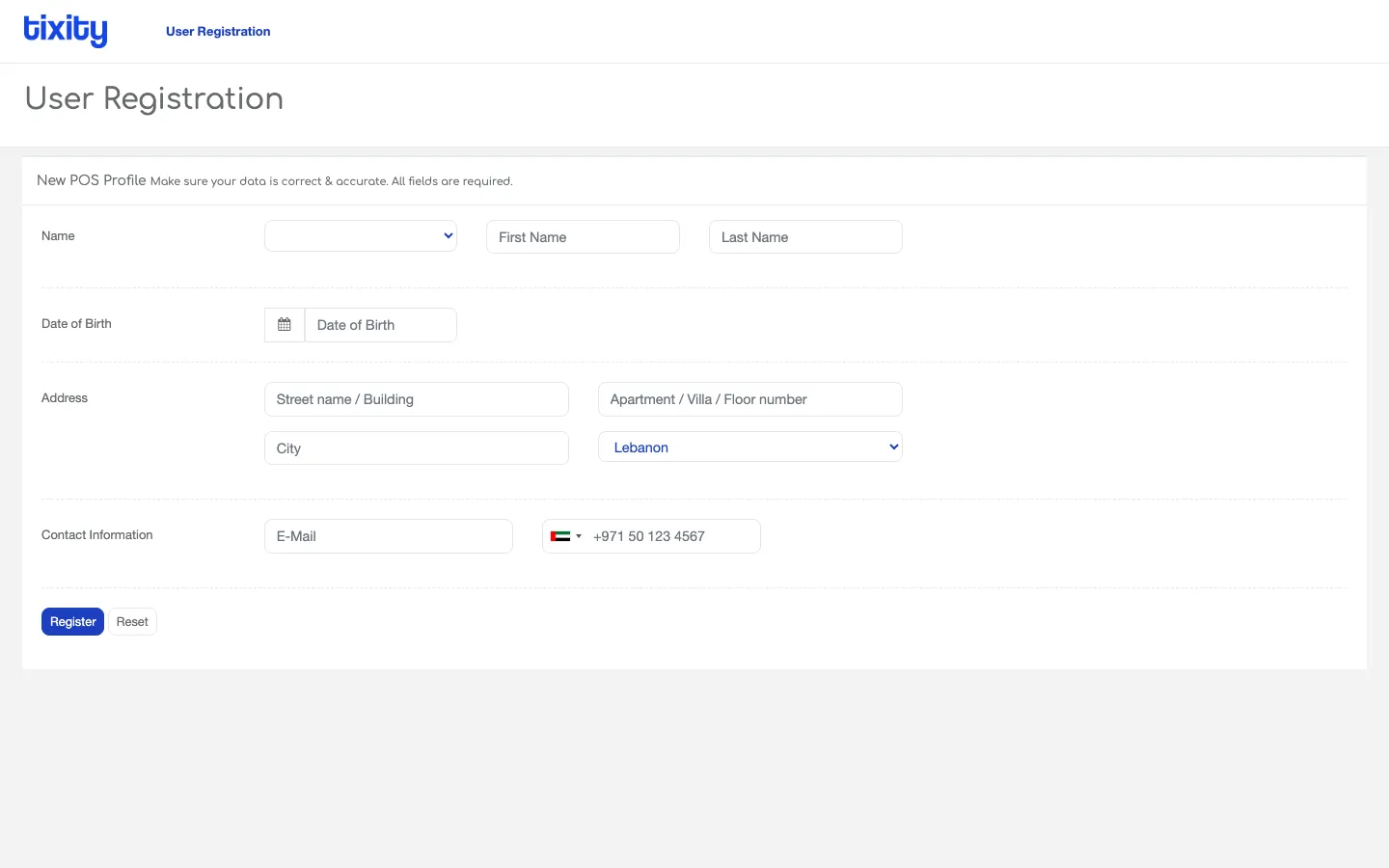
User Registration is a stripped-down form for creating a customer profile without starting a sale. Use it when a customer wants to be on file for future bookings, loyalty benefits, or a members’ scheme, but isn’t buying today.
When to use it
- A season-pass or membership scheme requires customer records to be created up front.
- Hospitality team is pre-registering a VIP guest list before an event.
For everyone else, the Customer Information section on the Booking screen creates the same record automatically when the sale closes. You only need this page for standalone registrations.
The form
Name
- Salutation dropdown (Mr, Ms, Mrs, and so on).
- First name and Last name. Both required.
Date of Birth
A calendar picker. Required for age-gated events and useful for birthday offers.
Address
Two rows, four fields.
| field | how it’s used |
|---|---|
| Street name / Building | Primary address line |
| Apartment / Villa / Floor number | Secondary line for the unit within the building |
| City | Delivery city |
| Country | Dropdown, defaults to your store’s country |
All four fields are required for a valid profile.
Contact Information
- E-mail — the address where tickets, receipts, and communications go.
- Phone — the flag defaults to your store’s country. Change it if the customer is international. Some stores require an SMS OTP to be validated before the profile can be saved, if so, a Validate phone button appears here and you’ll be walked through the code.
Buttons
- Register creates the profile and returns you to the top of a fresh form.
- Reset clears every field without saving.
What happens after Register
The customer becomes available in the Existing tab of the customer information section on Booking. Search their name, email, or phone number and the form auto-fills.
Tip: Registration opens in a new tab from the main nav so you don’t lose an in-progress cart. Close the tab when you’re done and you’ll land back on the sale you were building.