

Payment and order
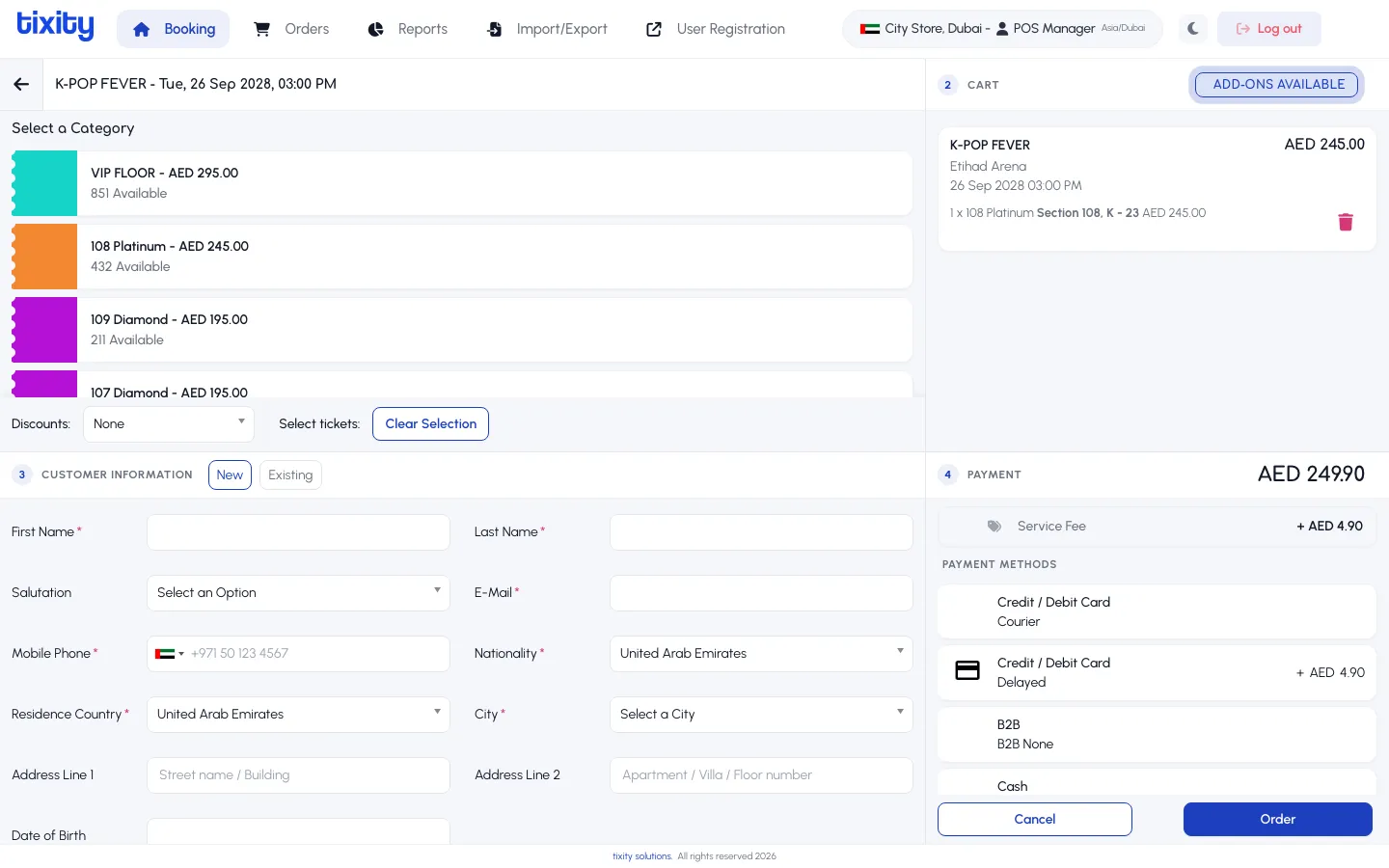
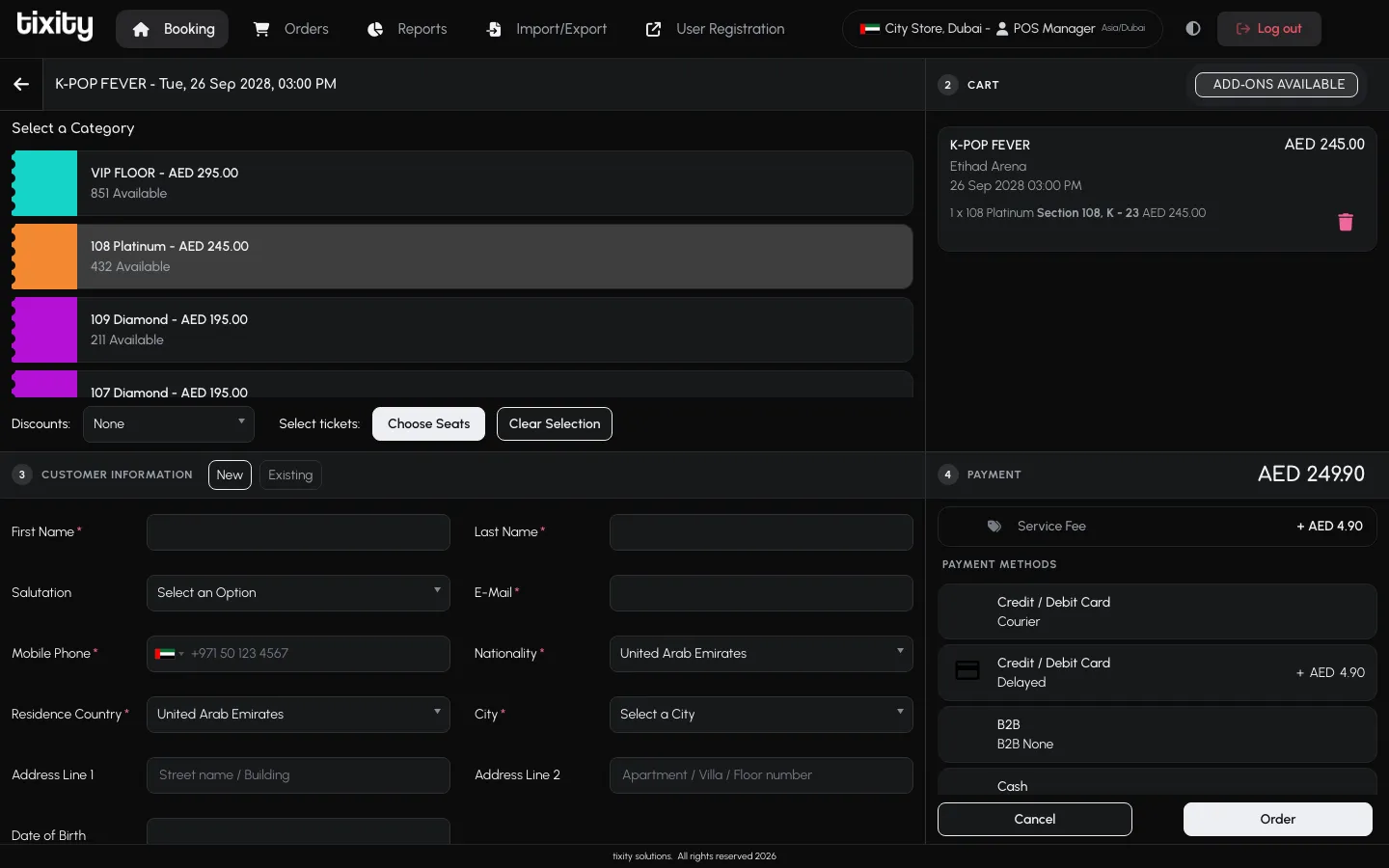
The payment zone sits at the bottom-right of the screen and updates as soon as the cart has an item.
What you see
| element | meaning |
|---|---|
| Grand total | The number shown next to Payment, all tickets, add-ons, and fees included |
| Service fee | Broken out on its own row so you can quote it to the customer if they ask |
| Payment methods | The methods enabled for your store. Each row is a separate choice |
| Cancel / Order | Cancels the whole cart, or finalises the sale |
Payment methods
The exact list depends on your store’s setup. The most common are:
- Credit / Debit Card
- Cash
Click a payment method to select it. The row highlights and the Order button becomes active.
Placing the order
- Double-check the total with the customer.
- Confirm the seats and add-ons in the cart.
- Click Order.
The order is written, the customer record is saved, and the ticket email is queued. You’ll be dropped back onto the event grid with an empty cart, ready for the next sale.
Cancelling
Cancel empties the whole cart, the tickets, the add-ons, and the customer form. Use it when a customer walks away or asks to start over. Individual line items can be removed with the delete icon in the cart without clearing everything.
Tip: If the Order button stays greyed out after you’ve picked a payment method, one of the required customer fields is empty. Scroll up and look for a red-outlined field.