

Customer information
Every sale is tied to a customer record. The customer information zone sits directly under the booking area and has two tabs: New and Existing.
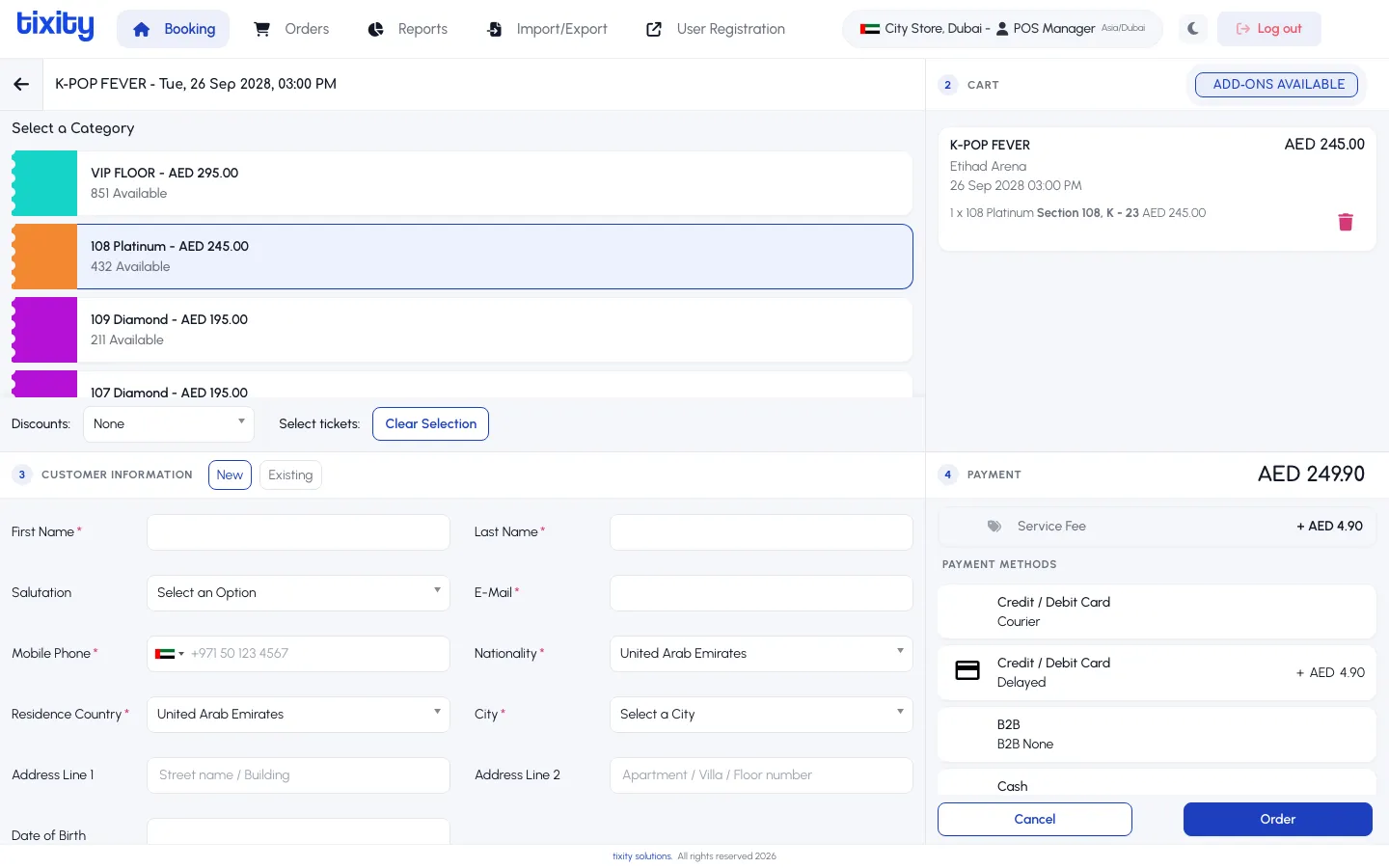
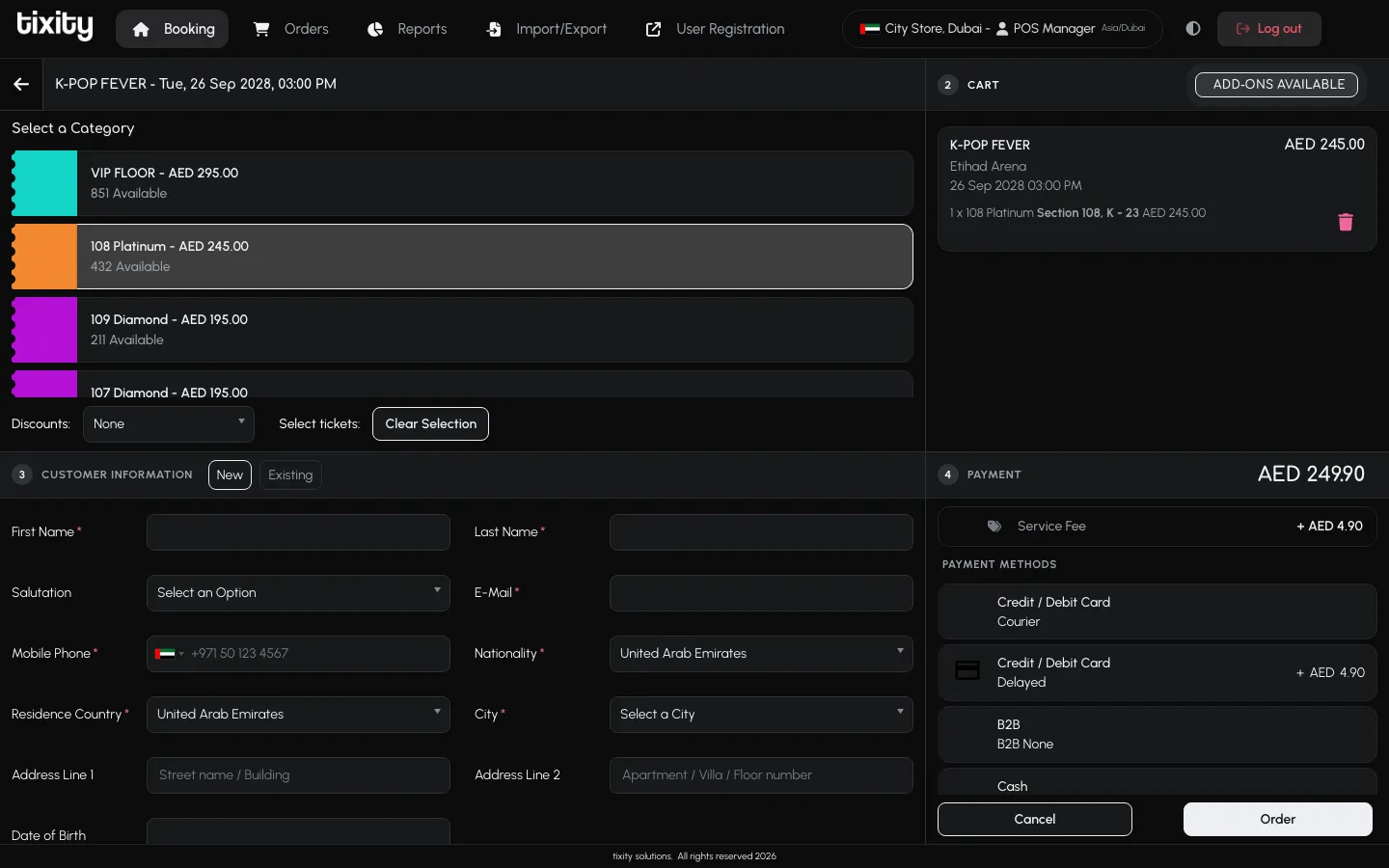
New customer
Use this tab for first-time buyers. Fields marked with * are required.
| field | notes |
|---|---|
| First name, Last name | As they should appear on the ticket |
| Salutation | Optional. Useful for concierge and hospitality events |
| Where the ticket is sent | |
| Mobile phone | The country flag defaults to your store’s country. Change it if the customer is international |
| Nationality, Residence country, City | Needed for statutory reporting in some markets. Defaults match your store |
| Address line 1 and 2 | Optional for most events, required for events that ship physical tickets or merchandise |
| Date of birth | Required for age-restricted events |
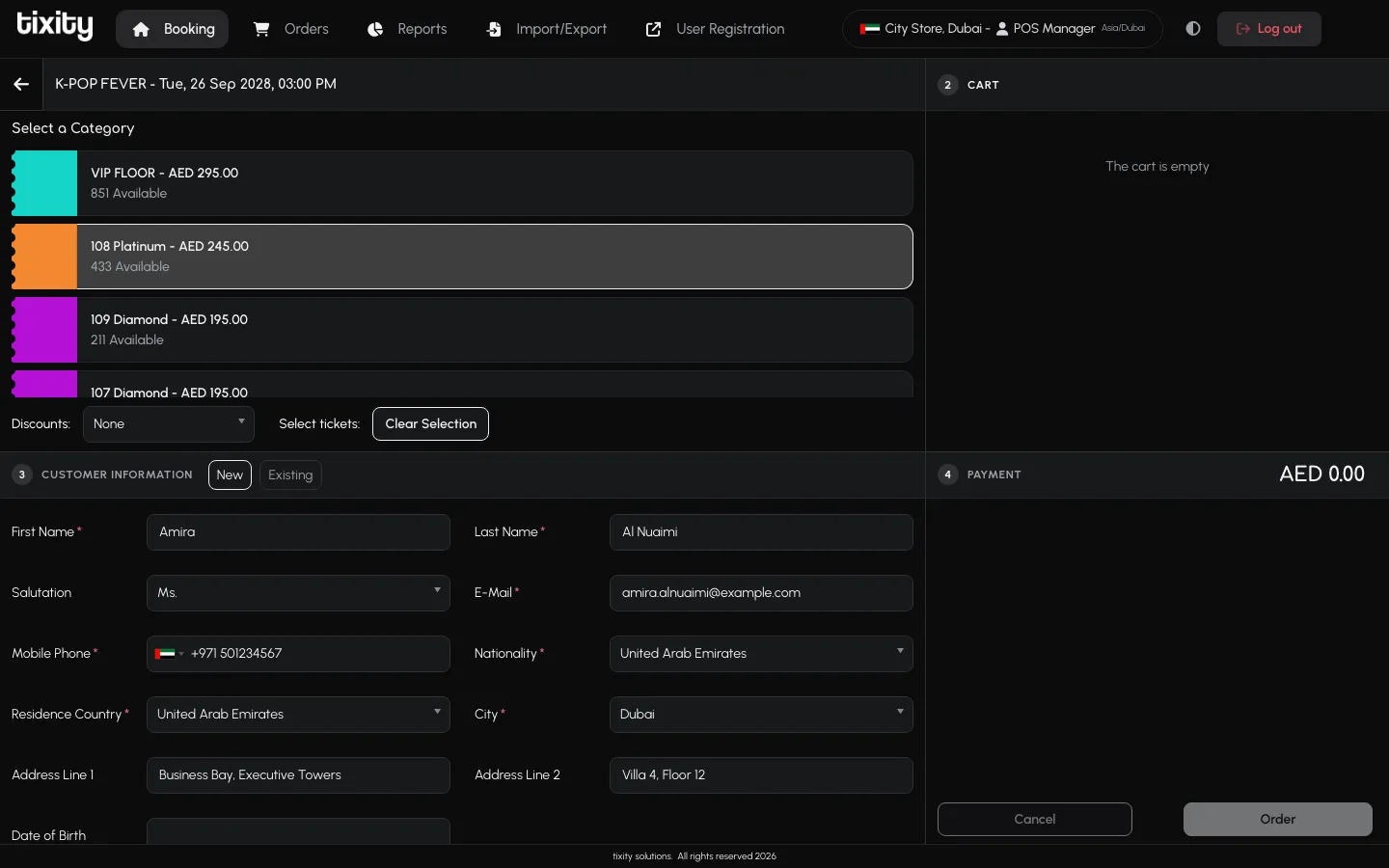
Once every required field is filled the form looks like this:
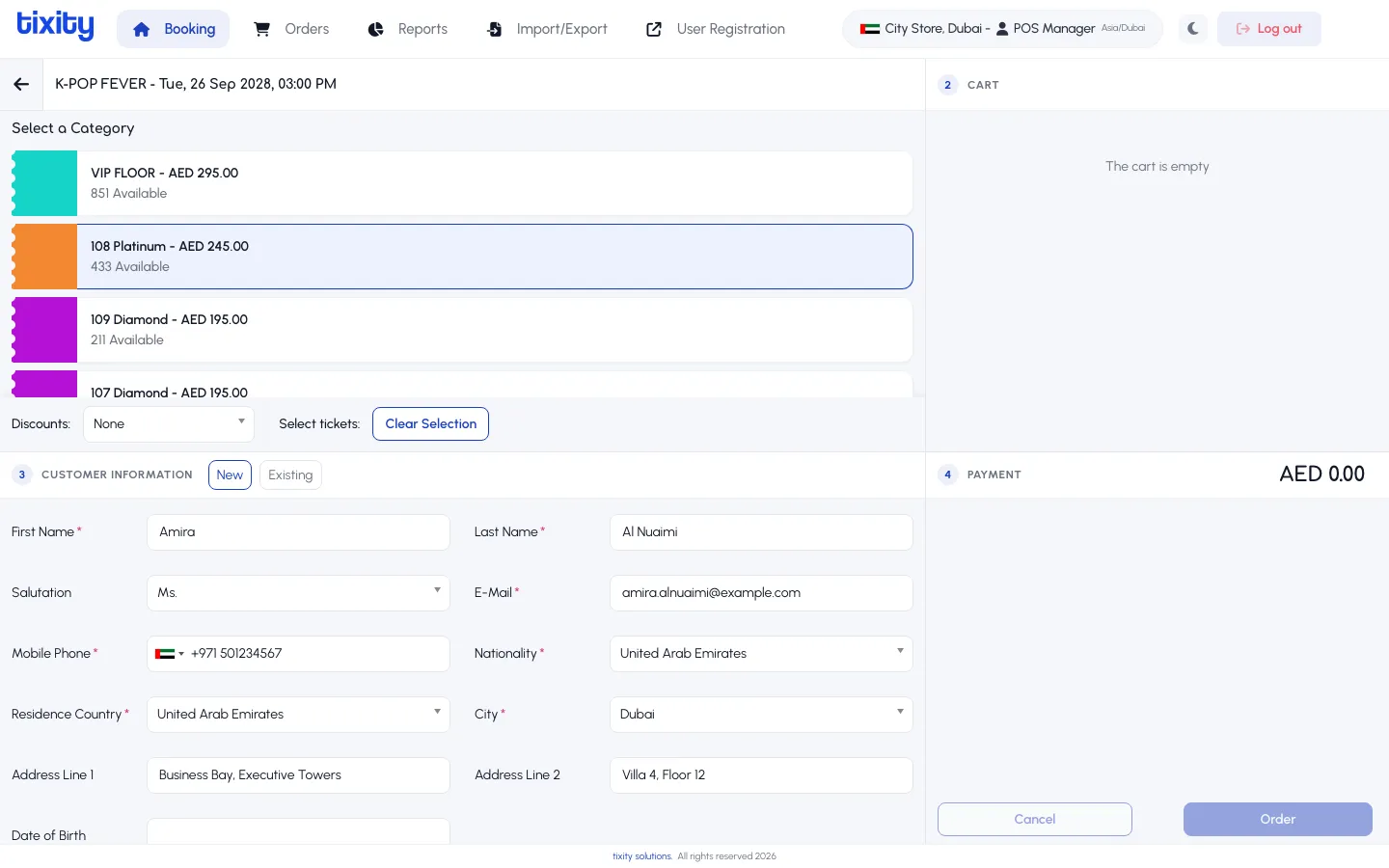
The customer record is created the moment you click Order. If the customer will return, they’ll appear in the Existing tab on their next visit.
Existing customer
Switch to the Existing tab to search for someone who has bought from your store before. Type any part of their name, email, or phone number in the search field and pick the matching record.
Selecting an existing customer auto-fills every field and skips the form entirely. Take a moment to confirm the email and phone number are still current before you finalise.
What to double-check
- The email address is the one place a typo will actually block the customer from receiving their ticket. Confirm it once out loud with the customer if in doubt.
- The mobile country code matches the number you type. Reset the flag if the customer is visiting from abroad.
Tip: For walk-ins where the customer doesn’t want to share personal details, most stores have a house
walk-in@email approved by their account manager. Ask your store manager if you don’t have one set up.