

Categories
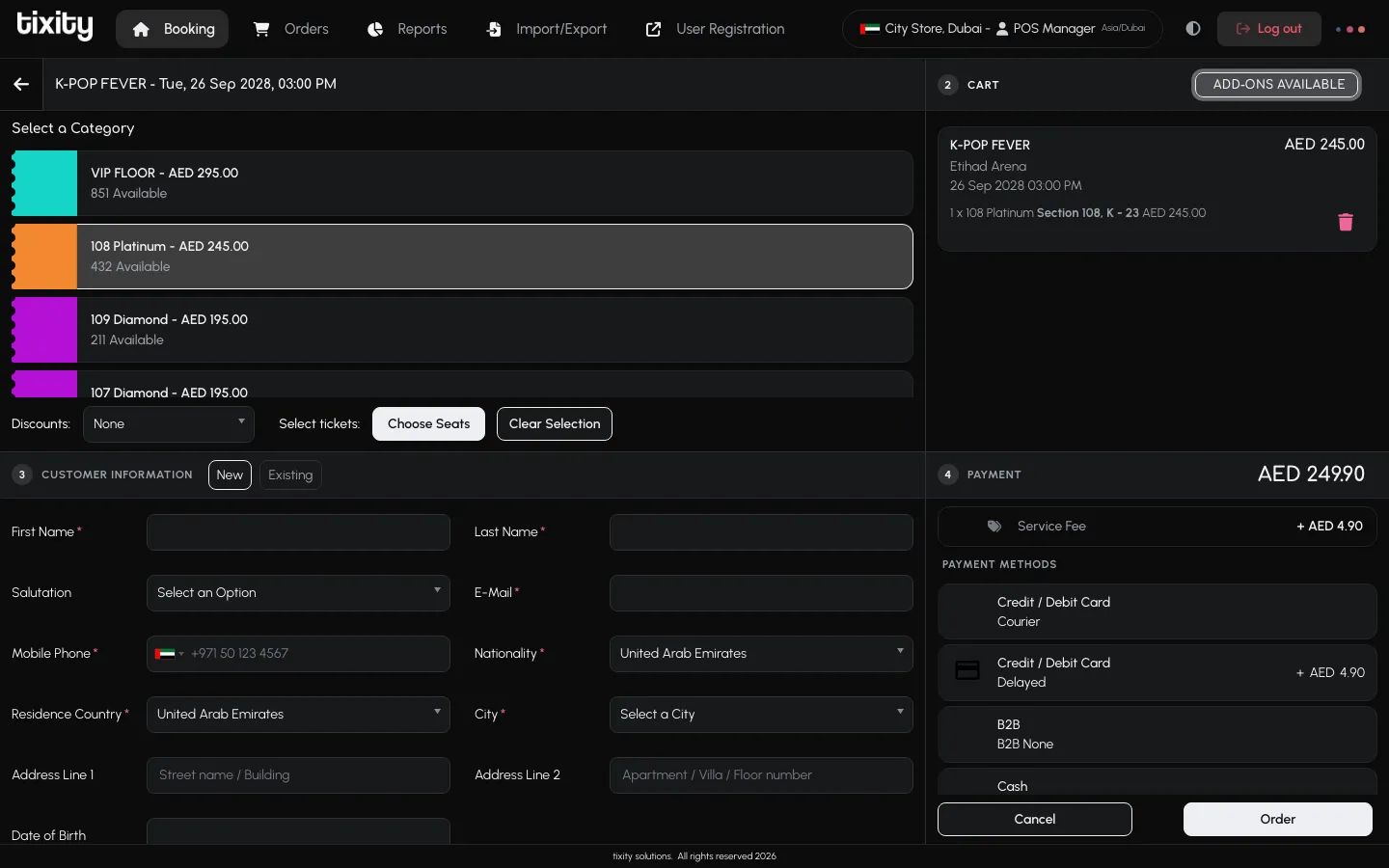
Once an event is open, the booking area shows the list of ticket categories for that performance.
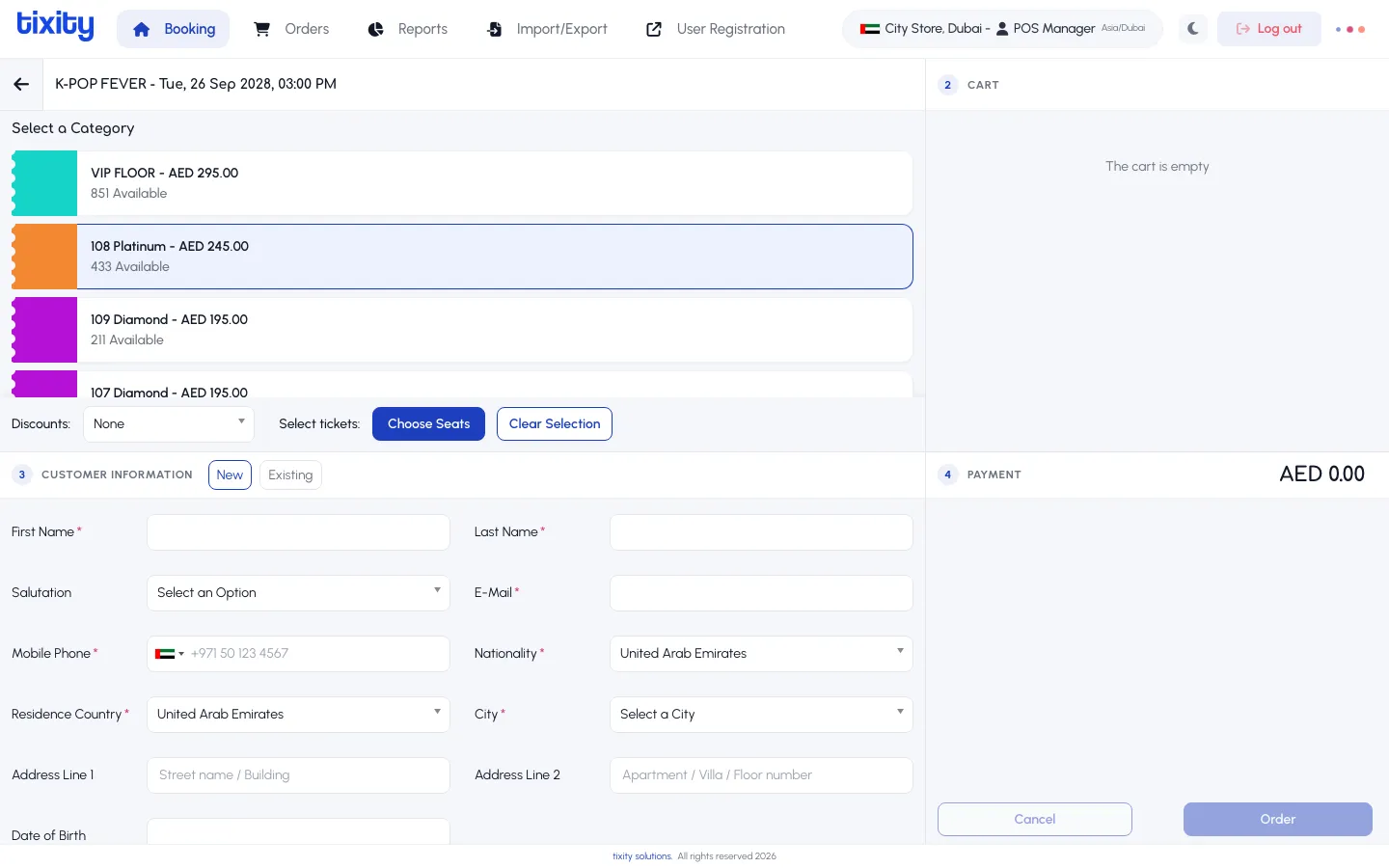
What each row shows
| element | meaning |
|---|---|
| Color swatch | The category’s colour on the seat map. Handy for matching what the customer sees on a printed layout |
| Category name and price | Example: 108 Platinum — AED 245.00 |
| Available count | How many seats remain in that category for this performance |
The colors you see in the swatches map directly onto the venue in the seat map, so the customer’s chosen tier is easy to spot at a glance.
Selecting a category
Click a category row. It highlights, and the controls next to Select tickets: at the bottom of the list update to match the category type.
Reserved seating (sectioned map)
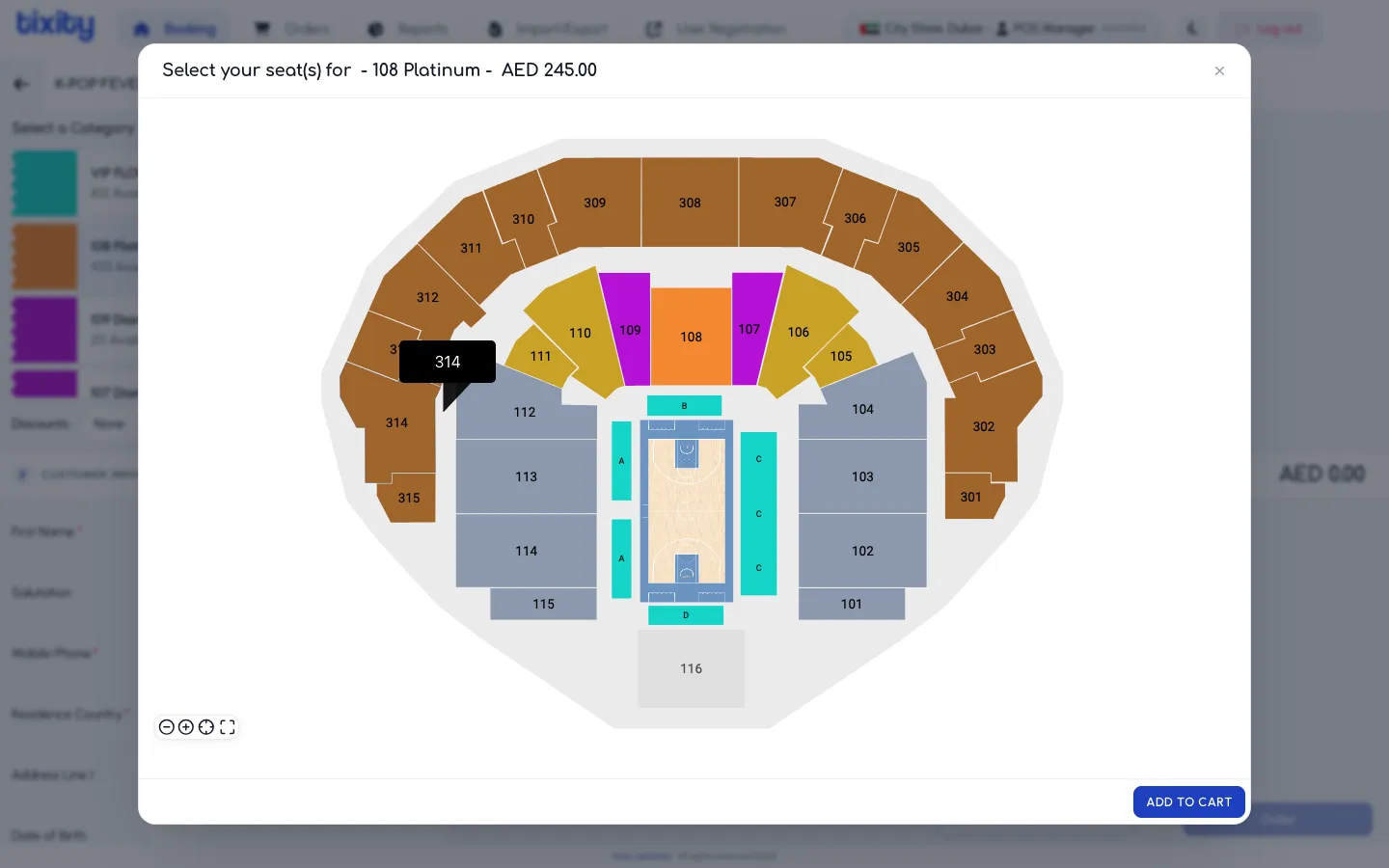
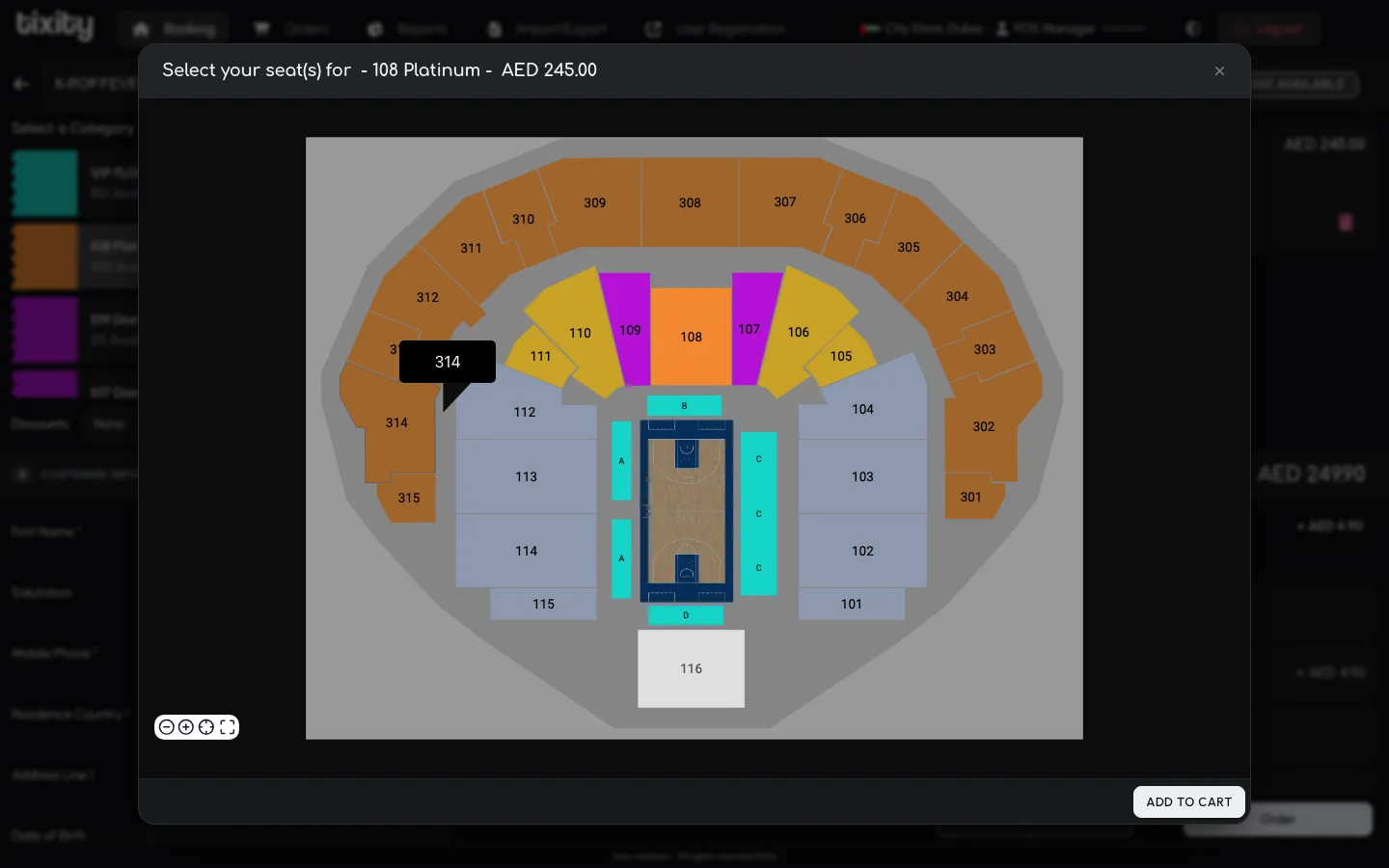
For categories that live on a section-based seat map (like 108 Platinum for K-Pop Fever), a Choose Seats button appears. This is the only way to add these tickets to the cart, quantity isn’t set here.
- Click Choose Seats to open the venue map.
- Click the section you want to enter. The view zooms in and reveals individual seats.
- Click each seat to add it to the selection. Click again to remove it.
- Click ADD TO CART at the bottom of the dialog.
The full flow, including screenshots of the section drill-in, is on the Seat selection page.
General admission
For general-admission categories, there’s no seat map. The row shows quantity controls (− and +) and an Add to cart button on the same row.
- Use
−and+to set how many tickets the customer wants. - Click Add to cart.
Add as many GA categories as you need before moving on to customer information.
Discounts
The Discounts dropdown above the tickets row lets you apply a discount code or a preset promotion before you pick seats. Leave it on None for a full-price sale.
Clearing the selection
Clear Selection empties the current category choice without going back to the event grid. Use it if you clicked the wrong row.
Tip: Availability is checked live when you open the seat map, not when you highlight the category. If someone else in another POS session takes the same seat during the customer’s decision, you’ll see it as unavailable when the map loads.