

Add-ons
Some events include optional extras, food, drink, parking, hotel packages, and so on. When the event supports them, an Add-ons Available pill appears at the top of the cart as soon as you add a ticket.
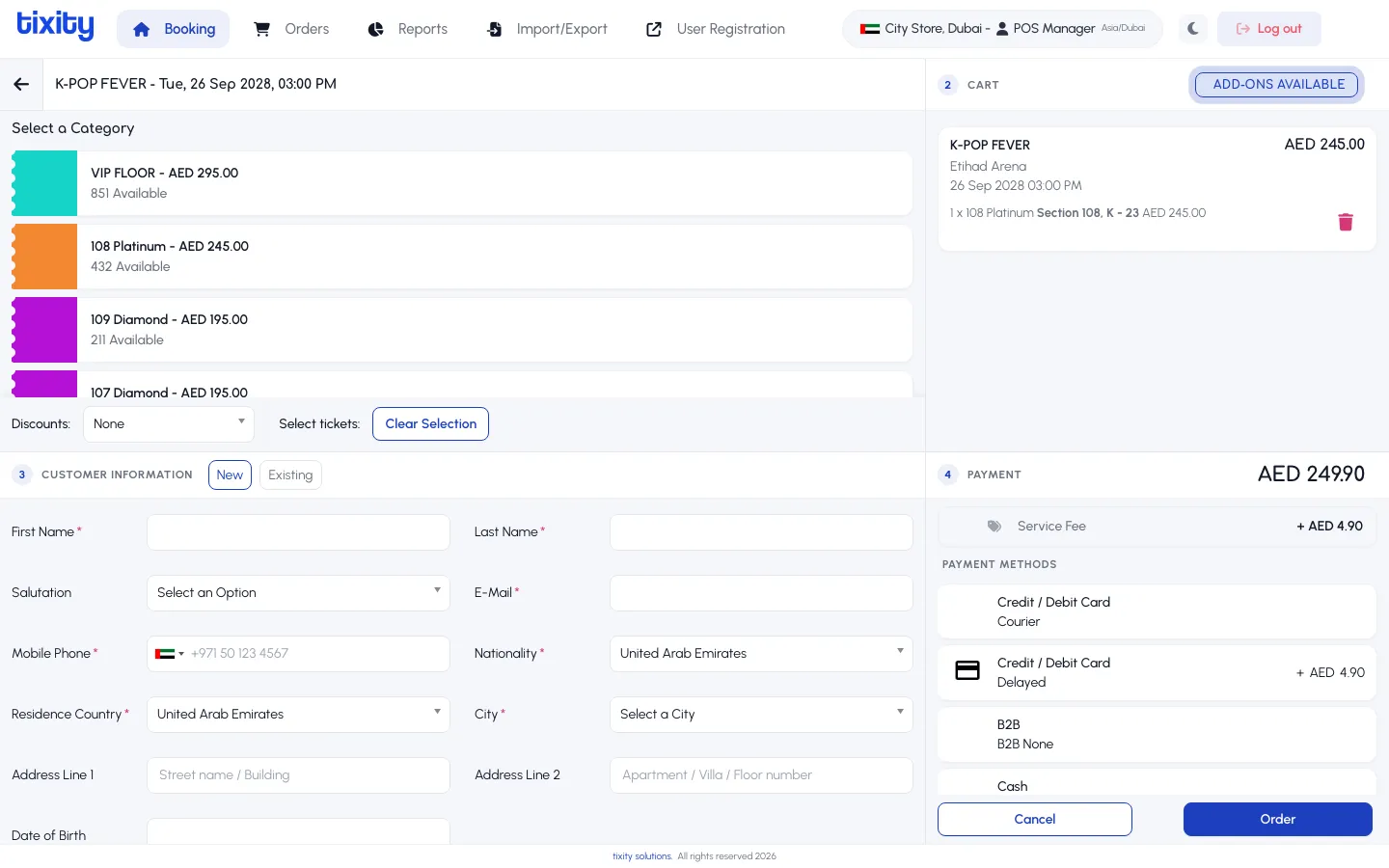
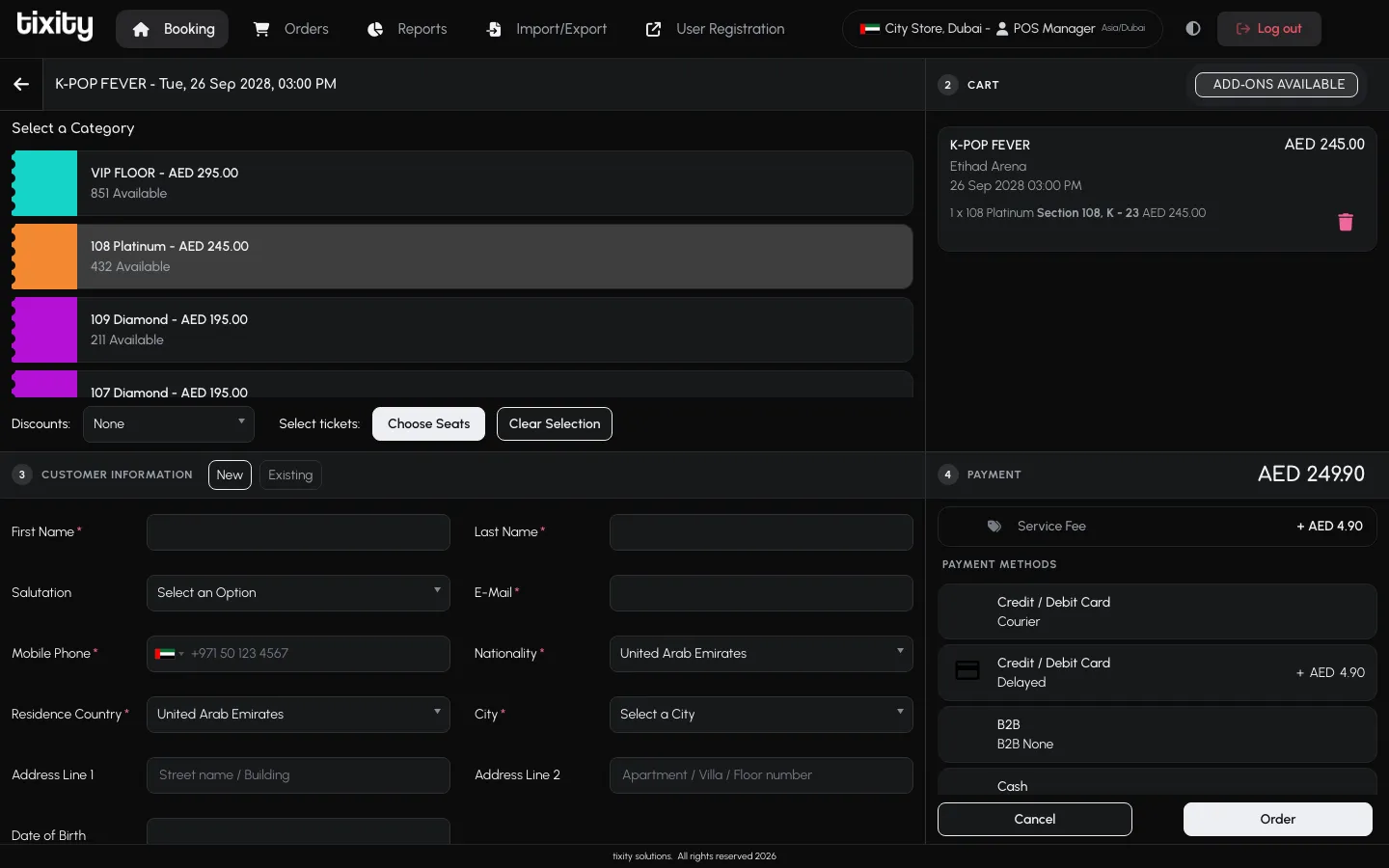
Opening the add-ons dialog
Click the pill. The add-ons dialog opens with everything on offer for the current event, grouped into categories.
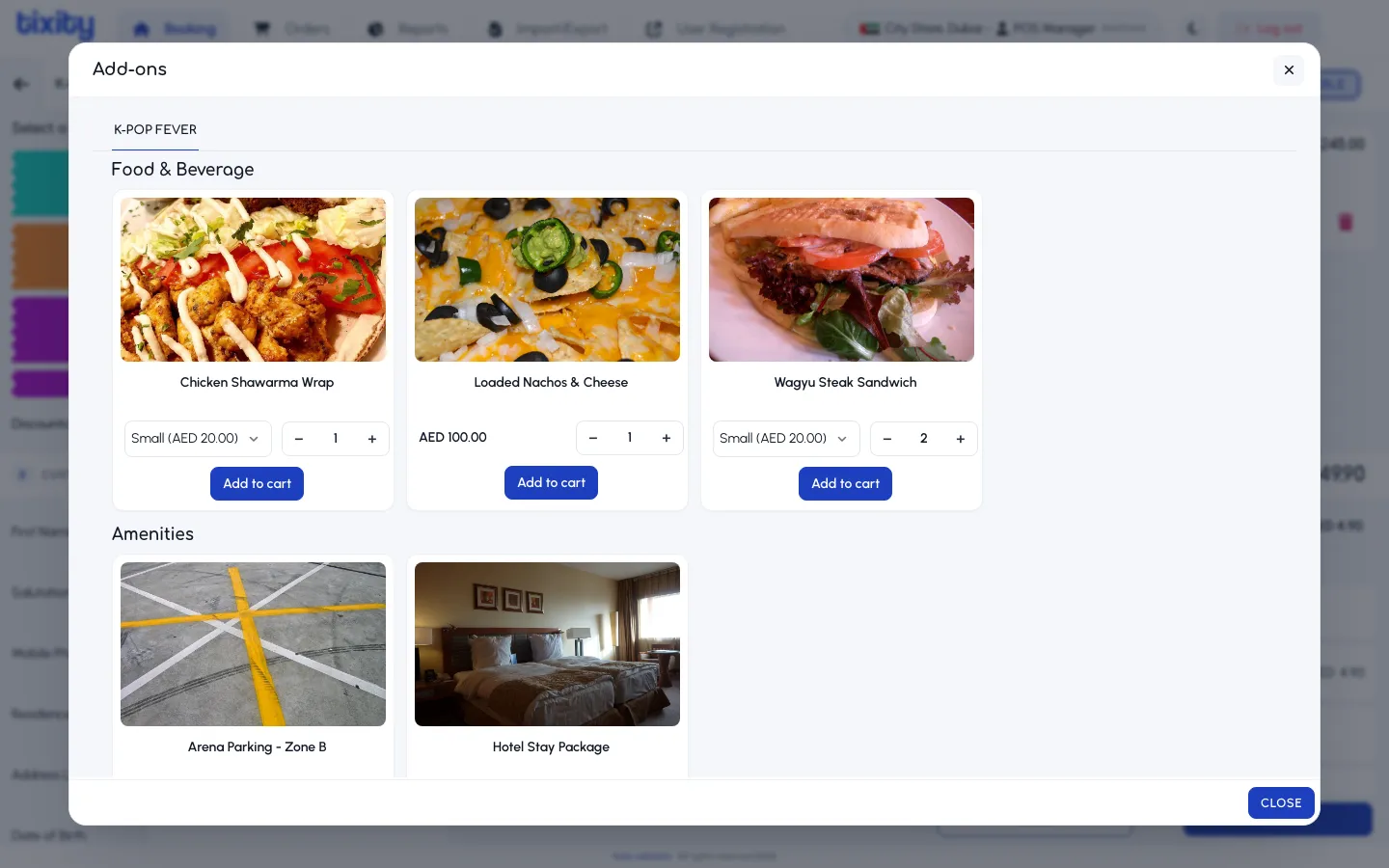
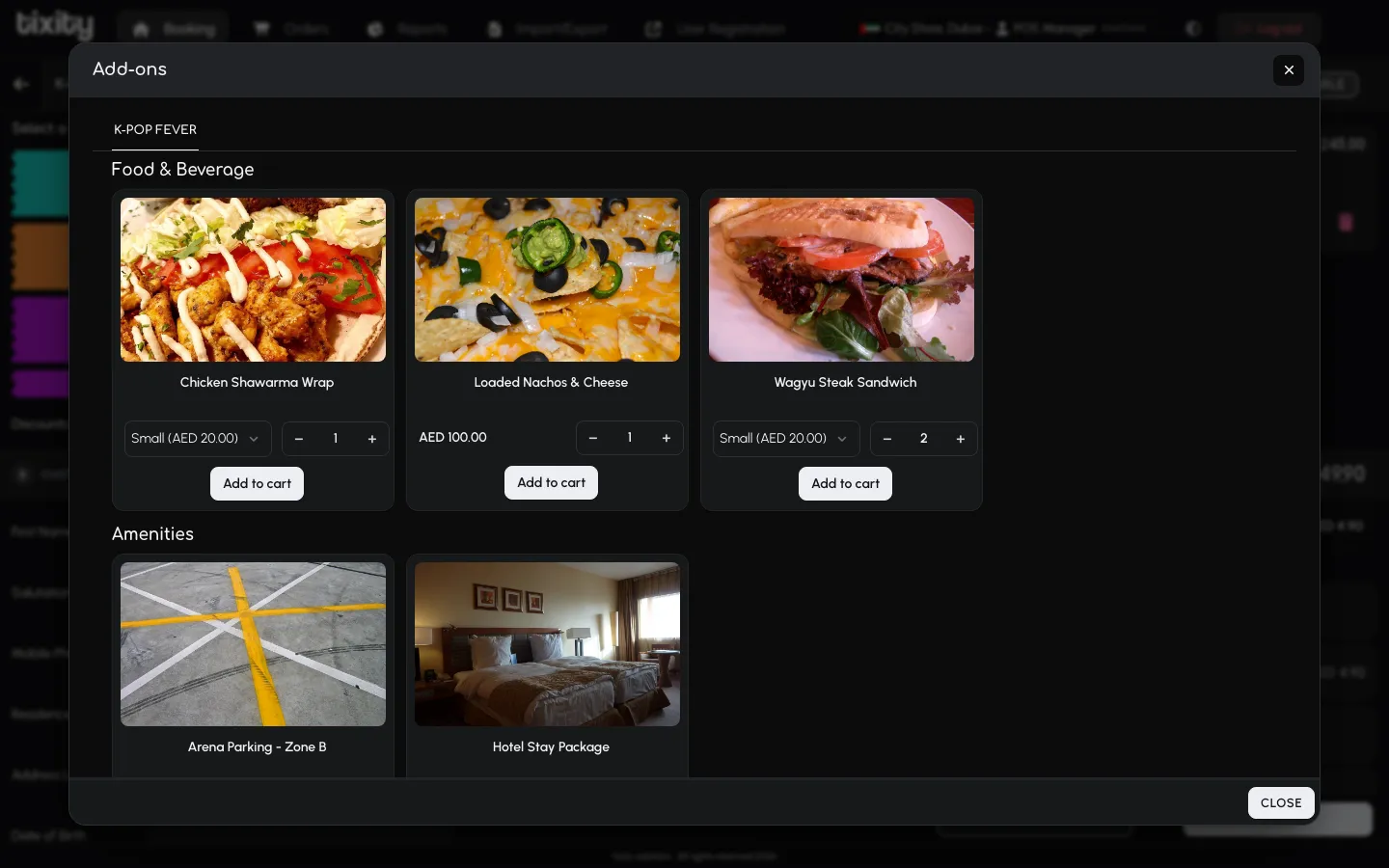
Each card shows the item’s image, name, size or variant, and price. Some items also have a description below the name.
Adding an item
- Use the
−and+buttons on each card to set the quantity. - Click Add to cart on the card to confirm.
The cart total updates in the background as you add items. You can close the dialog and reopen it later, quantities and selections are preserved.
Removing an add-on
Add-ons appear as their own line items in the cart. Use the delete icon next to a line to remove it, the same way you remove a ticket.
Tip: Add-ons are event-specific. If the pill doesn’t show up, this event isn’t configured for extras, that’s normal for many performances.