

Event selection
Every sale starts by picking an event from the grid at the top of the booking area.
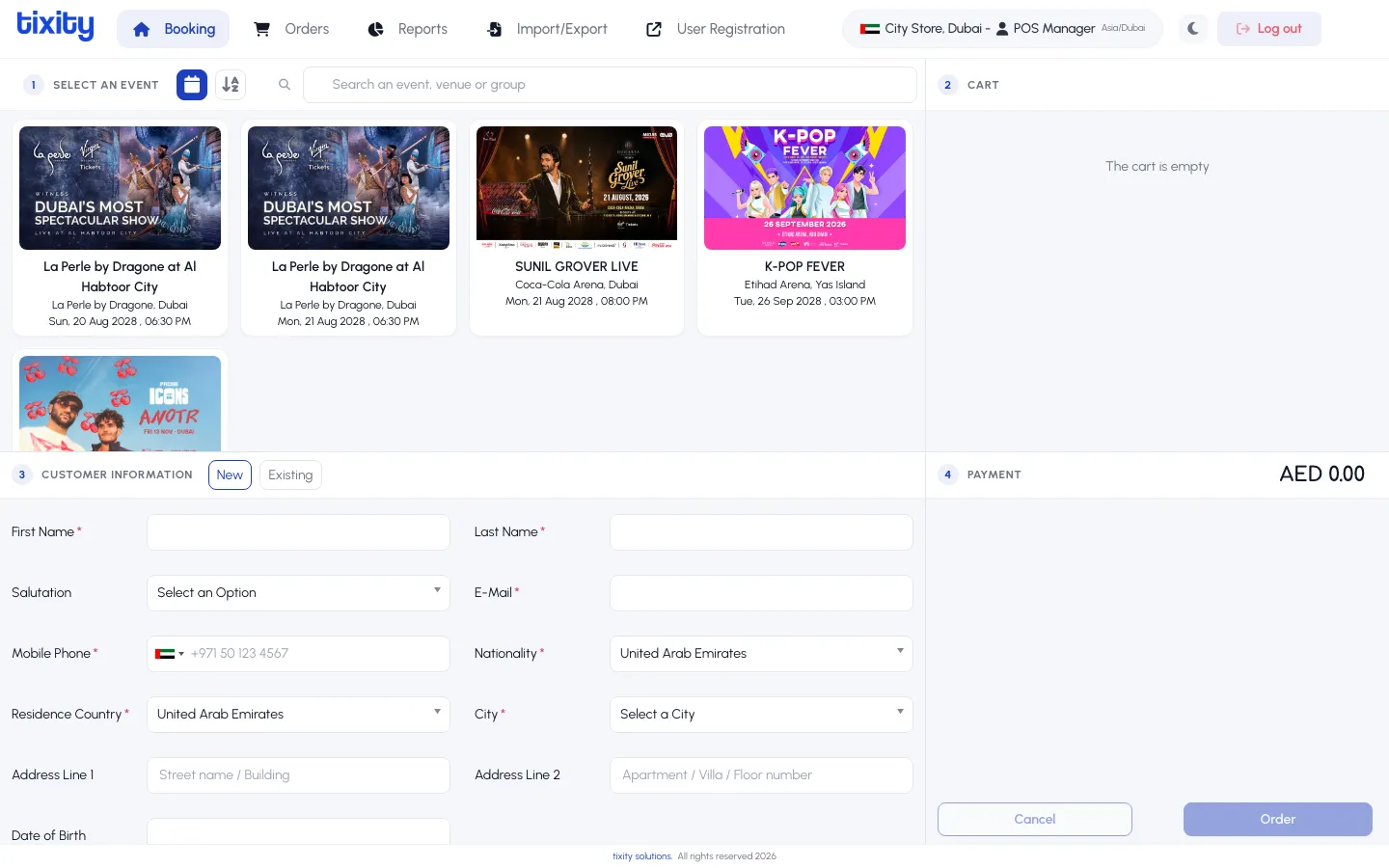
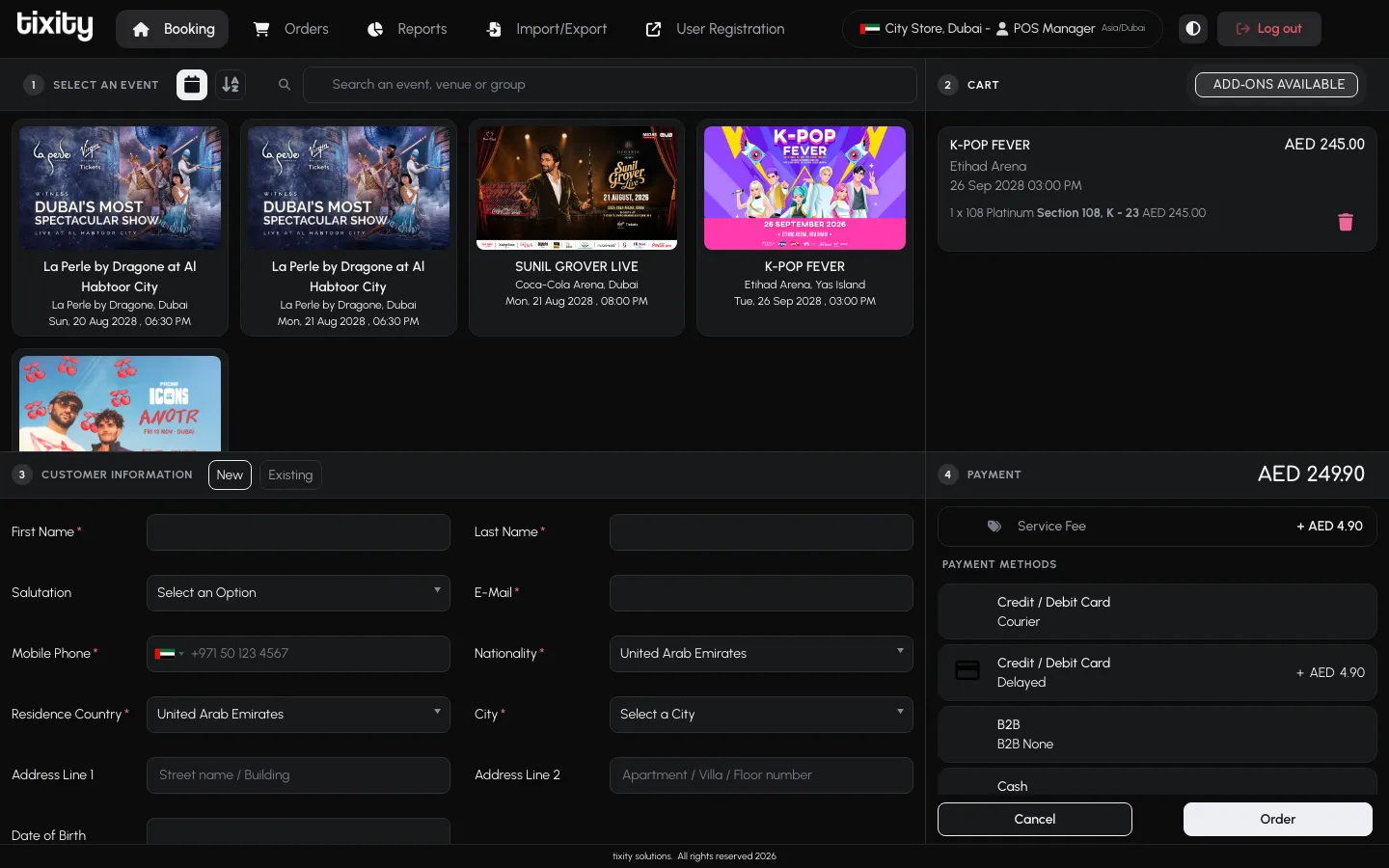
The event grid
Each tile is one event. The cover image, event title, venue, and next performance date are visible at a glance. Events with multiple performances still show as a single tile, and you’ll pick the date once you open it.
Use the search bar above the grid to filter by name if the venue runs a large catalogue.
Opening an event
Click any tile. The booking area redraws to show the chosen event’s category picker, and the header at the top of the panel updates with the event name and the specific performance date and time.
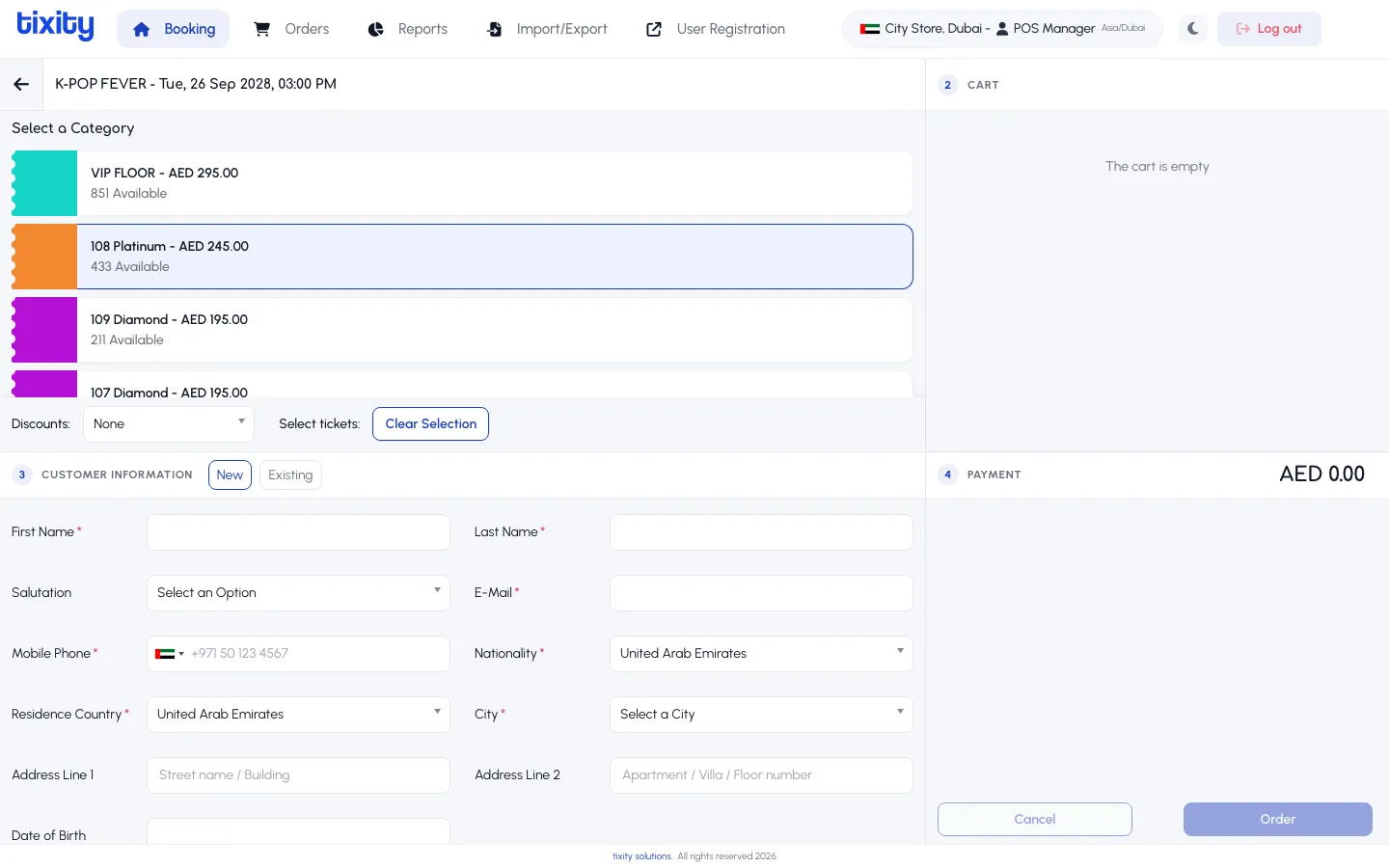
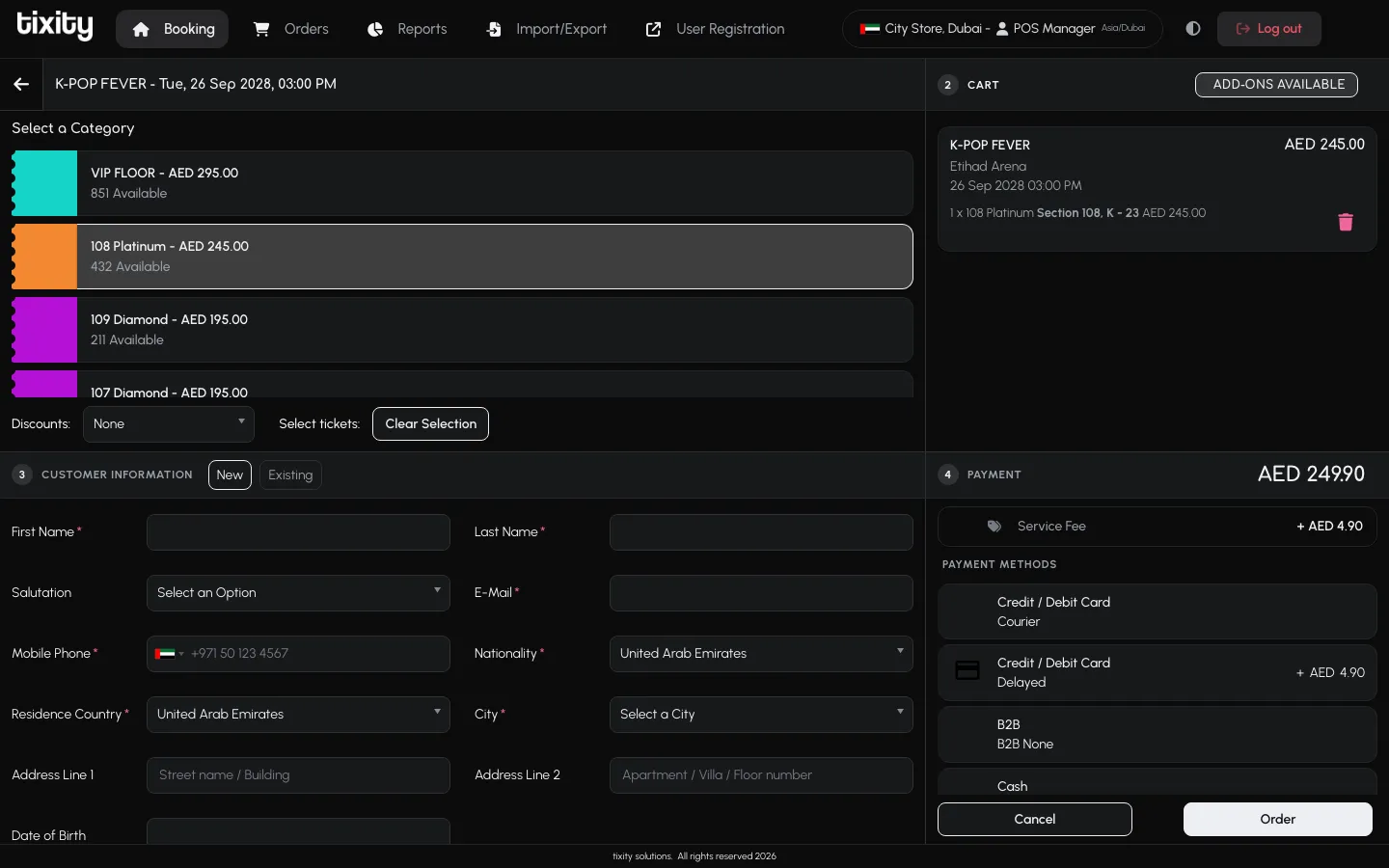
The back arrow at the top-left of the booking area returns you to the event grid without losing anything else on the screen.
Switching events mid-sale
If you’ve already selected an event and need to switch:
- Cart is empty: just tap the back arrow and pick another tile.
- Cart has items: the cart is tied to the current customer, not the event. You can add tickets for a different event by clicking back, choosing the new event, and going through category selection again. Both events will appear in the cart together at checkout.
Tip: If a customer is buying tickets for two shows in one visit, add each event to the cart before you take payment. You’ll capture the customer details and take a single payment for both.