

Home
The home page (labelled My Dashboard) is the account-wide view. It rolls up every event you have permission to see into a single Overview card, then lists your upcoming and past events underneath.
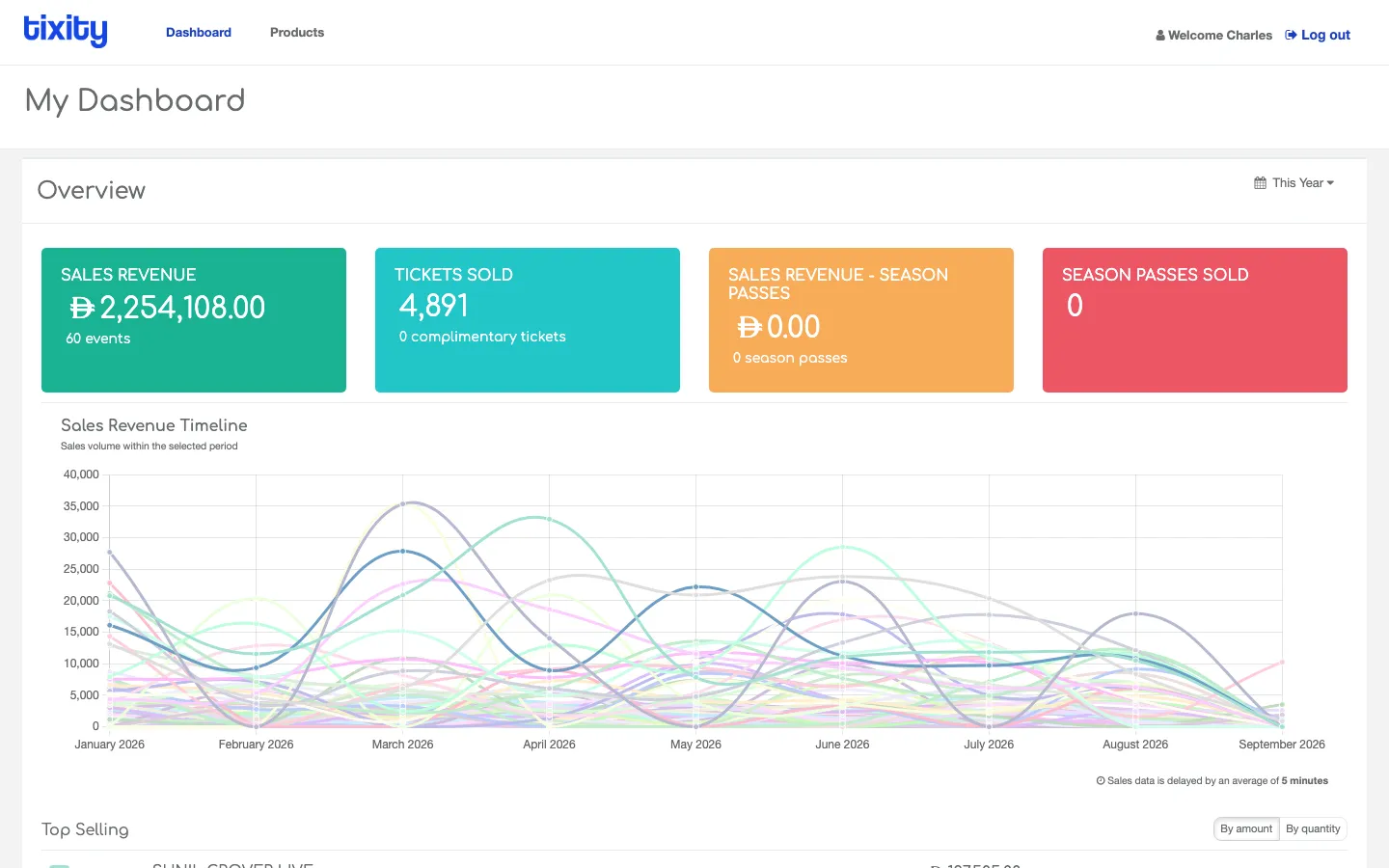
The four widgets
At the top of the Overview card sit up to four coloured widgets. The rightmost two only appear if season passes are enabled for your account.
| widget | shows |
|---|---|
| SALES REVENUE (green) | Total ticket revenue in the selected range, plus the number of events that produced it |
| TICKETS SOLD (teal) | Total tickets moved, and how many of those were complimentary |
| SALES REVENUE, SEASON PASSES (amber) | Season-pass revenue only, alongside a season-pass count |
| SEASON PASSES SOLD (coral) | Season passes issued in the range |
The date-range picker
The little calendar chip in the top-right of the Overview card is a preset picker. Click it to change what all four widgets are showing.
Presets: Today, Yesterday, Last 7 Days, Last 30 Days, This Month, Last Month, This Year, Last Year, Custom Range.
Pick Custom Range to open a two-calendar picker for arbitrary from/to dates. The Sales Revenue Timeline and the Top Selling list both re-run when you change the range.
Sales Revenue Timeline
Below the widgets, the Sales Revenue Timeline chart plots revenue per day (or per week / month, depending on how wide the range is). One coloured line per event, so top performers stand out visually.
Hover any point to see the exact amount for that day. The footer reminds you that the underlying data has an average five-minute delay.
Top Selling
Below the timeline, Top Selling ranks your events for the selected range. Use the toggle in the top-right of the card to switch the ranking:
- By amount — total revenue per event (default)
- By quantity — total tickets sold per event
Clicking any event in the list opens that event’s detail page.
Full page
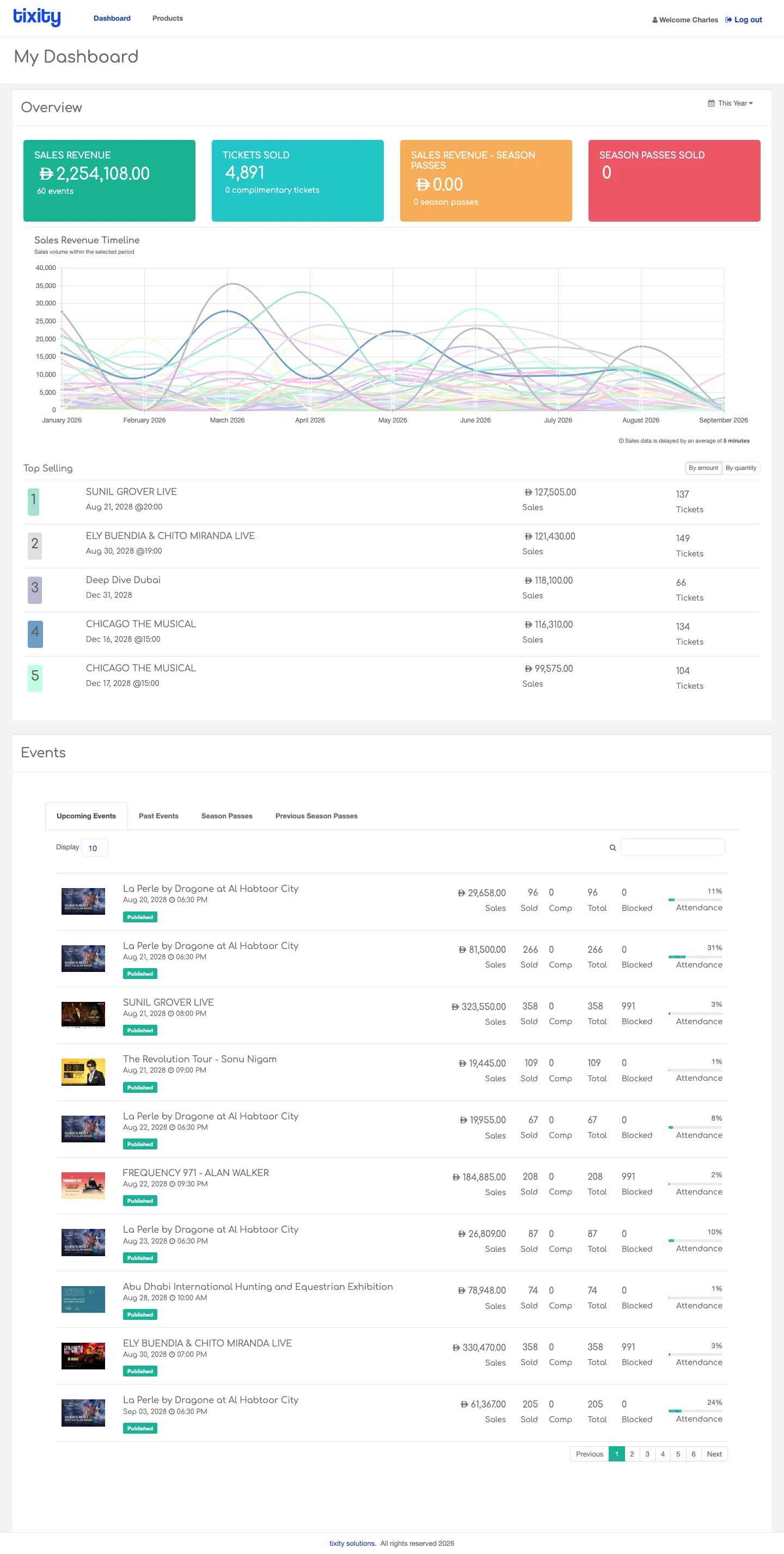
Scroll further down and the same events list from the Events page is embedded, filtered to what’s coming up next.
Tip: If you want the same view to open next time you sign in, use the browser’s own bookmark. The date-range picker doesn’t remember what you last picked, it always defaults to Today on load.