

Point of sale
POS mode lets you allocate sections and seats to specific sales channels. This controls which seats are available on which platform - online, box office, or kiosk.
Shortcut: press 5 to switch to POS mode.
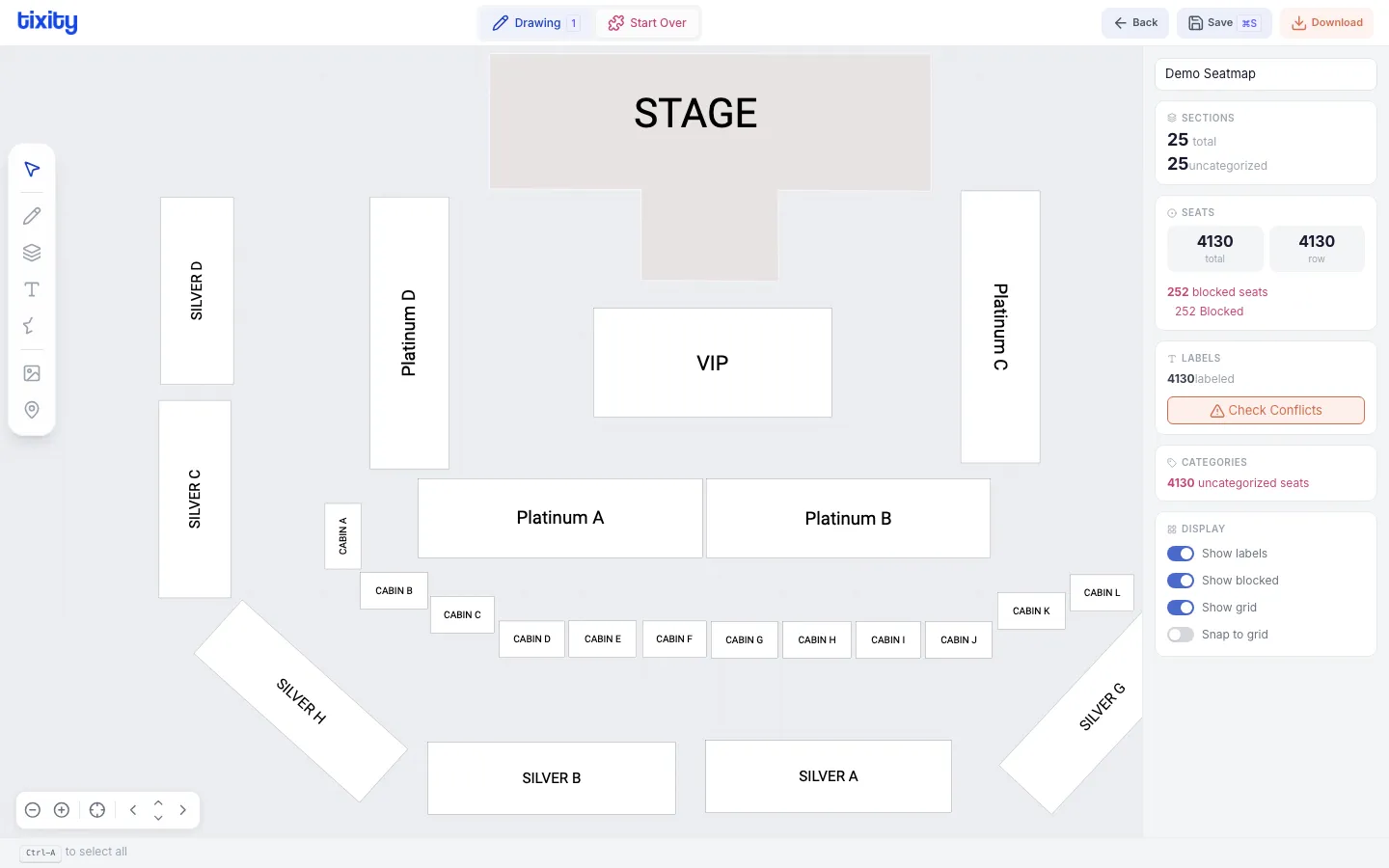
How POS allocation works
Each section or GA zone can be assigned to one or more point-of-sale channels. This determines where tickets for those seats can be purchased.
Assigning POS channels
- Switch to POS mode (shortcut:
5) - Select a section or seats
- The right panel shows available POS channels
- Assign the selected seats to a channel
Use cases
| scenario | configuration |
|---|---|
| Online-only presale | Assign front sections to the web channel only |
| Box office holds | Reserve specific sections for walk-up sales |
| VIP allocation | Assign premium sections to a dedicated VIP channel |
| Kiosk self-service | Assign sections to the kiosk channel |
GA zones and POS
For general admission zones, POS allocation also lets you set capacity per channel - how many of the zone’s total capacity is available on each sales platform.
Tips
Tip: POS allocation is often configured after categories are set. The typical workflow is: draw → label → categorize → allocate POS → block/hold → save.