

Rows
Rows are the most common seating element. A row block is a grid of seats arranged in straight or curved lines.
Creating rows
- Switch to Drawing mode (shortcut:
1) - Click the rows tool in the sidebar (dialpad icon)
- Click and drag on the canvas to draw a row block
- Release to place the block
The block will appear with a default number of rows and columns. You can adjust these in the context menu on the right.
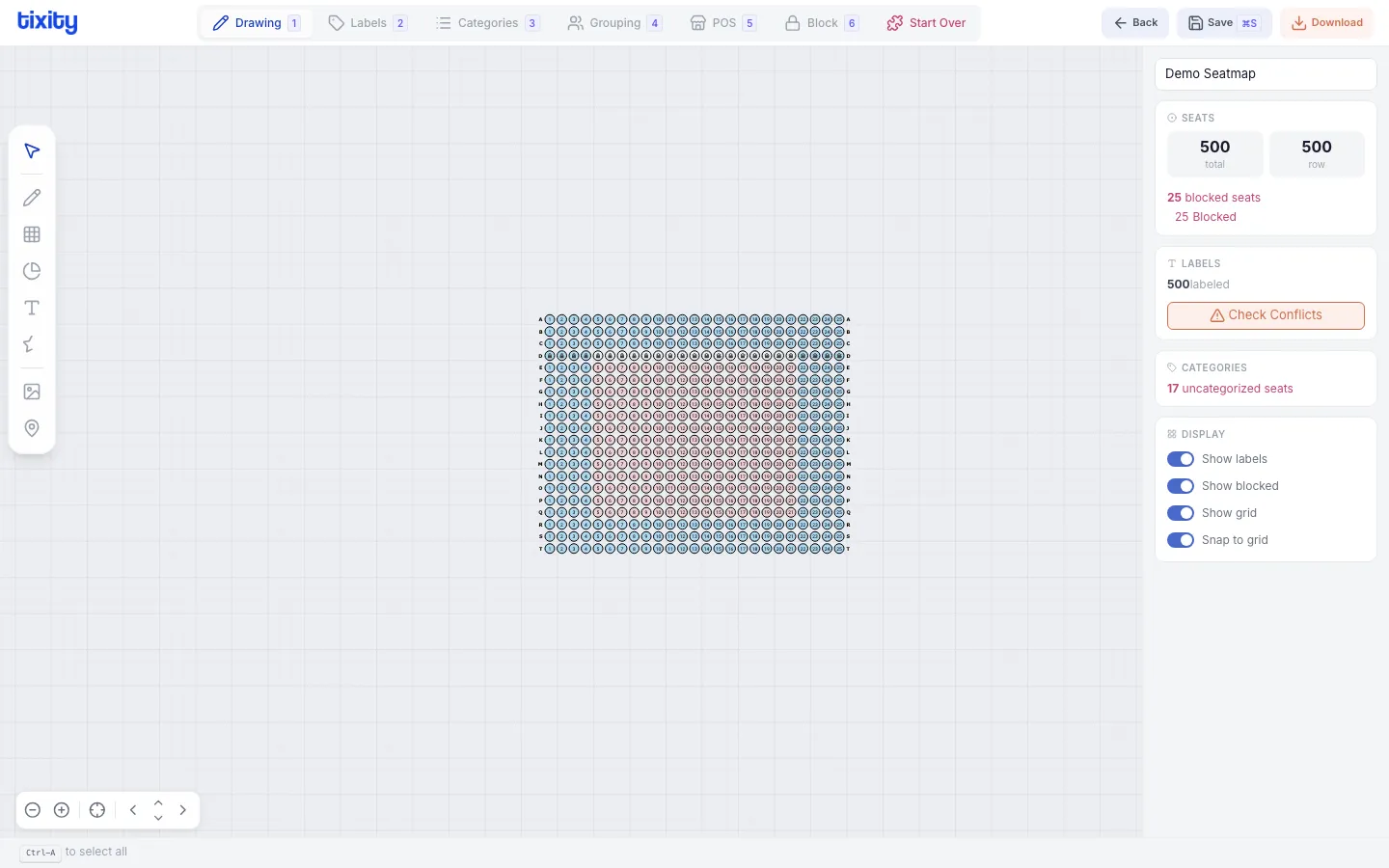
Row properties
After selecting a row block, the context menu shows:
| property | description |
|---|---|
| rows | Number of rows in the block |
| columns | Number of seats per row |
| spacing | Distance between seats |
| row spacing | Distance between rows |
| curve | Curve the rows for arena-style seating |
| skew | Apply perspective skew |
| offset | Stagger alternate rows |
Tips
Tip: Use curve to create arc-shaped rows that follow the shape of a stage or arena. This is how venues like the Coca Cola Arena achieve their distinctive layout.
Tip: After placing a row block, you can select individual seats and disable or remove them to create custom shapes like L-sections or seats around pillars.
Selecting seats within rows
- click a single seat to select it
- click and drag to select a rectangular group
- shift+click to add or remove seats from your selection
Selected seats can be labeled, categorized, grouped, or blocked using the other modes.