

Drawing mode
Drawing mode is where you build your seatmap. Use the sidebar tools on the left to create rows, tables, sections, general admission zones, shapes, and text.
Shortcut: press 1 to switch to drawing mode.
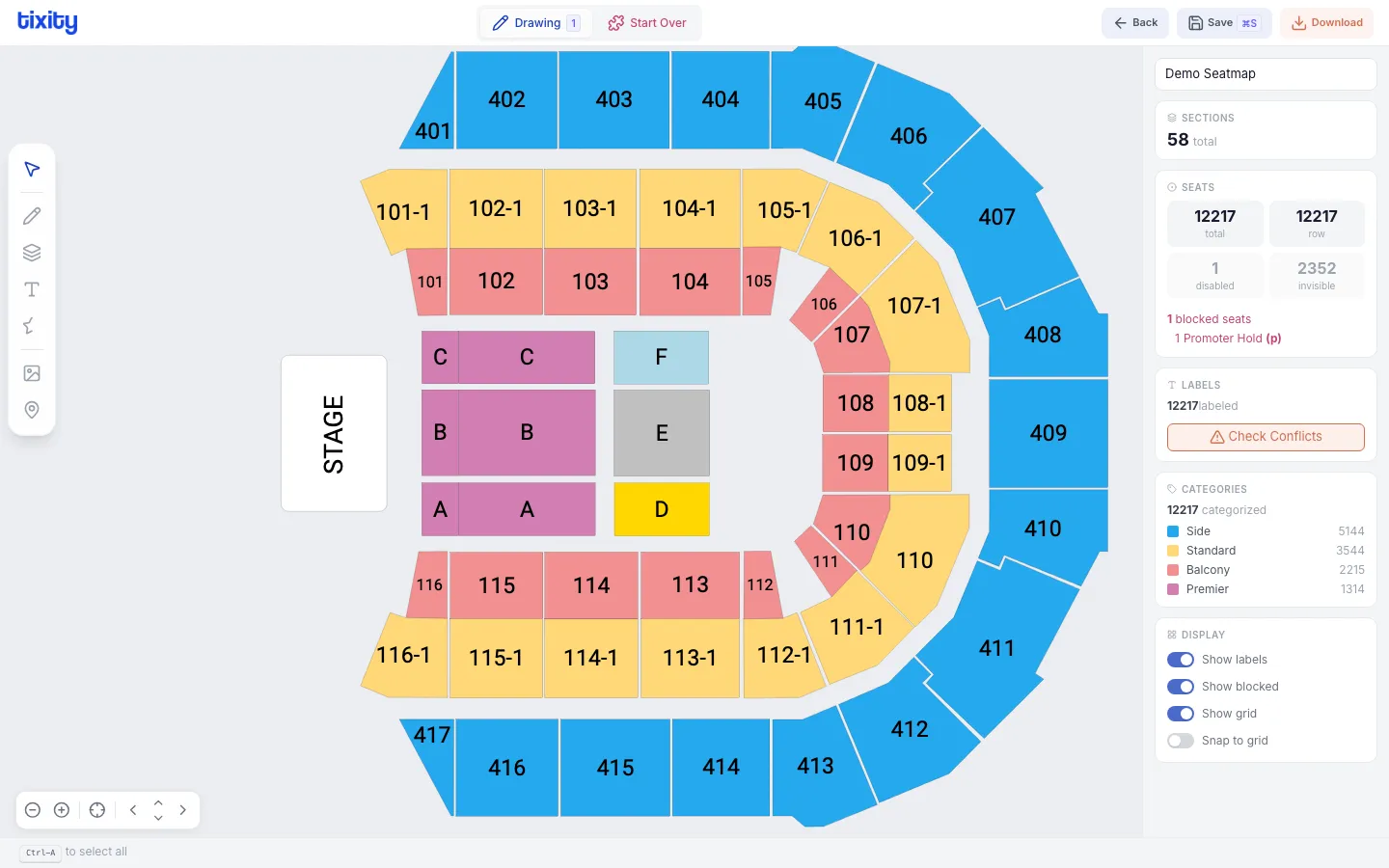
The drawing toolbar
The sidebar on the left contains all drawing tools, organized into groups:
| tool | description |
|---|---|
| selection | Select and move elements on the canvas |
| free selection | Lasso-select multiple elements |
| rows | Draw blocks of seated rows |
| tables | Draw rounded or rectangular tables |
| sections | Draw venue sections (rounded, rectangular, polygonal, or path) |
| general admission | Draw GA zones (rounded, rectangular, or polygonal) |
| text | Add text labels to the canvas |
| shapes | Draw decorative shapes (lines, circles, rectangles, polygons) |
| icons | Place predefined icons (food, bar, exit, bathrooms, stage, accessible) |
| background | Upload and manage background images |
Selecting elements
Click any element on the canvas to select it. The right panel will show properties and options for the selected element.
To select multiple elements, either:
- click and drag to draw a selection rectangle
- use free selection to lasso elements
- hold shift and click to add to your selection
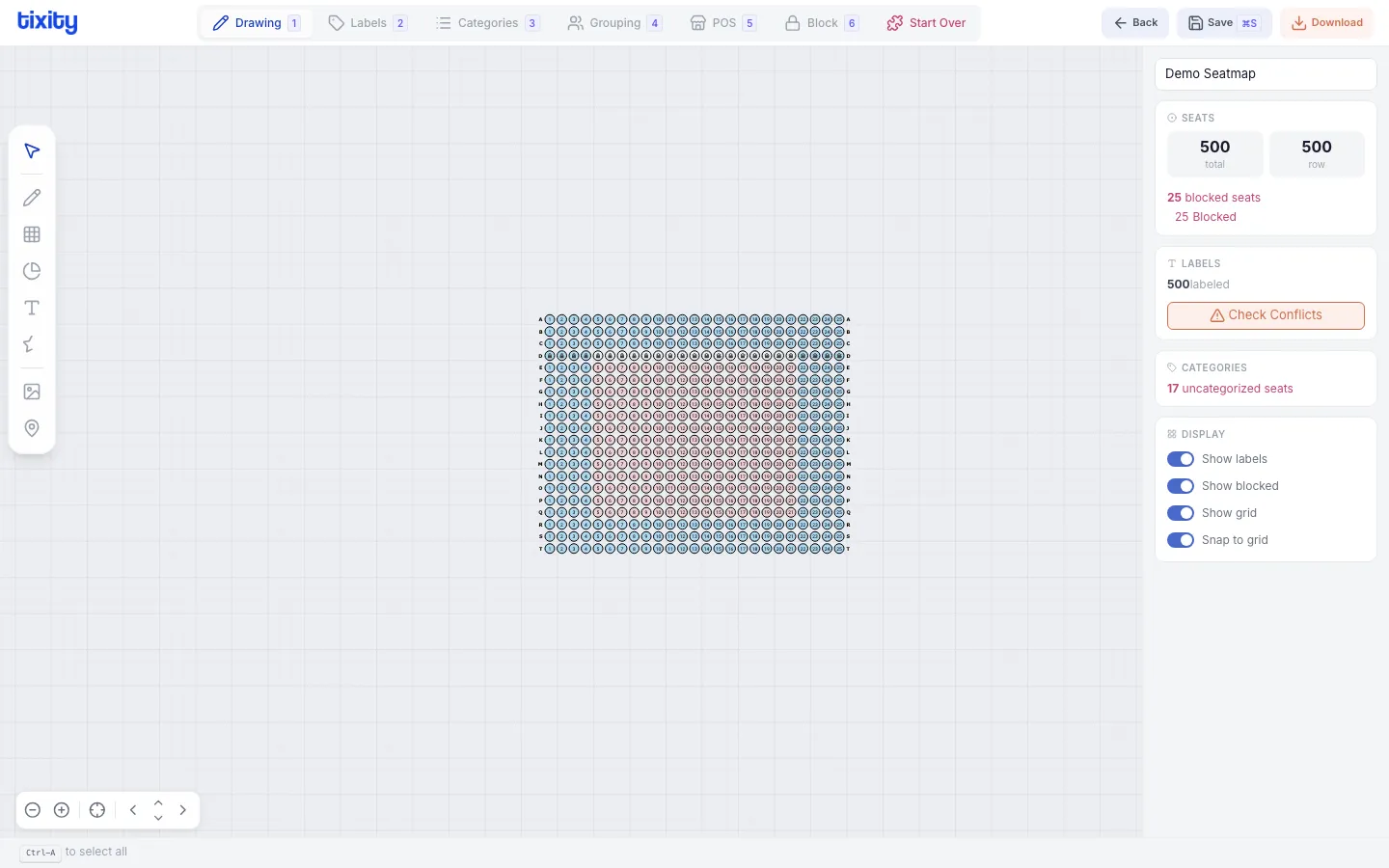
Editing selected elements
Once selected, you can:
- drag to move
- resize using the handles
- rotate using the rotation handle
- delete with the
Deletekey - duplicate with
⌘D
The right-side context menu shows additional options depending on what’s selected (row count, column count, spacing, curve, skew, etc.).
Next steps
- rows - creating seat rows
- tables - rounded and rectangular tables
- sections - venue sections
- general admission - standing zones
- shapes and icons - decorative elements
- background image - floor plan overlays
- editing elements - resize, rotate, flip, duplicate