

Categories
Categories mode lets you assign pricing tiers to seats. Each category has a name, color, and price. Seats are color-coded on the canvas for a clear visual overview.
Shortcut: press 4 to switch to categories mode.
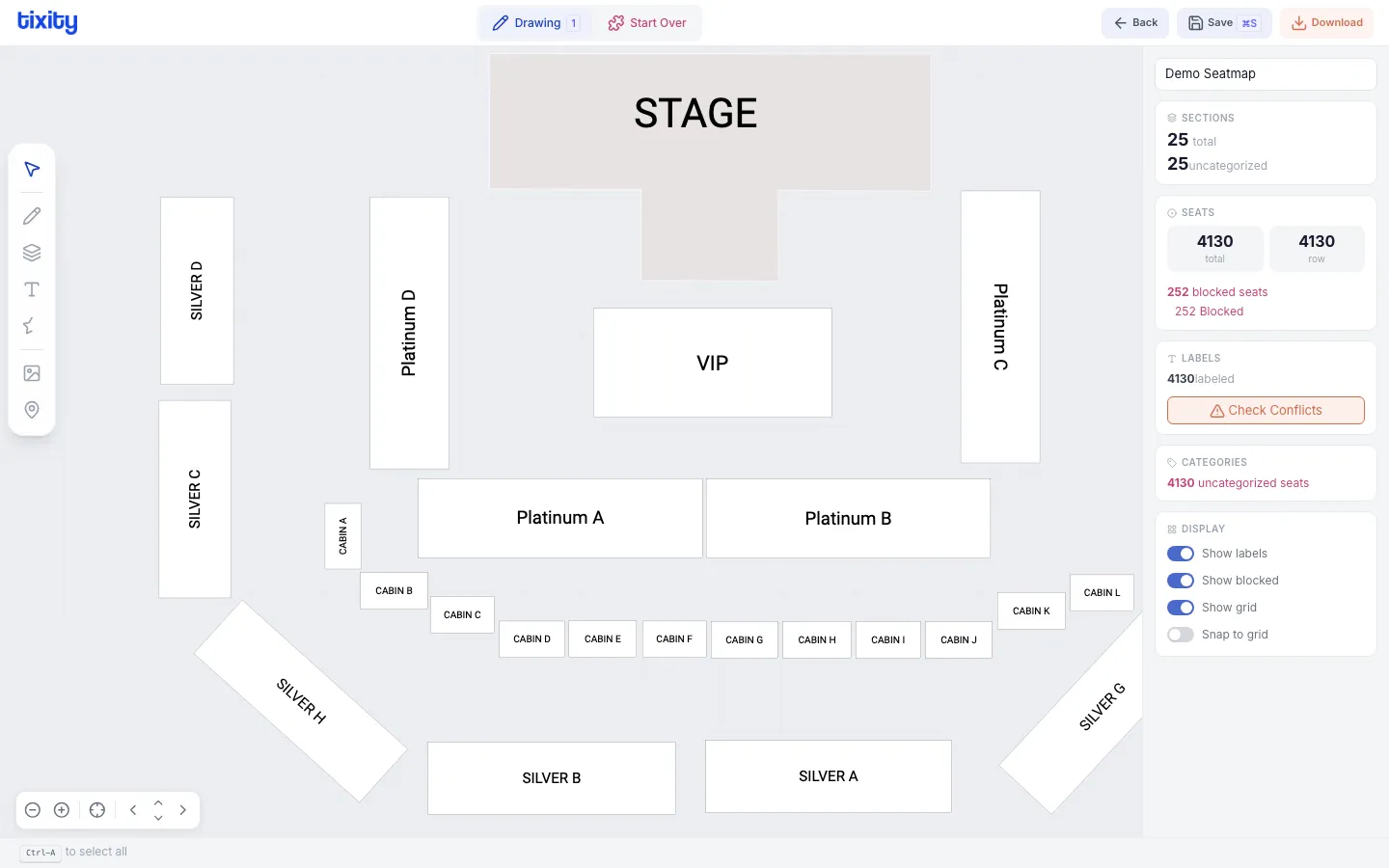
How categories work
Categories are defined in your event configuration and passed to the designer. In the designer, you assign seats to existing categories. The right panel shows the list of available categories.
Assigning categories
- Switch to Categories mode (shortcut:
4) - Select the seats you want to categorize (click, drag-select, or shift-click)
- The right panel shows the available categories
- Click a category to assign it to the selected seats
The seats will immediately change color to match the category.
Category types
| type | description |
|---|---|
| seated | For numbered, reserved seats |
| general admission | For GA zones with capacity-based pricing |
Viewing categories
The right panel in categories mode shows:
- List of all categories with their colors and prices
- Count of seats assigned to each category
- Number of uncategorized seats that still need assignment
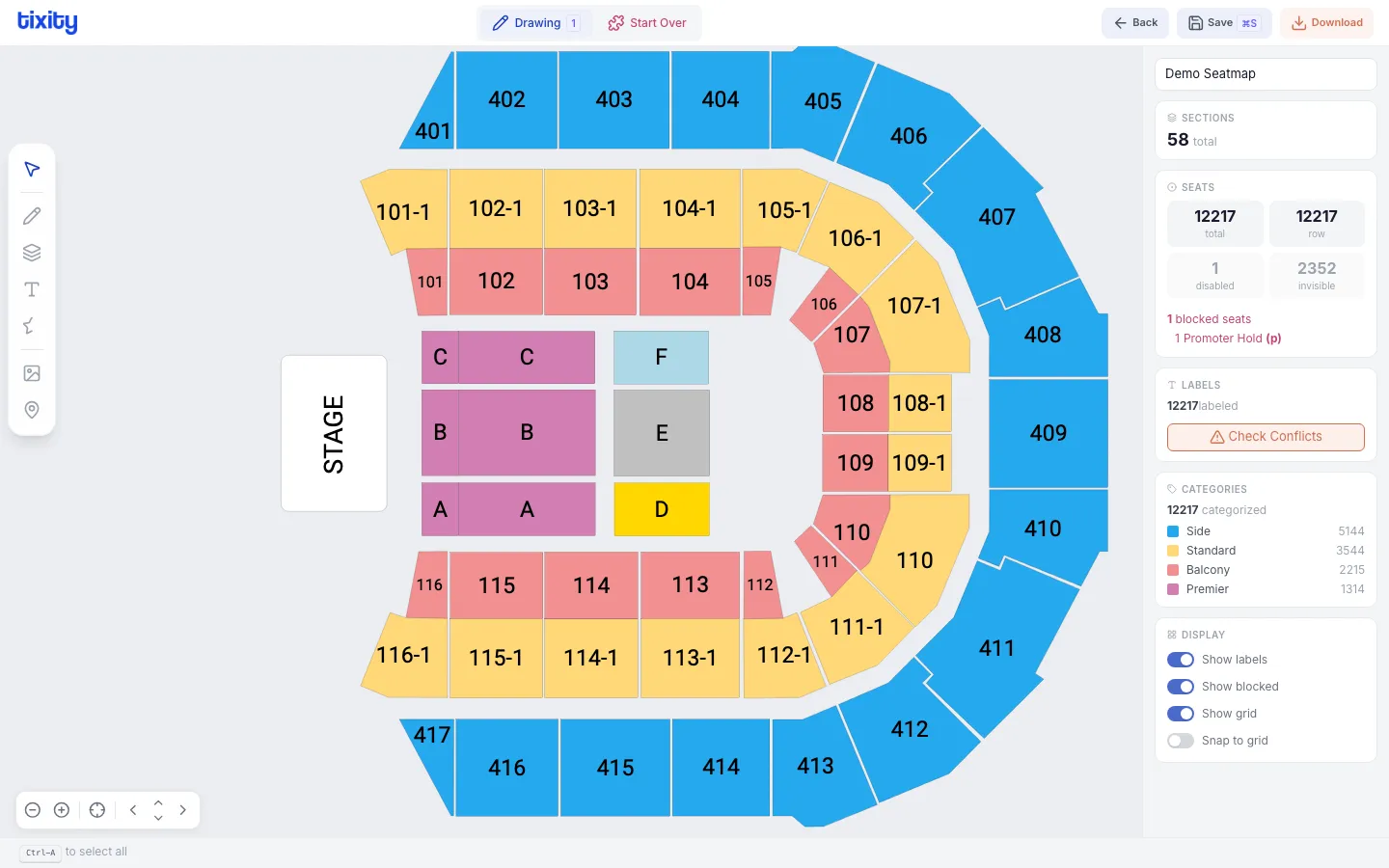
The Coca Cola Arena example above shows seats color-coded by category: side (blue), standard (yellow), balcony (pink), and premier (red).
Clearing categories
Select seats and click clear to remove their category assignment. This returns them to the uncategorized state.
Tips
Tip: Assign categories section by section, working outward from the stage. This ensures a logical pricing gradient from premium (close) to standard (far).
Warning: Every sellable seat must have a category before the seatmap can be published. Check the uncategorized seats count in the stats panel.