

Blocking seats
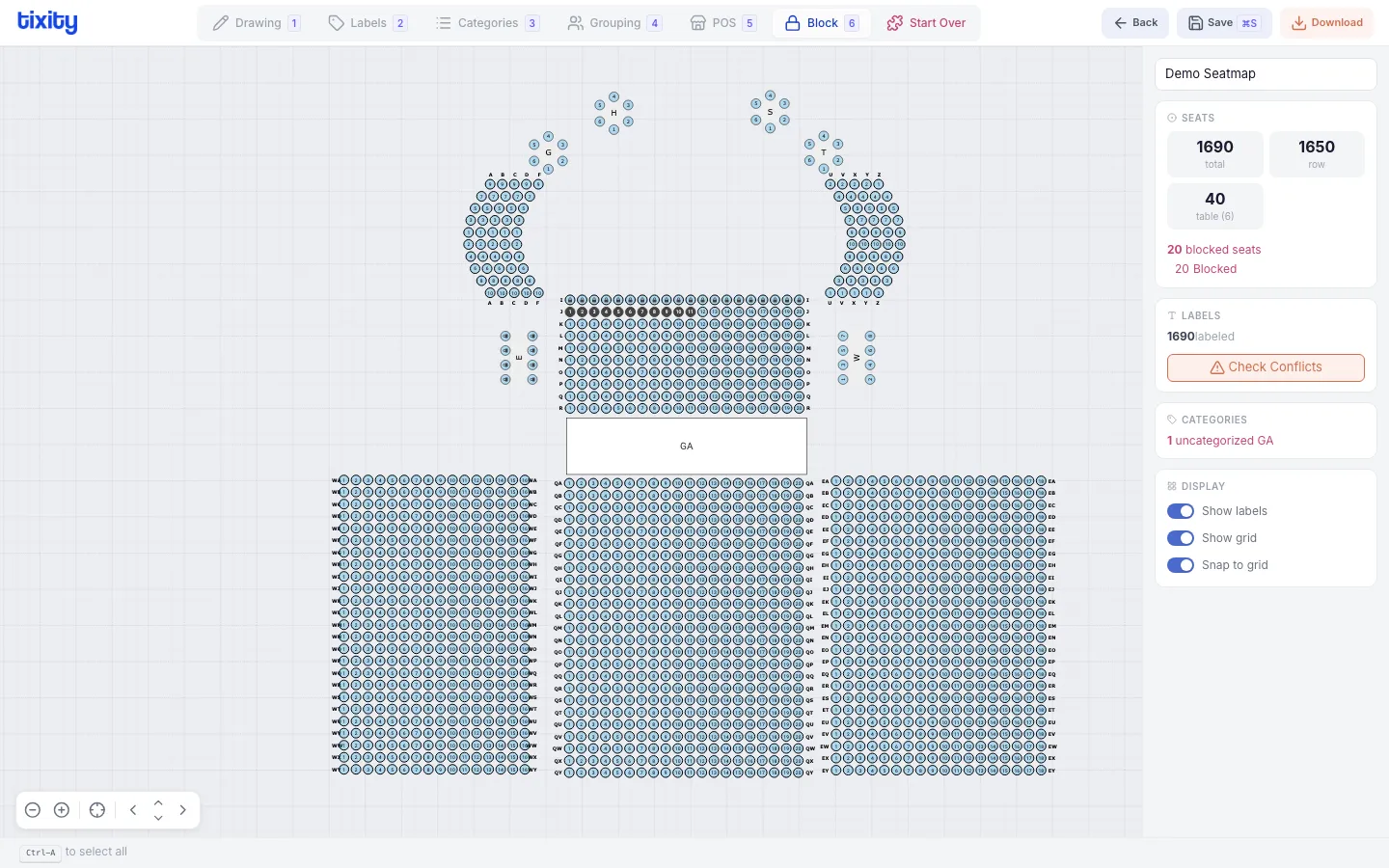
Block mode lets you make seats unavailable for sale. You can block seats outright, apply named holds, and mark obstructed views.
Shortcut: press 6 to switch to block mode.
Blocking vs disabling
| action | mode | effect |
|---|---|---|
| block | Block mode | Seat exists but can’t be sold |
| disable | Grouping mode | Seat is removed from the layout entirely |
| hold | Block mode | Seat is reserved for a specific purpose |
Blocking seats
- Switch to Block mode (shortcut:
6) - Select the seats you want to block
- Click block in the context menu
Blocked seats appear with a crossed-out pattern on the canvas.
Holds
Holds are named blocks with a reason. The designer supports several hold types:
| hold type | use case |
|---|---|
| promoter hold | Seats reserved by the event promoter |
| venue hold | Seats reserved by the venue |
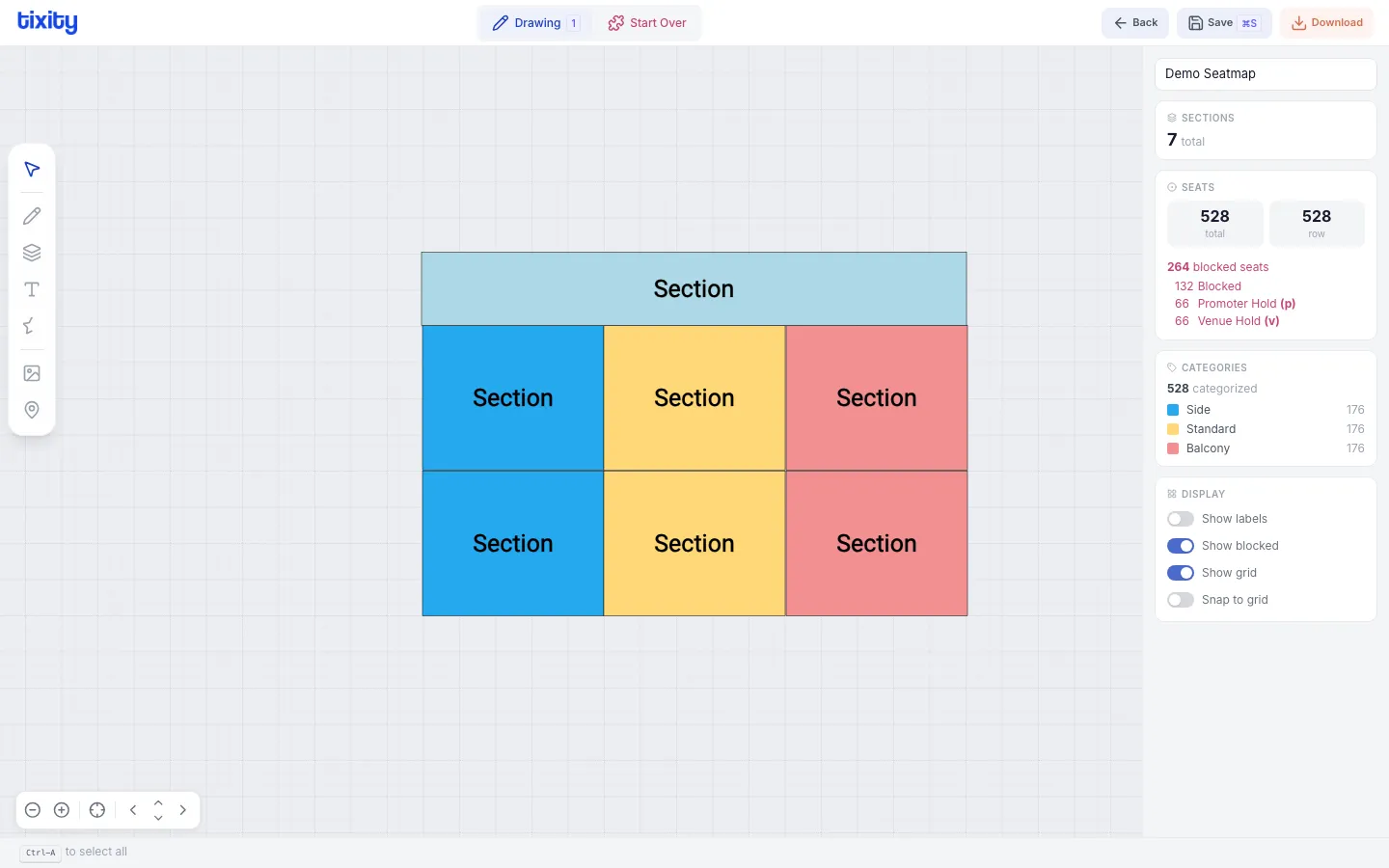
Select seats, then choose a hold type from the context menu to apply.
Obstructed view
Mark seats with a restricted view flag to warn buyers that their sightline may be partially blocked (by pillars, equipment, sound boards, etc.).
Unblocking
Select blocked seats and click unblock to make them available again.
Tips
Tip: The stats panel (right side) shows a live count of blocked seats and held seats. Always check these numbers before publishing.
Warning: Blocked seats reduce your sellable capacity. If your event reports show lower-than-expected capacity, check the block count in the stats panel.