

Scanning
The scanner is the core of the check-in app. It validates tickets in real time and gives your team instant feedback.
Scan modes
The app offers three scanning modes:
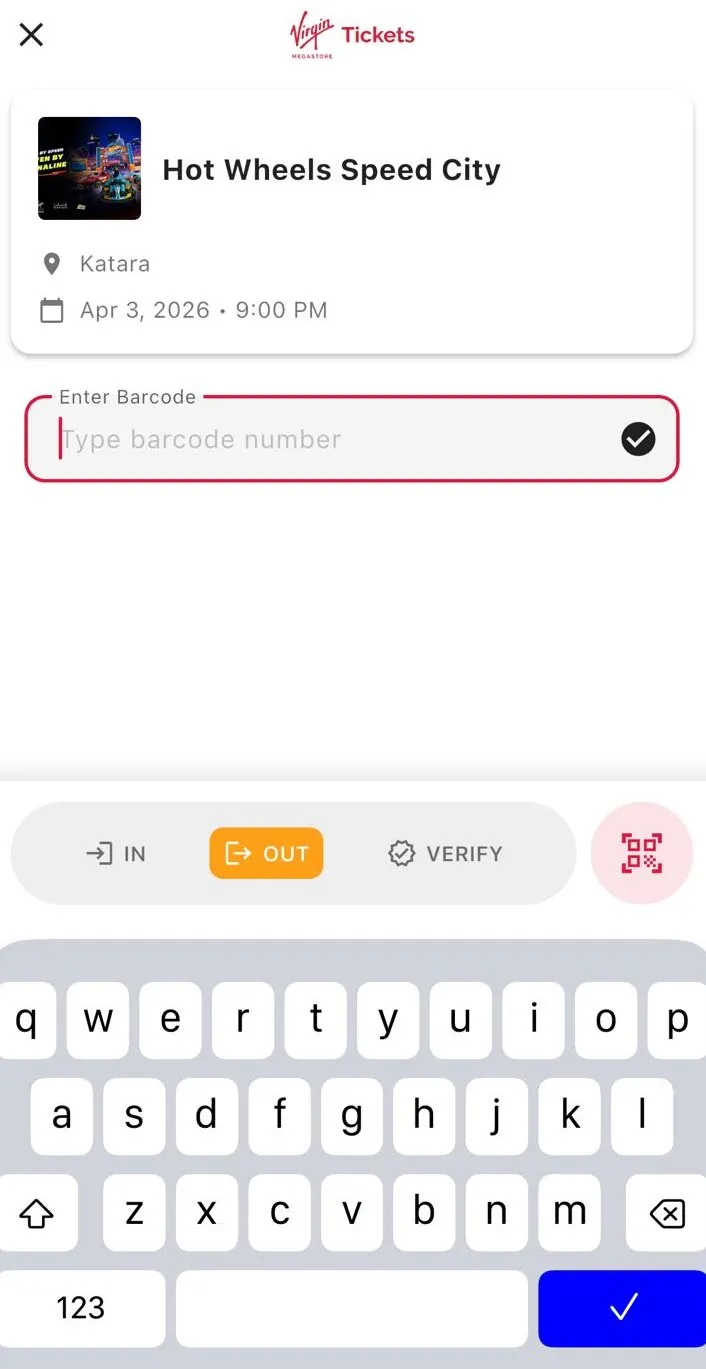
| mode | purpose |
|---|---|
| Scan In / Scan Out | Scan tickets when guests enter or exit the venue. Tracks guest flow and manages capacity. |
| Manual Entry | Type the barcode number to validate a ticket. Useful for damaged barcodes or accessibility needs. |
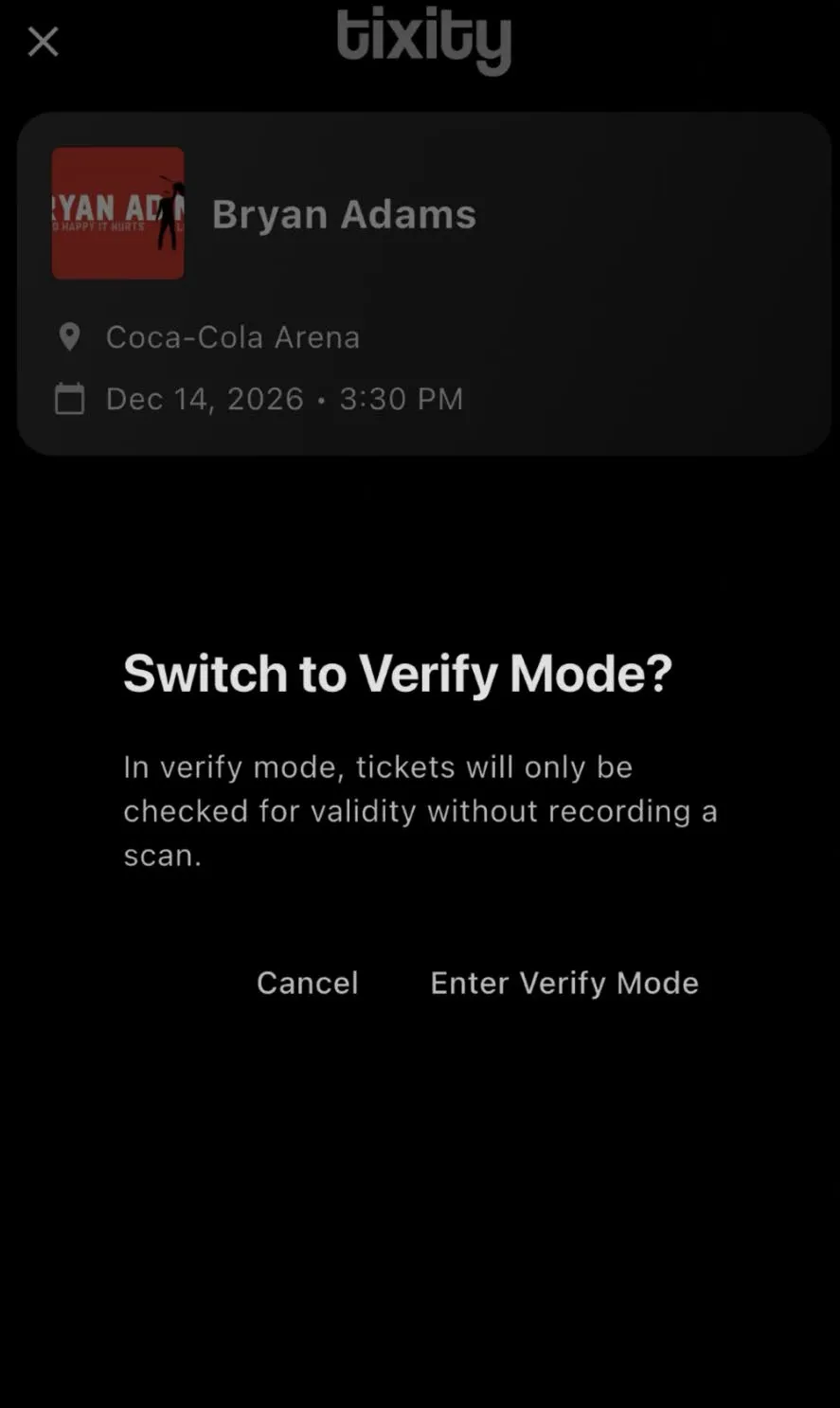
| Verify Mode | Check if a ticket is valid without marking it as scanned. Use this for quick lookups without affecting entry counts. |
How to scan
- Point the camera at the ticket barcode or QR code
- The app validates the ticket instantly against the server
- You’ll see and hear the result immediately
On Zebra devices, press the hardware scan button instead of using the camera.
Scan results
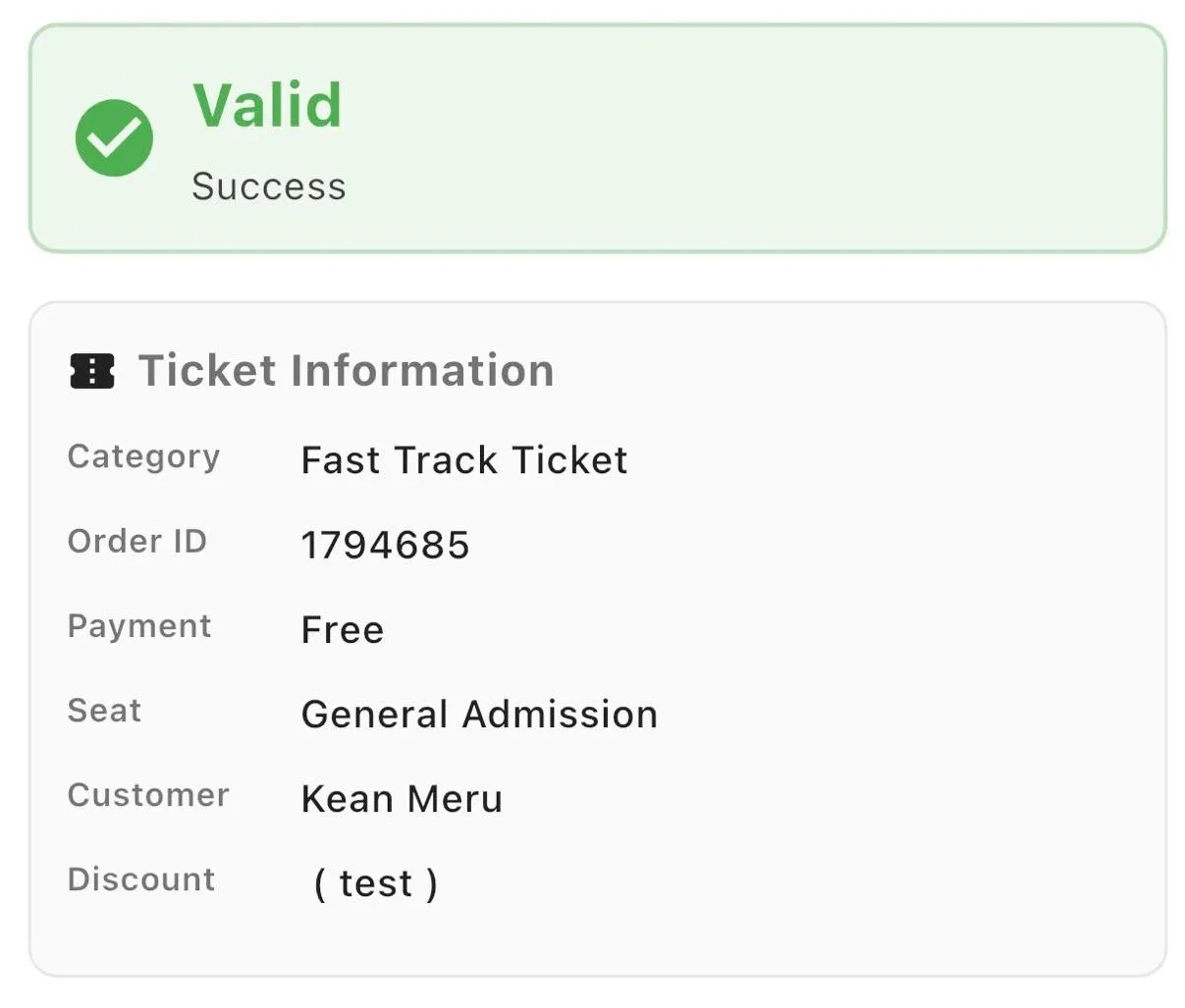
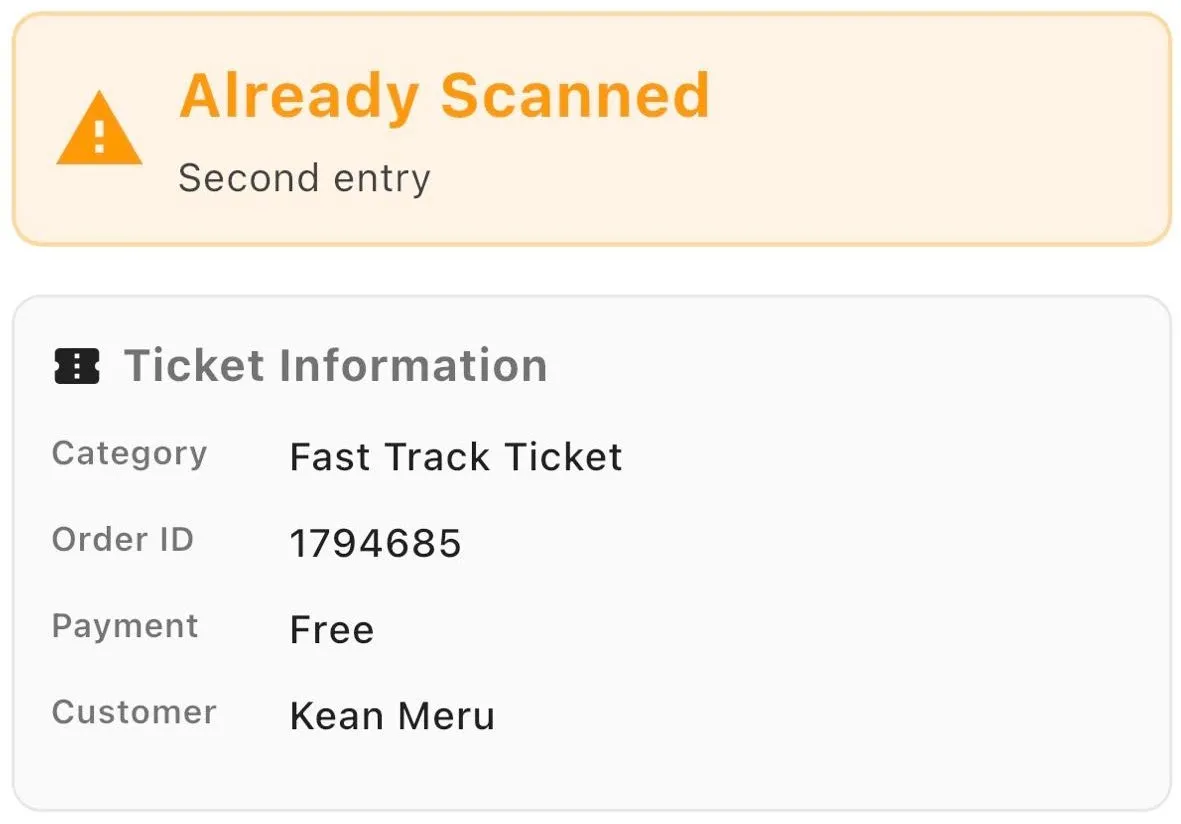
After each scan, the app shows a result with a color and sound:
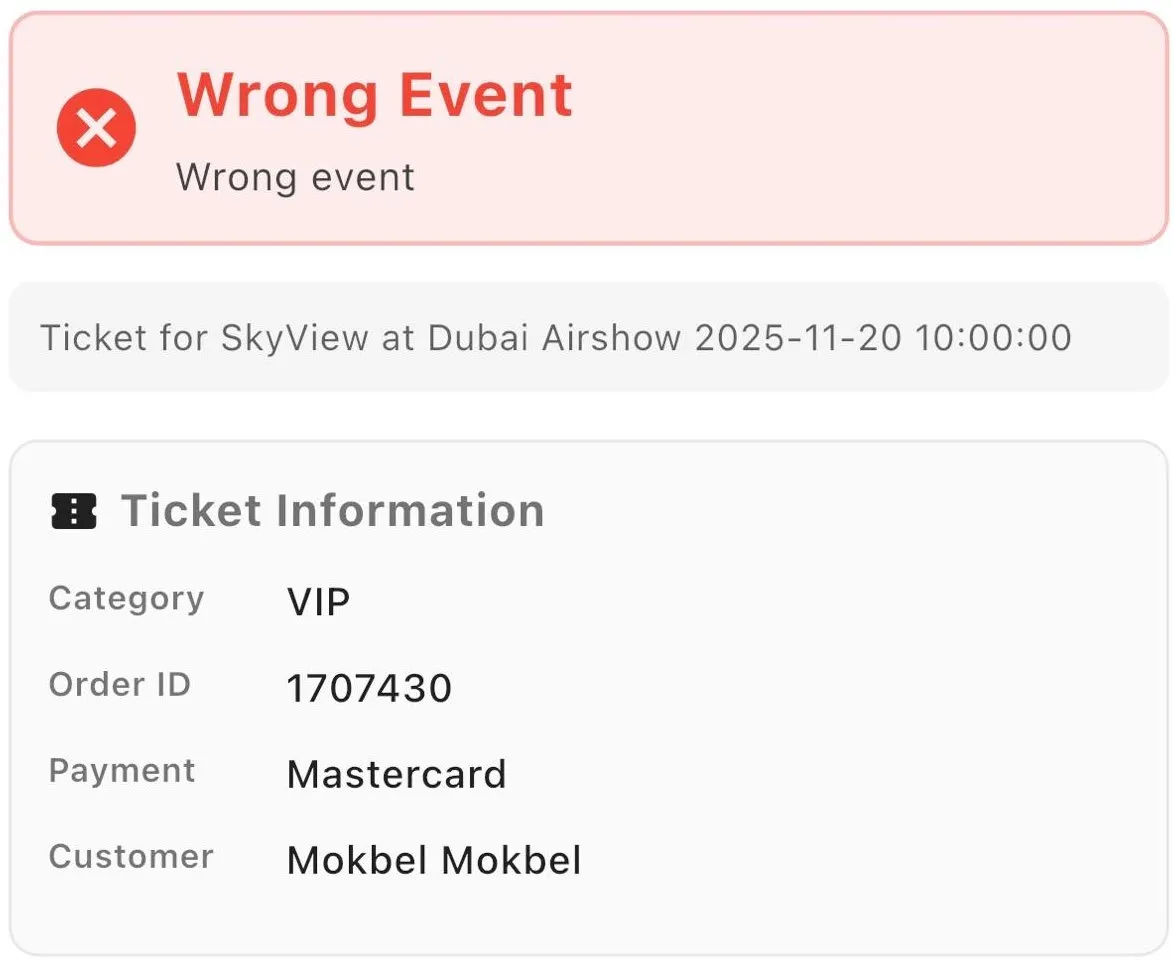
| Result | Color | Meaning | What to do |
|---|---|---|---|
| Valid | Green | Ticket is valid, guest is checked in | Welcome them in |
| Already Scanned | Orange | This ticket was already used | Check with the guest, possible duplicate ticket |
| Wrong Event | Red | Ticket is for a different event | Politely direct them to the correct event |
| Wrong Category | Red | Ticket category doesn’t match your filter | Check if they’re at the right entrance |
| Wrong Entrance | Red | Ticket is for a different gate | Direct them to the correct entrance |
| Expired | Red | Ticket has expired | Inform the guest, refer to box office |
| Not Found | Red | Barcode not in the system, cancelled, refunded, or fake | Do not admit entry, inform the guest calmly |
| Checkout Success | Blue | Guest has been checked out | Confirmed exit |
| Re-entry Success | Green | Guest re-entering after checkout | Welcome them back |
Warning: If a ticket shows as not found, it may have been cancelled, refunded, or could be fraudulent. Do not admit entry. Calmly inform the guest and escalate to your supervisor if needed.
Ticket types
The app scans all standard tixity ticket formats:
| format | description |
|---|---|
| e-ticket | PDF or mobile ticket with barcode |
| google / apple wallet | Digital wallet pass with barcode |
| physical ticket | Printed ticket with barcode |
All formats display a scannable barcode - point the camera at it and the app handles the rest.
Tips
Tip: Scan speed matters at the door. Keep the camera steady and at a consistent distance (15-30cm) from the barcode. The app processes scans in under a second.
Tip: Use Verify Mode when a guest asks about their ticket status without needing to enter. This checks validity without consuming the ticket.
Tip: For high-volume events, Zebra devices with hardware scanners are significantly faster than camera scanning. They also work better in direct sunlight and low-light conditions.